

Roles
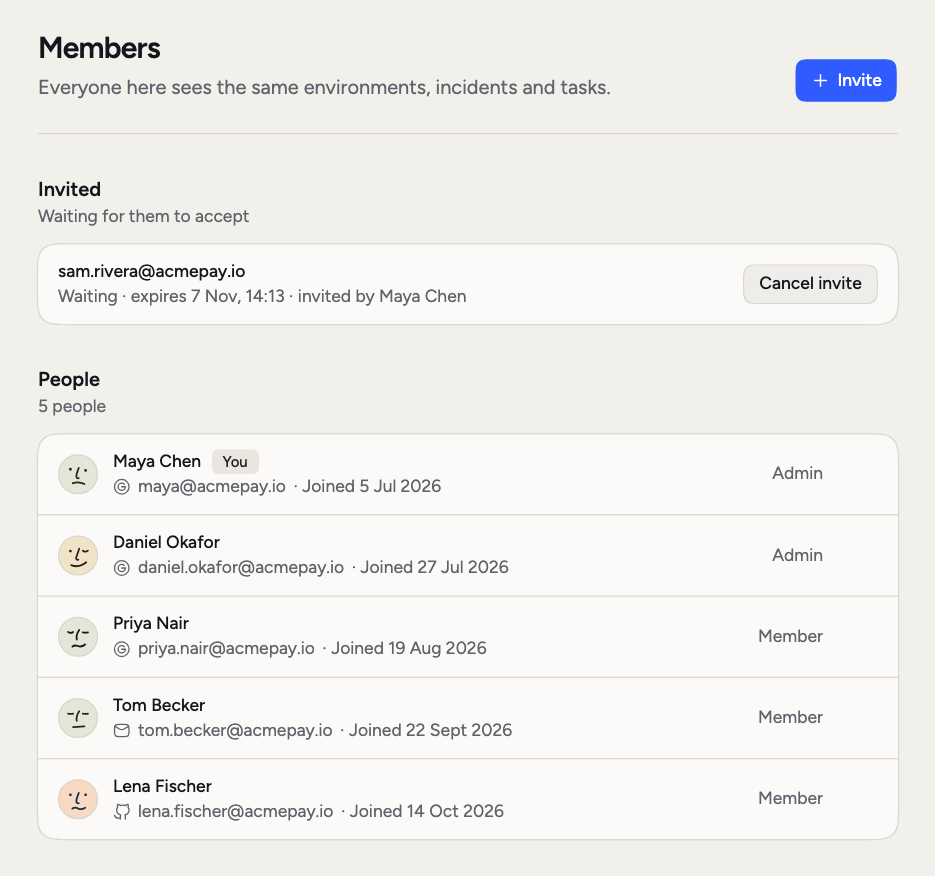
Each person shows one of three roles:Invite someone
1
Open the dialog
On Settings > Members, click Invite.
2
Enter their email
In Invite someone, enter the address and click Send invitation.
3
They join
They get an email with a link. Once they join, they see everything your organization sees. They join as a Member.
Manage invites
Admins see open invites under Invited, with when each one expires and who sent it.- Copy invite link copies the link, if you’d rather send it yourself.
- Cancel invite stops the link from working.
Remove someone
Click the menu on a person’s row and choose Remove from organization. They lose access at once. Their account stays, and you can invite them again later. You can’t remove yourself or an Owner.More than one organization
One person can belong to several organizations. If you do, click your organization’s name at the top of the sidebar and pick another under Switch organization. The switch applies to that browser tab.Usage and plan
See how many users your plan allows.
Settings
Change your organization’s name and logo.
Notifications
Choose how you hear about things.