

When you’d use this
- Get ahead of the RCA. When a critical incident opens, have Rubix post a first look to Slack.
- Check every deploy. Your pipeline calls a URL, and Rubix writes what changed and whether anything broke.
- Report on a schedule. A daily status for the team, or last week’s RCAs by email on Monday.
- Connect your own process. Open an incident from your own system, or ask someone to approve before a step runs.
What you see
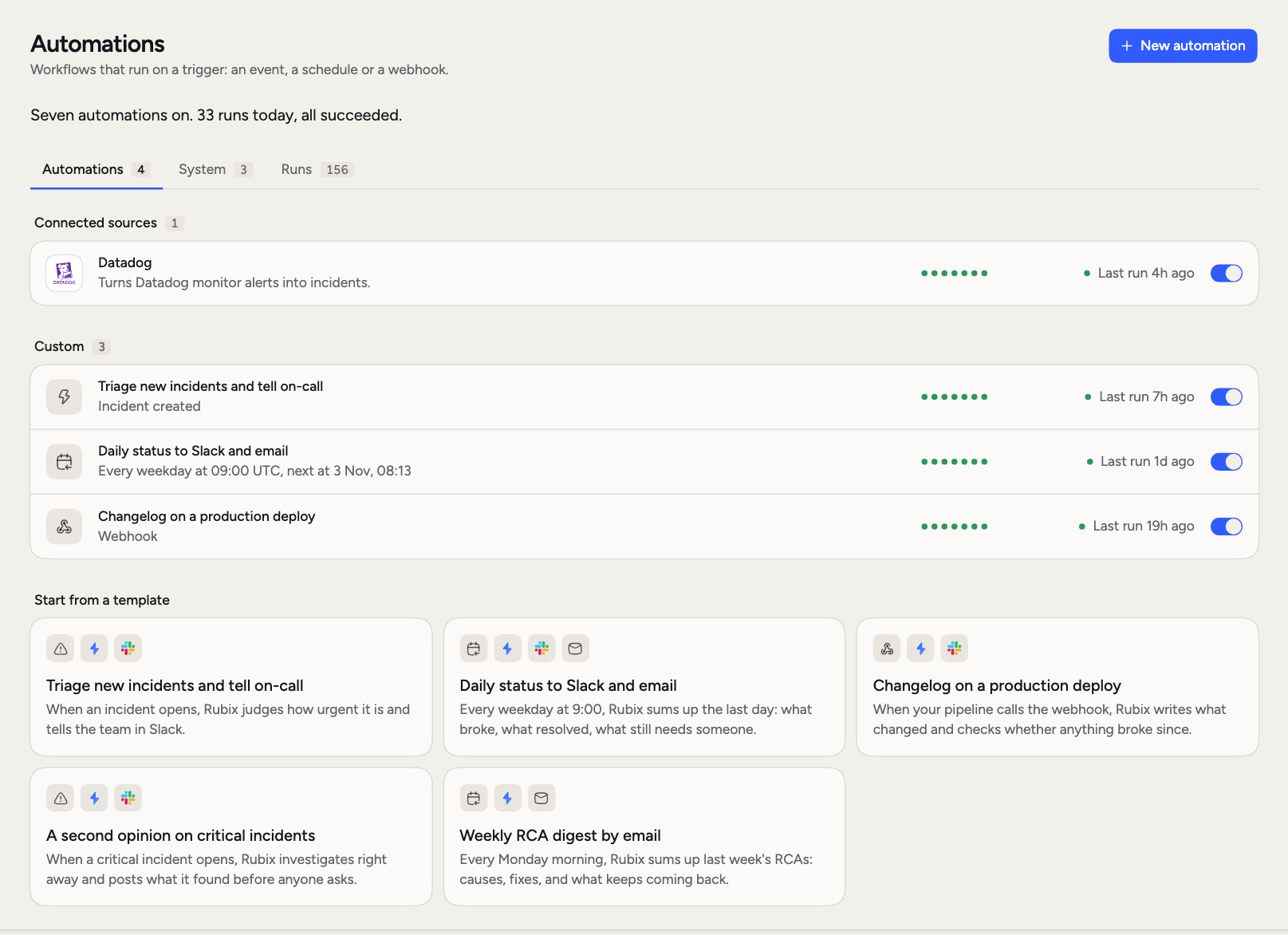
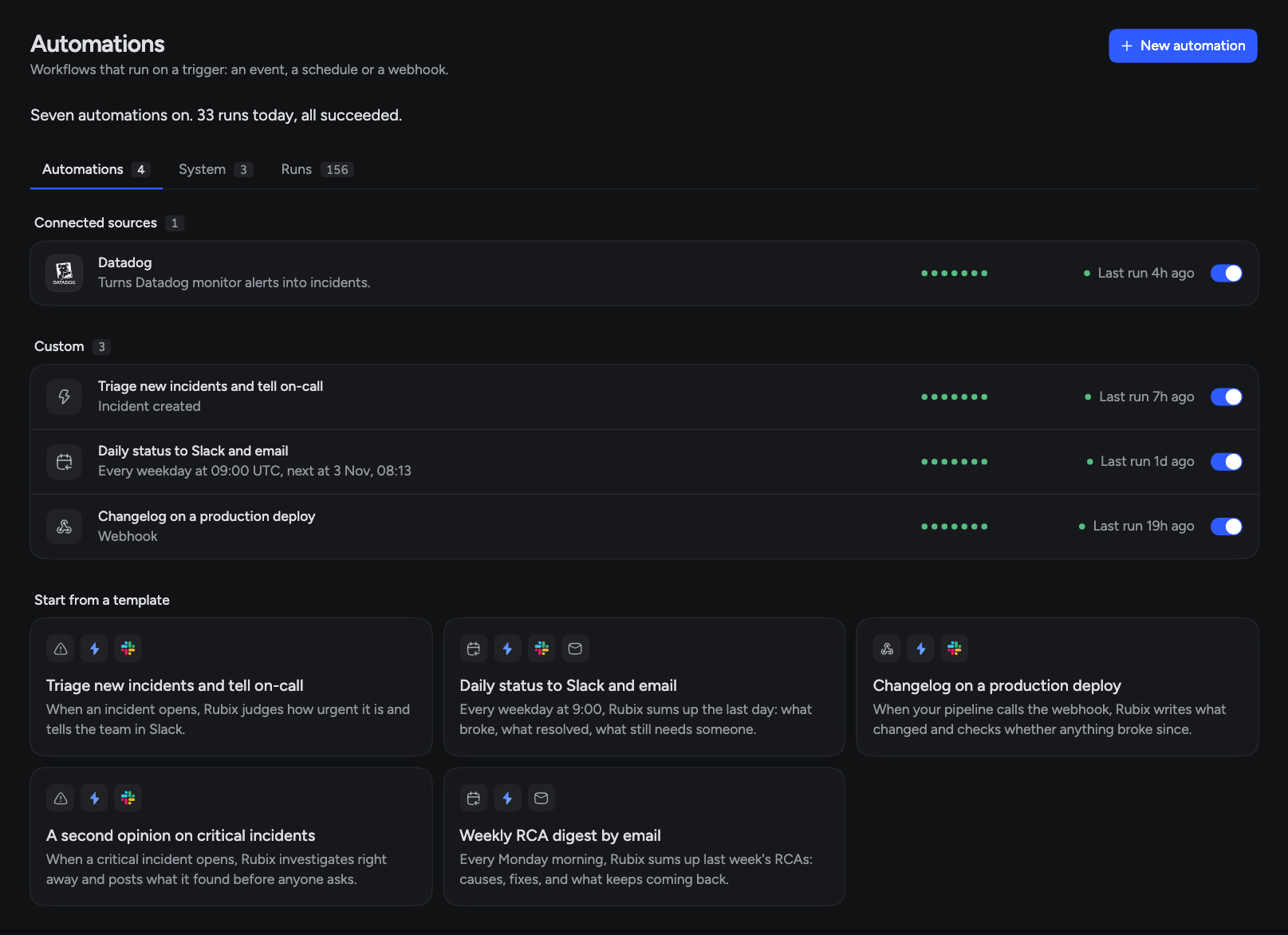
Open Automations in the sidebar. One sentence at the top says where things stand: how many are on, how today’s runs went, and whether a run needs approval. Below it are three tabs. Automations lists everything in four groups:- Connected sources: automations that came with a source. Connect Datadog, and its alerts become incidents.
- Built-in: ready-made automations an admin can add with Add.
- Custom: the ones your organization made.
- Start from a template: ways to begin a new one.
Inside an automation
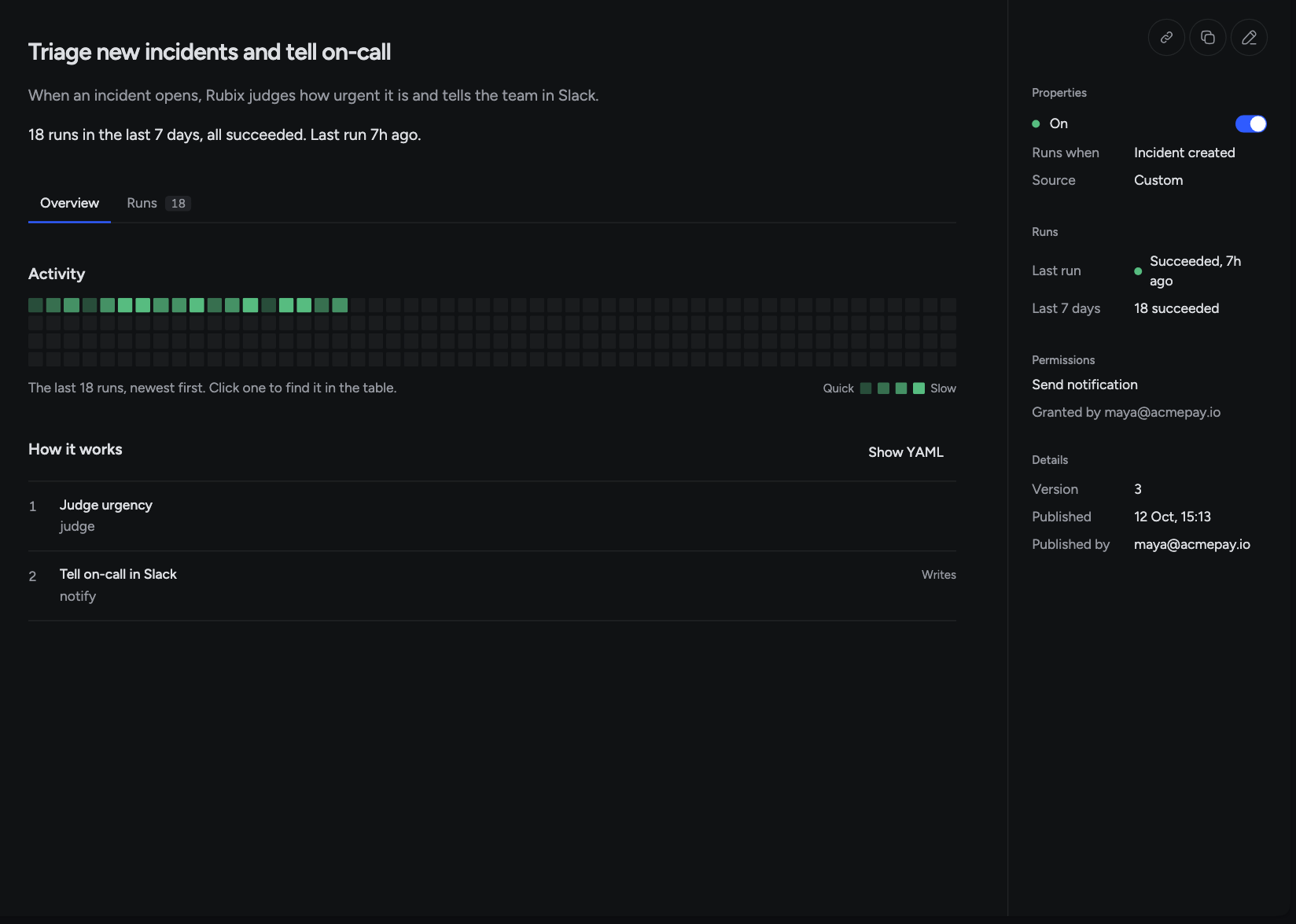
Click a row to open it.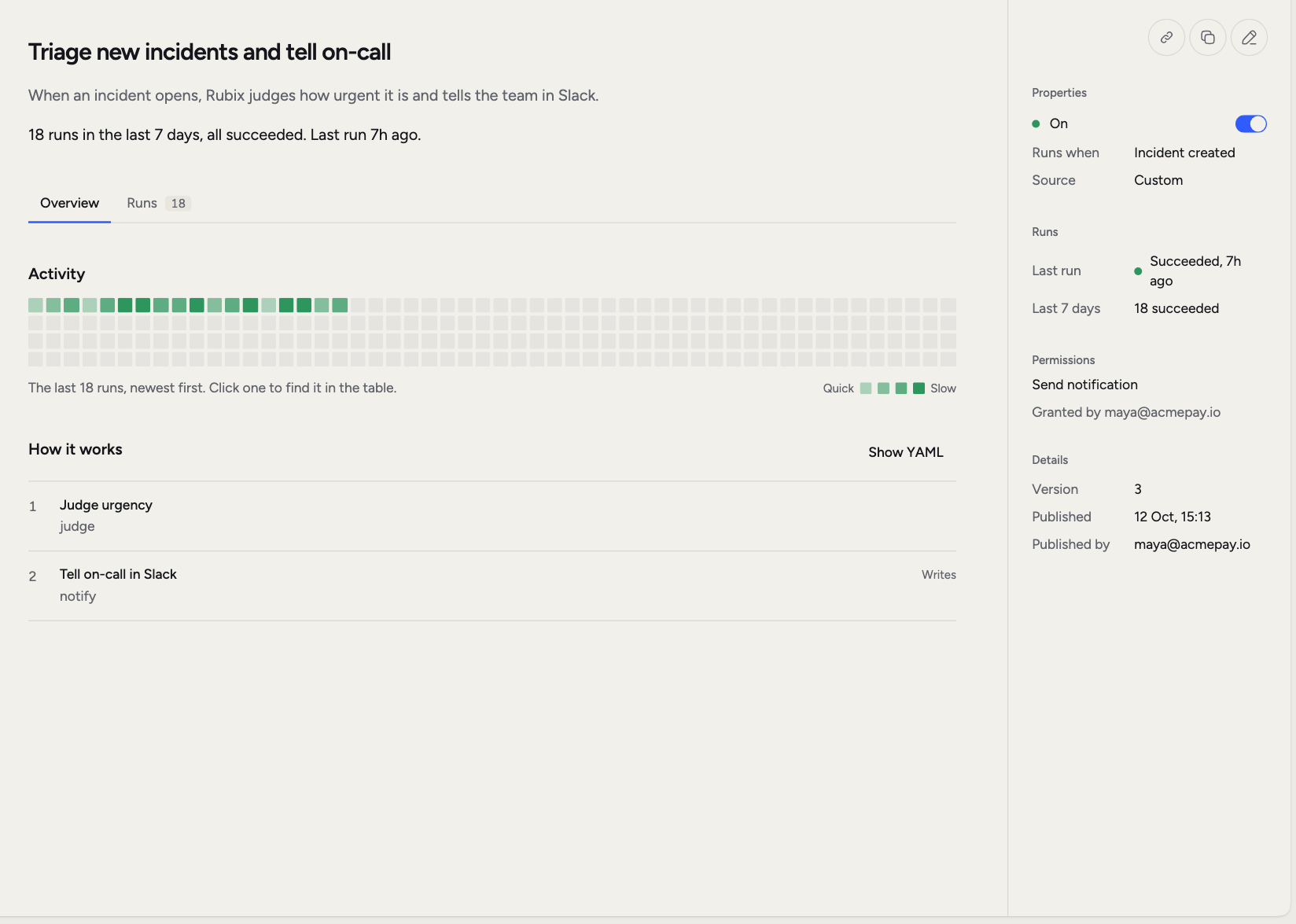
Start from a template
1
Pick a template
Under Start from a template, click a card. A panel shows its Trigger, Steps, Output, Permissions and Requirements.
2
Create the draft
Click Create. This saves a draft. Nothing runs yet.
3
Change what you need
Click Edit to adjust the trigger or steps.
4
Publish
Click Publish to start running it.
Build your own
Click New automation, or Edit on an existing one. Give it a name, then work down the page. A sentence at the top reads your automation back in plain words as you build it. Under When should it run?, choose a trigger. You can add more than one.
An event trigger runs on every event. To narrow it, use Add a condition: severity is critical, for example.
Then click + to add steps. They run from top to bottom.
In a message, you can insert what came in and what earlier steps gave back, such as the incident title or Rubix’s answer.
Open a step’s Advanced section to set Only when, Time limit, Retries and If it fails (Stop the run, Carry on or Jump to a step).
Advanced settings at the bottom of the page set limits for the whole automation: Token budget, Time limit and Debounce, which waits after a trigger before running. A switch there keeps it to one run at a time. A token budget is required when a step uses Rubix.
Repeat and fan-out
The step list also has an Advanced group for two steps that change how a run moves. Repeat goes back to an earlier step and runs the steps from there again. Set Go back to, Stop when and Rounds at most, up to 20. Use it when Rubix should keep checking until something is done. The run shows which round each step reached. For each item, at the same time is the fan-out step. It takes a list and runs one job per item in parallel, then collects the answers. Use it to have Rubix check several services at once. An item that fails doesn’t fail the step. The next step reads the answers and decides what to do.Try a draft
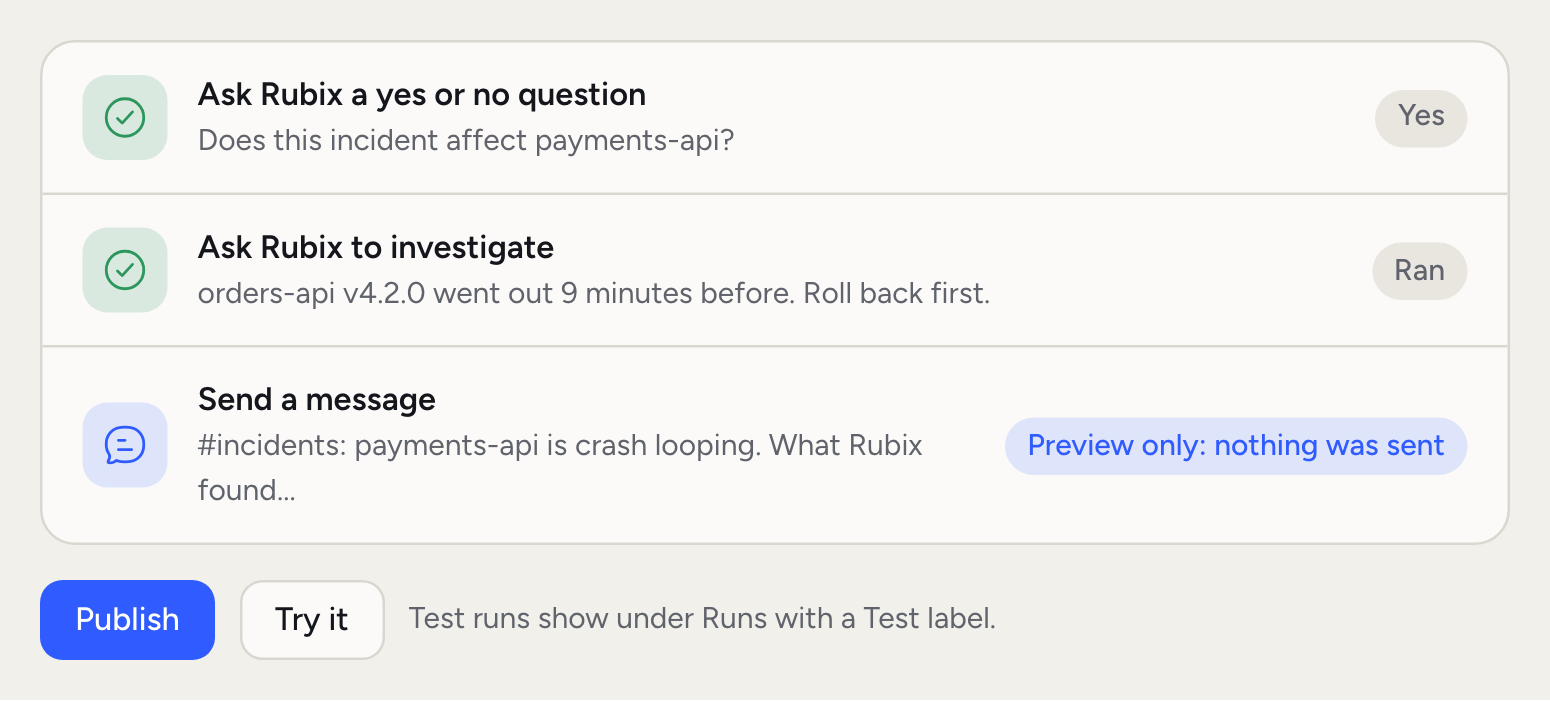
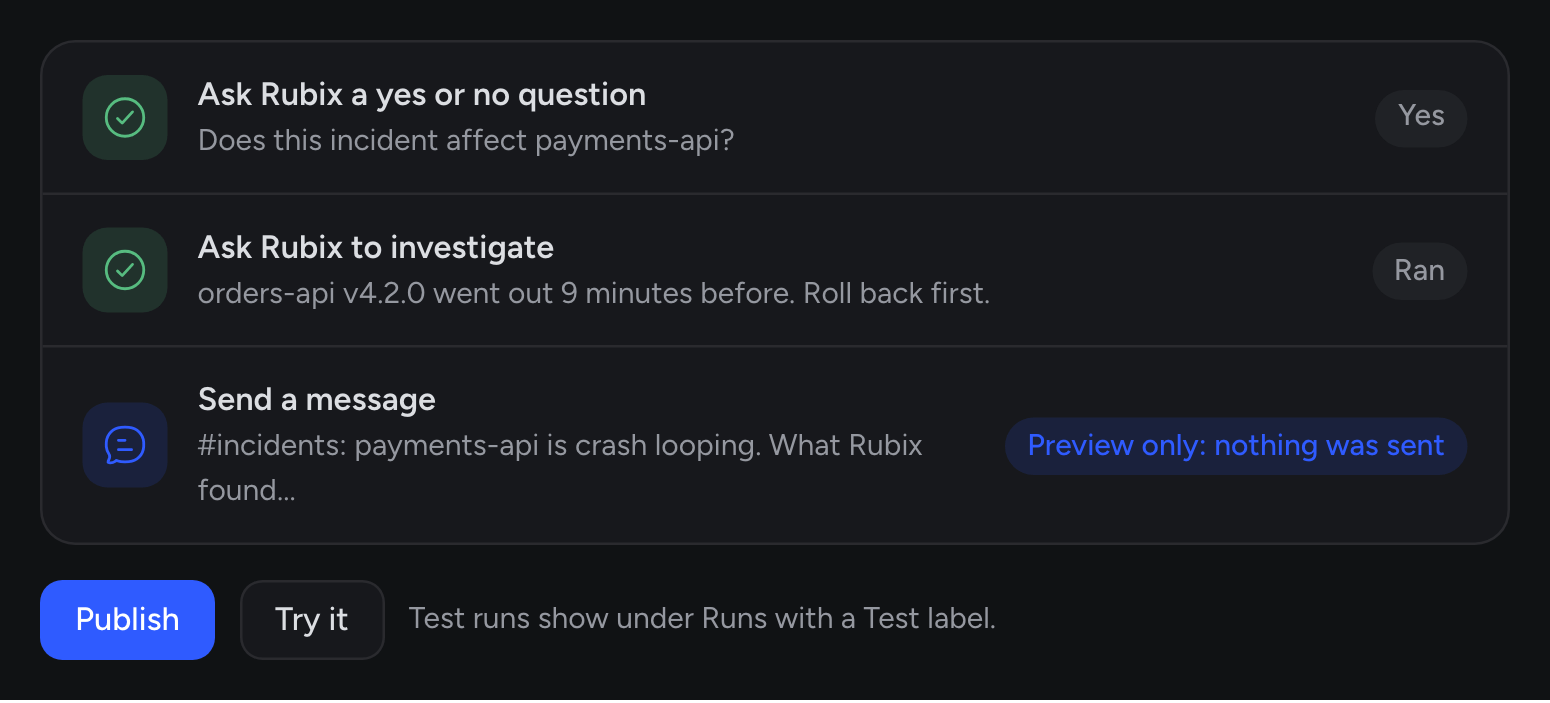
- Reads run for real.
- Writes are previewed. The step shows what it would send and says Preview only: nothing was sent.
- Approvals are approved at once and waits are skipped.
- Rubix steps run for real and use tokens.
Publish
Save draft keeps your work and changes nothing that’s running. Publish puts it live. You can turn it off at any time. If a step acts outside RubixKube, Permissions needed lists it. Click Allow and publish to allow those steps on every run without asking. A tool that deletes things can’t run in an automation. If the trigger is Another system calls a URL, you get the URL when you publish. It’s shown once, so copy it then. Delete, on the automation’s page, removes it and its run history. This can’t be undone.Runs and approvals
A run ends as Succeeded, Failed, Cancelled or Timed out. While it’s going, it reads Running or Needs approval. When a step asks someone to approve, the run stops there until someone answers or the time runs out. Open the run, add a note if you want, and click Approve or Deny. Cancel run stops a run that’s in progress. An automation with a schedule or When I run it also has Run now.Built-in automations
RubixKube ships its own automations. Admins find these on the System tab, and each one’s page says RubixKube runs this for you:- Triage incident
- Classify incidents
- Root cause analysis
- Rubix answers in comments
- Correlate sources
Two examples
Both use the same problem: a neworders-api version raises its database pool, connections run out, and payments-api starts crash-looping.
Check every deploy
Create a draft from Changelog on a production deploy, publish it, and add the URL to your deploy pipeline. Whenorders-api ships, the pipeline calls the URL. Rubix reads what was deployed, writes the changelog in plain words, and looks for incidents opened since. Once payments-api starts failing, the Slack message says what changed and gives a verdict on the deploy, so your team sees the link without searching for it.
Investigate critical payments incidents
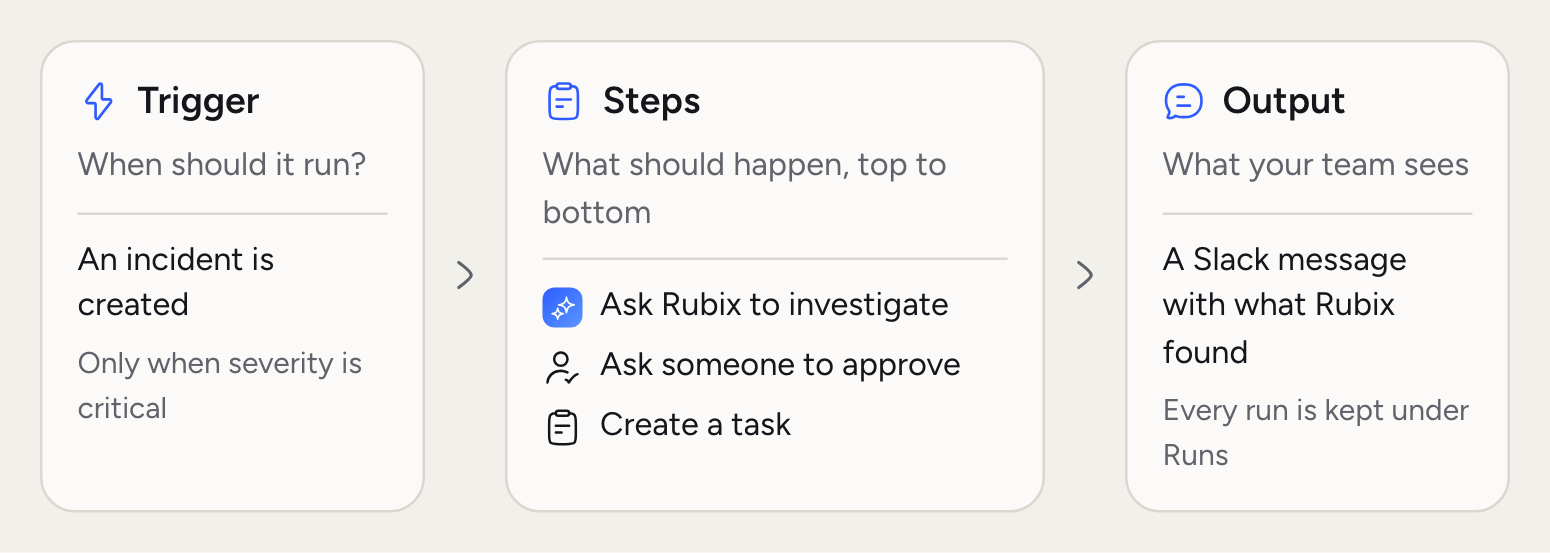
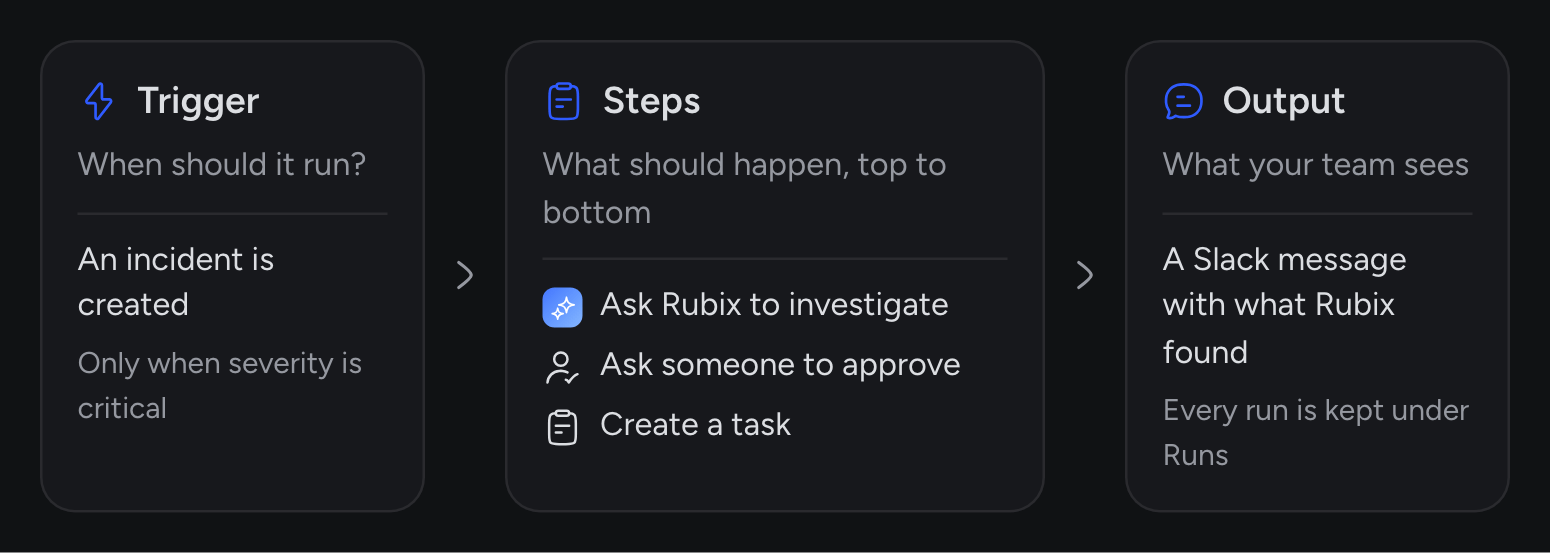
Click New automation and build this:- Trigger: An incident is created, with the condition that severity is critical.
- Ask Rubix a yes or no question: “Does this incident affect
payments-api?” - Ask Rubix to investigate: “Find what changed before this and what to try first.” Under Advanced, set Only when so the step runs only on a yes.
- Send a message to Slack, with Rubix’s headline and what it found.
Incidents
What most automations start from.
Modes
What Rubix may do without asking.
Your own webhook
Send events from your own systems.
Usage and plan
See how many tokens automations use.