

- Commands save the prompts your team types again and again.
- Agents give Rubix specialists to hand work to.
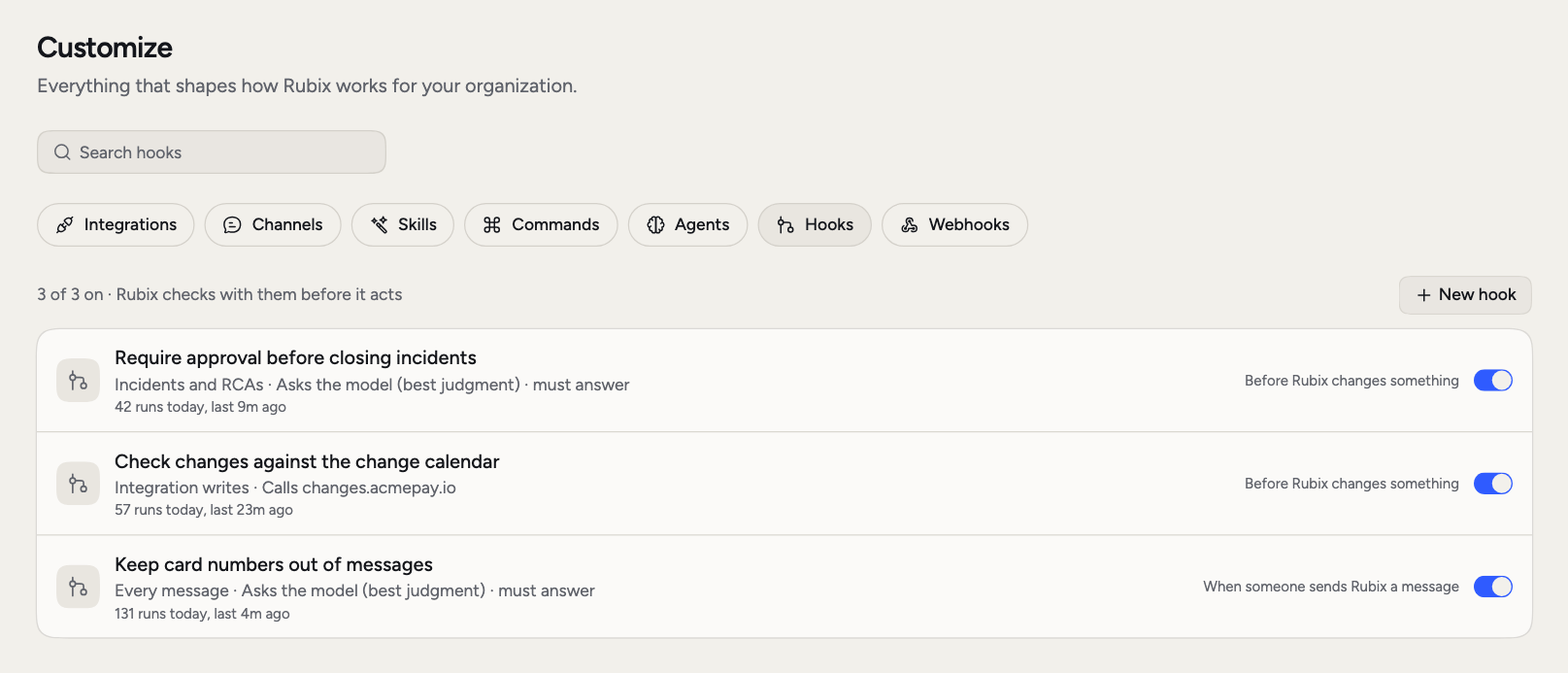
- Hooks run your own checks before Rubix acts.
Commands
If your team keeps typing the same long question, save it. A command is a saved prompt. Type/ in the chat box, pick the command, and its prompt fills the box, ready for you to edit and send. Everyone in the organization can use commands. Admins add and change them.
To add one, open Customize > Commands and click New command. You can also pick /triage, /postmortem or /status under Start from an example and edit it.
Put $ARGUMENTS where the person’s own text goes. The cursor lands there. Here’s a small example:
Someone types
/pool-check, picks it, types orders-api and sends.
Agents
Some questions go better with a narrow focus, like reading database locks without the noise of everything else. Rubix can hand part of a task to a specialist. The specialist works in its own context, only reads, and reports back to Rubix. It can’t change anything, and it doesn’t talk to you directly. Customize > Agents lists Rubix, its built-in specialists such as the Investigator, and your organization’s own, marked Yours. Open one to see what it can reach. Below that, admins see the observers in each environment, their tool servers, and whether each one is checking in. To add a specialist, click New agent. Only admins can do this.
For example, a
database-expert agent for orders-db could have “Postgres slow queries, locks and connection limits” as its When Rubix should use it, and instructions that say to check the database pods first.
Hooks
Modes set how much Rubix does in general. Hooks are for the rules with no exceptions, like “no changes during a freeze” or “nothing posted to customer channels”. A hook is a check Rubix runs at a set moment. It calls your endpoint or asks a model, and never runs a command.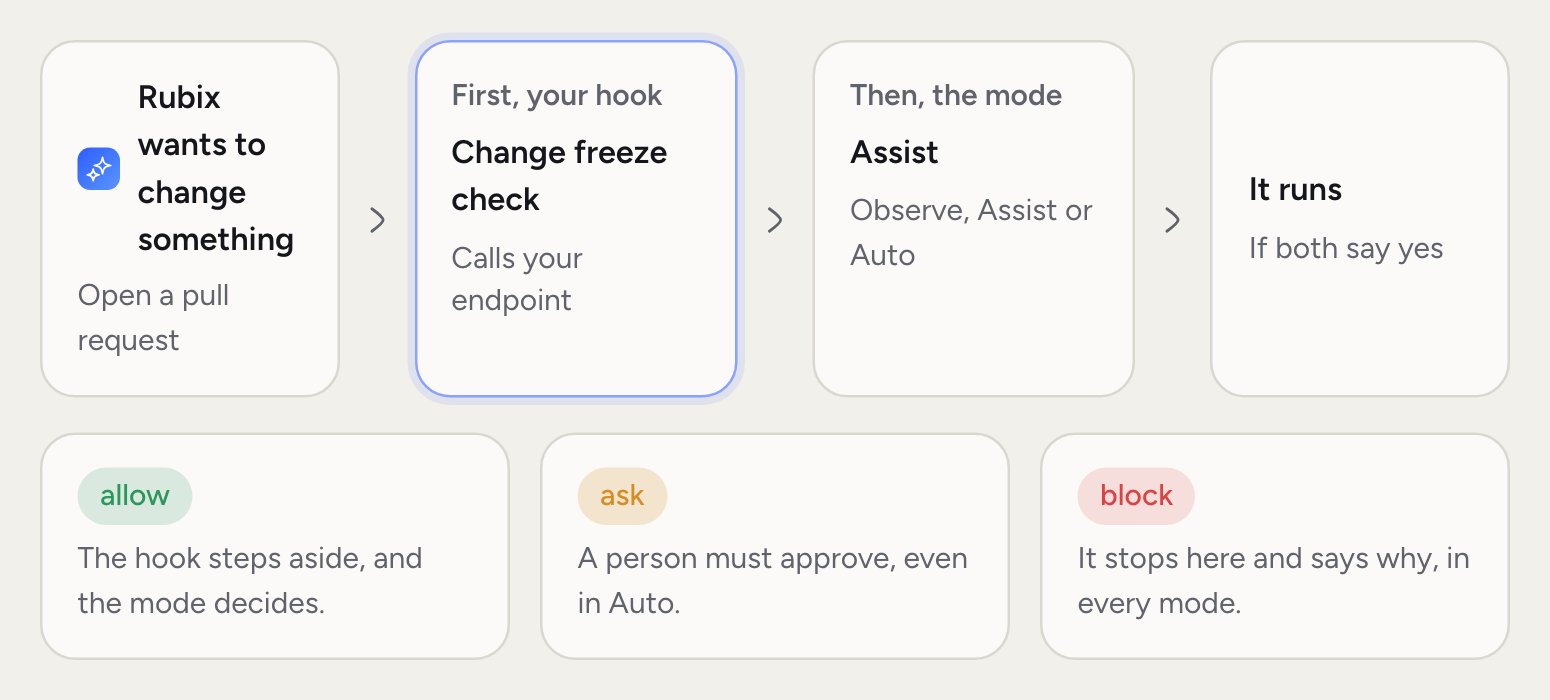
- Before Rubix changes something: your check can block the change, or require a person’s approval whatever the chat’s mode. You can narrow it to Integration writes, Incidents and RCAs, Fixes and follow-ups, Comments or Knowledge base.
- When someone sends Rubix a message: your check can refuse the message or add context Rubix reads with it.
- Call your endpoint: Rubix sends a POST with the event as JSON to a public https address. Use this for a rule that must always hold.
- Ask the model: write a condition, such as “Block the change if it posts to a public or customer-facing channel.” The model answers yes or no. This is best judgment, not a guarantee.
Must answer decides what happens if the hook fails or takes too long, up to the Wait up to time. On, Rubix stops. Off, Rubix carries on and the mode decides. It starts on for hooks that run before a change.
Click Send a test to try a sample event. When you save a hook that’s switched on, Rubix tests it. If the test fails, the hook is saved but switched off, and you see why. Each hook’s row shows how many times it ran today and if it’s failing.
Related pages
Skills
Instructions Rubix loads when a task needs them.
Modes
How hooks fit with Observe, Assist and Auto.
Chat with Rubix
Use commands in a session.