

Managing Workspace & Teams
The Workspace page lets you invite team members, assign roles, and create interactive workspace components.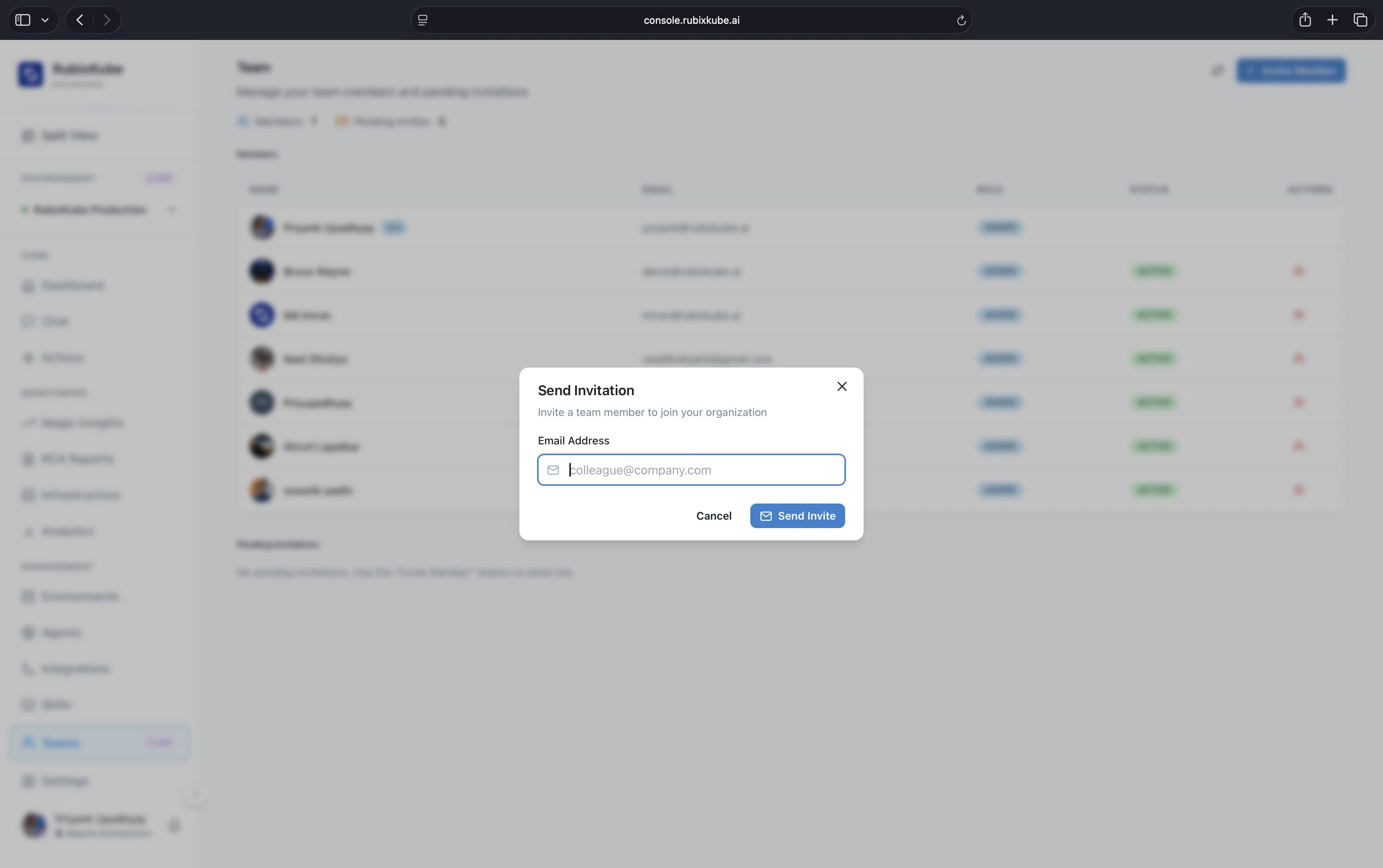
User Roles
Admin
Full access: - Add/remove users
- Manage clusters
- Change settings
- View all data
Member
Standard access: - View all data
- Use Chat
- View RCA reports
- Cannot change settings
Viewer
Read-only: - View dashboards
- Read RCA reports
- Cannot modify anything
Inviting Team Members
1
Click Invite User
Enter email address
2
Select Role
Choose Admin, Member, or Viewer
3
Send Invitation
They receive email with signup link
4
They Accept
User appears in your workspace
Workspace Components (Dynamic Workspace)


Related Guides
Managing Users
View all users: - See name, email, role- Last active time
- Status (active/pending)
- Promote/demote as needed
- Access revoked immediately
What You Learned
3 user rolesHow to invite team
Managing access
Need Help?
Contact Support
Email: connect@rubixkube.ai
Please include your Tenant ID (Settings → Organization), timestamp, and screenshots.
Please include your Tenant ID (Settings → Organization), timestamp, and screenshots.
Troubleshooting Guide
Step-by-step fixes for common issues across Dashboard, Insights, Agents, and more.
FAQ
Answers to common questions about setup, RCA, agents, and docs.
Docs Navigation
Browse all guides to learn workflows and best practices.