

Using Actions Center: Complete Guide
The Actions Center is your command center for managing and tracking all remediation actions. This powerful interface helps you prioritize, track, and implement fixes across your infrastructure.Key Features: Prioritize, assign, and track remediation actions. Use Ask SRI (⚡) for instant implementation help at any stage. Start, review, complete, or reopen actions with a single click.
Actions Center Overview
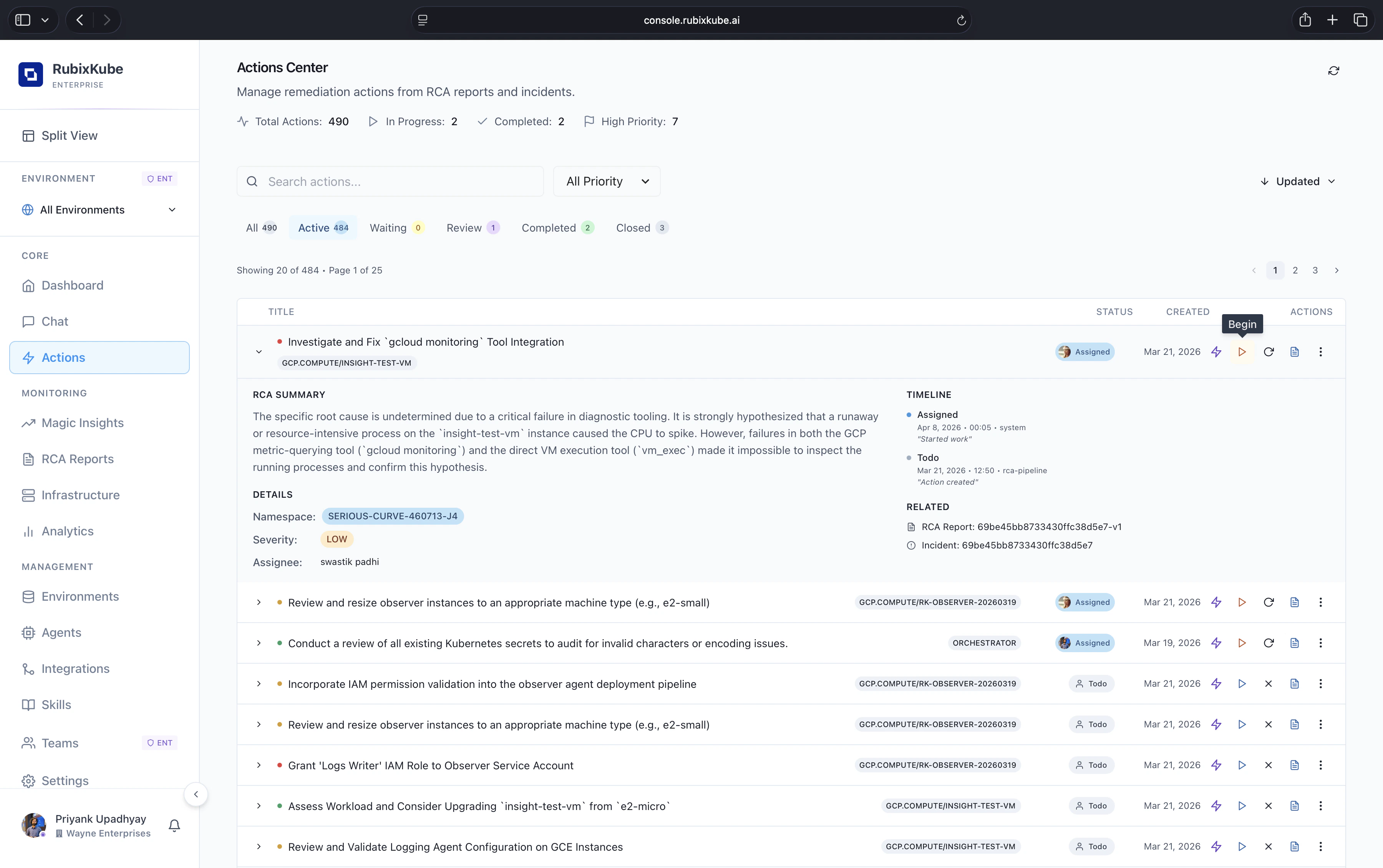
- Total Actions: every remediation task ever created for this environment.
- In Progress: actions a human has started.
- Completed: actions that have finished verification.
- High Priority: urgent actions that need attention first.
Navigation and Status Management
The Actions Center provides comprehensive navigation through different action states and priority levels:Status Navigation Tabs
Action States:- All - Complete view of all actions
- Active - Currently actionable items
- Waiting - Blocked or dependent actions
- Review - Items needing verification
- Completed - Successfully resolved actions
- Closed - Cancelled or dismissed items
Priority Filtering
The Priority dropdown allows sorting actions by:- High - Urgent items requiring immediate attention
- Medium - Important but not time-critical
- Low - Minor improvements or optimizations
Search
Use the search bar at the top of the actions list to quickly find items.Sorting
On the right side of the list header there is a sort dropdown. Use it to order the list by:- Updated (default) — most recently changed actions first
- Created Date — chronological by creation time
- Priority — group items by priority (High → Low)
Action Card Structure
Each action card shows:- Priority (color dot)
- Description
- Resource tag
- Status badge
- Created date
- Key buttons: Ask SRI (⚡), Start Work (▶), Cancel (✕), RCA Report (📄), Reassign (⟳), More (⋮)
Action Detail Panel
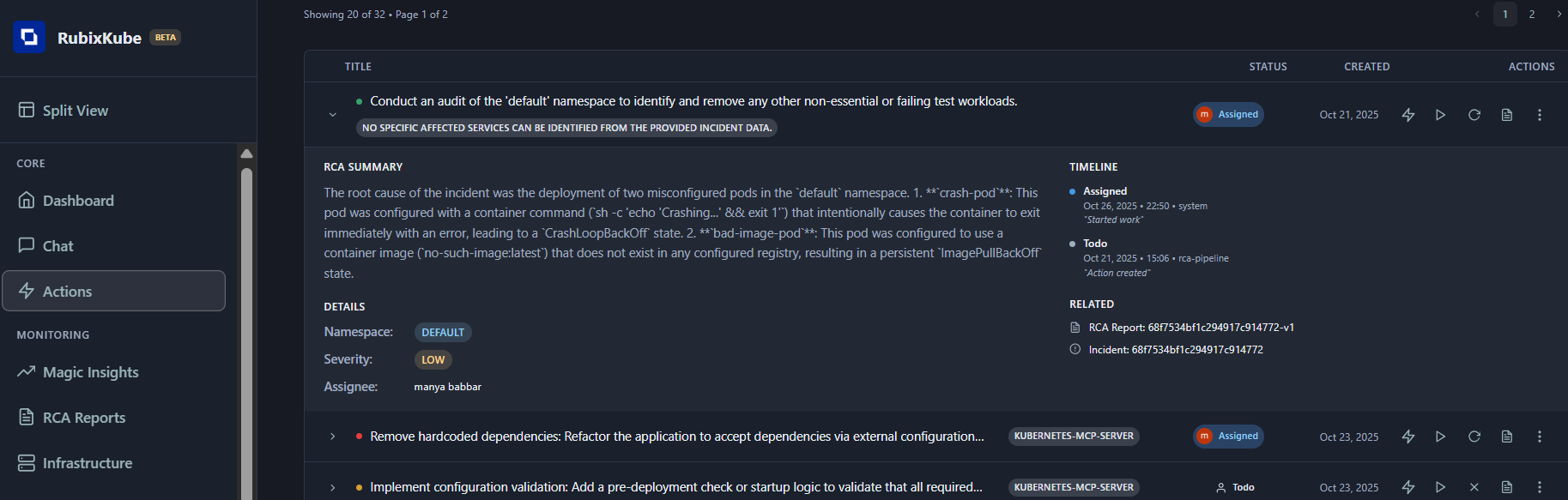
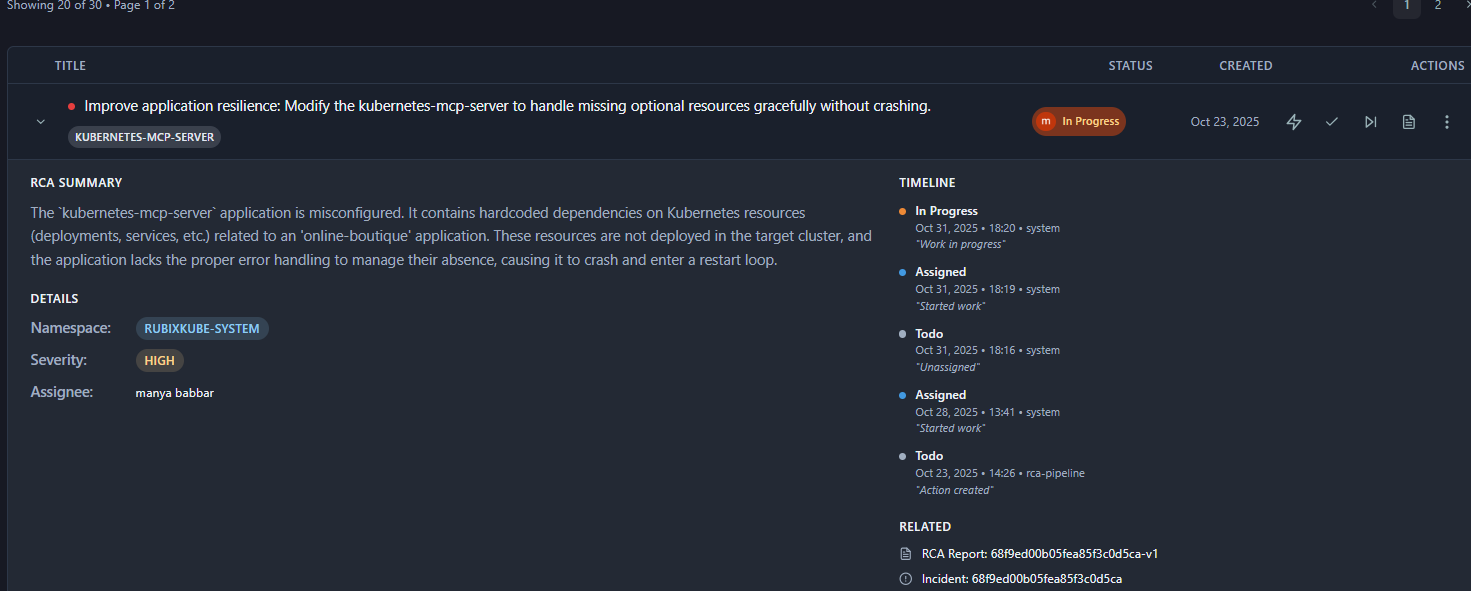
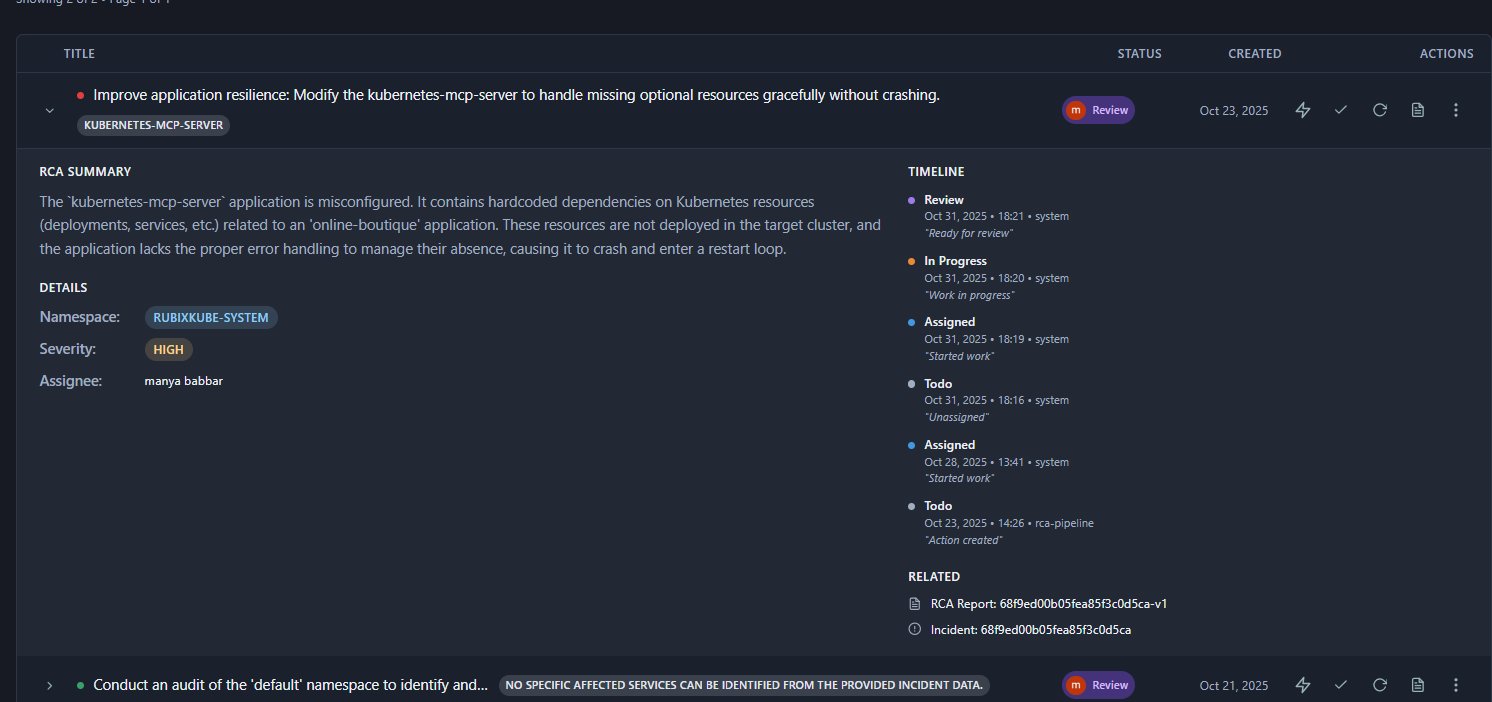
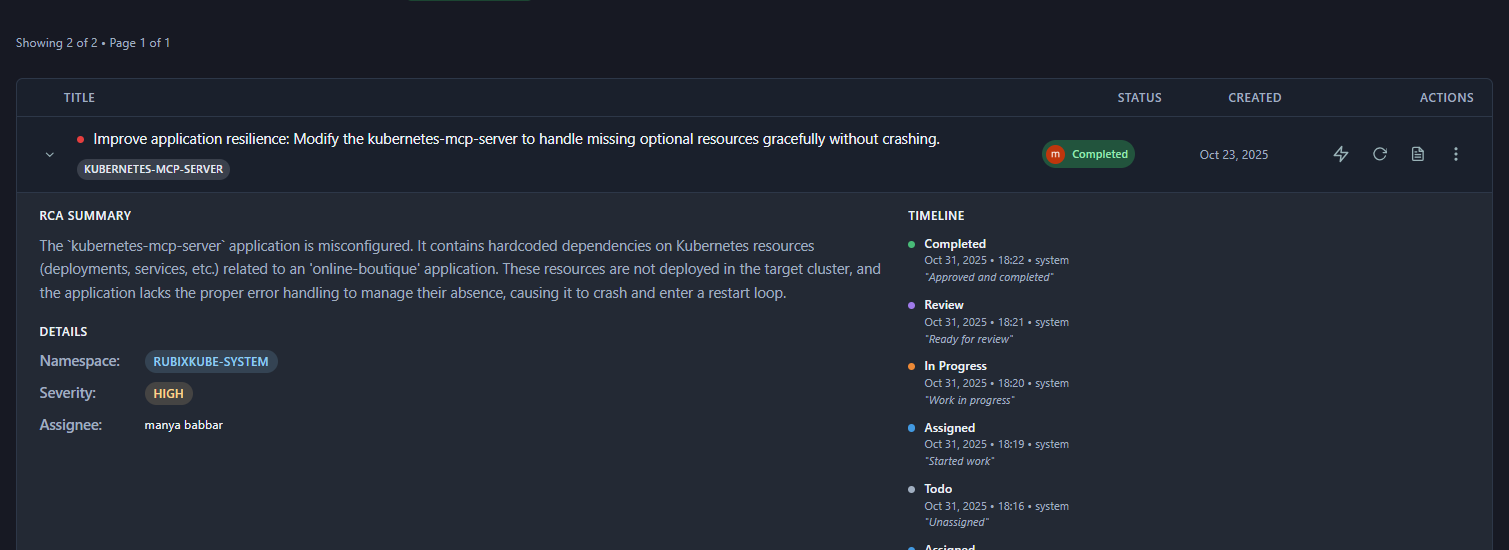
Click any action to expand details, including:- RCA summary
- Namespace and severity
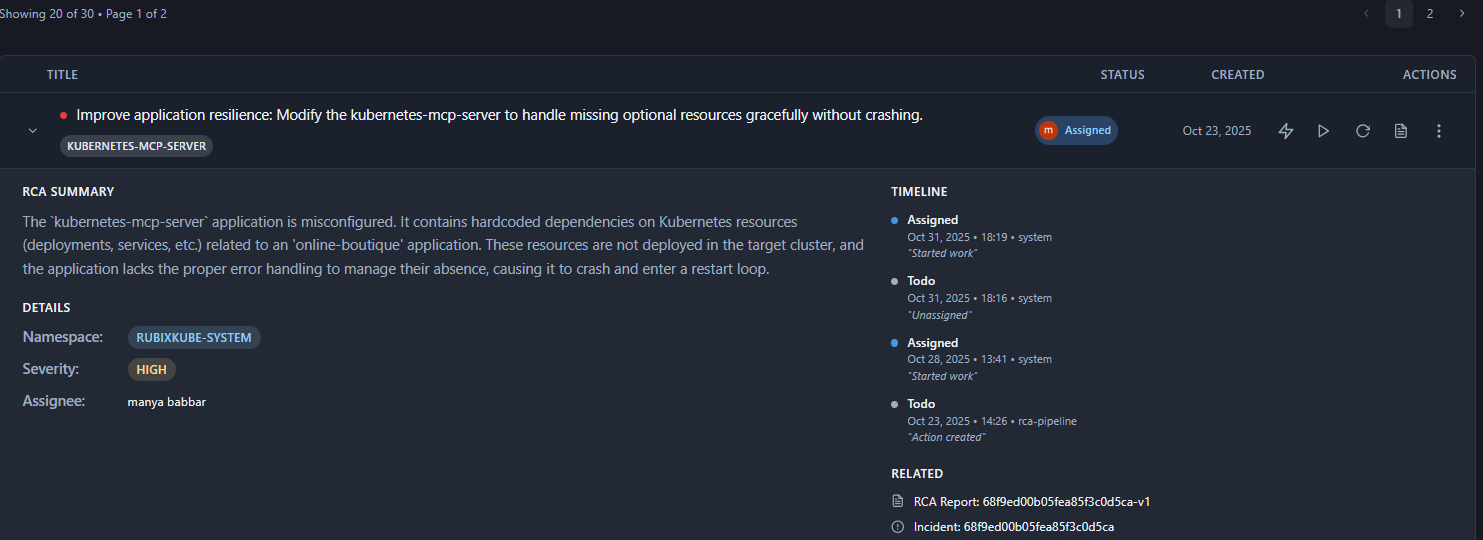
- Timeline of status changes
- Links to RCA report and related incidents
Key Action Buttons
- Ask SRI (⚡): Get instant implementation help, code, and troubleshooting at any stage.
- Start Work (▶): Assigns the action to you and moves it to In Progress.
- Cancel (✕): Moves action to Closed (reversible).
- RCA Report (📄): View full root cause analysis and evidence.
- Reassign (⟳): Change ownership or return to unassigned pool.
- More (⋮): Delete, add notes, change priority, or view full history.
Workflow Stages
At any stage, use Ask SRI (⚡) for instant help, code, or troubleshooting. The professional workflow is: Stage 0 – Start Work (Play ▶): Click Play to assign the action to yourself (Assigned status).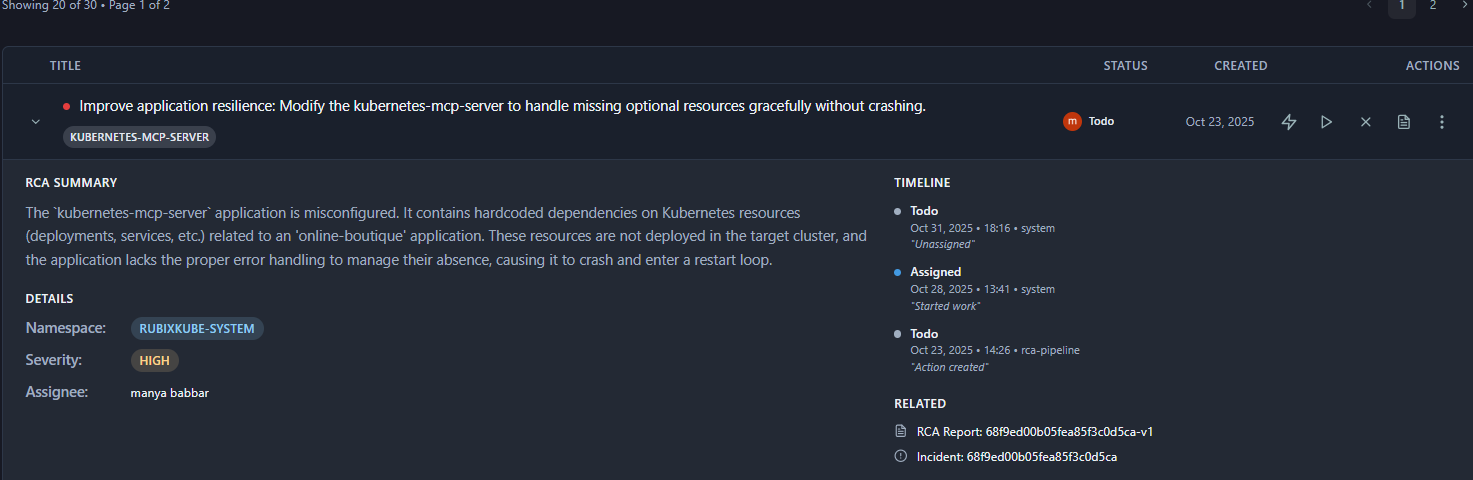
Action Lifecycle (at-a-glance)
Below is a clean, easy-to-read diagram that summarizes the primary state transitions for an action. Use this as a quick reference for how tasks flow through the system.Status Definitions
Todo
- Initial state for new actions
- Ready to be worked on
- Not yet assigned to anyone
In Progress
- Action being actively worked on
- Assigned to a team member
- Implementation underway
Waiting
- Blocked by dependencies
- Awaiting external input
- Can occur at any stage
Review
- Implementation completed
- Needs verification
- Awaiting testing or approval
Completed
- Successfully implemented
- Verified working
- No further action needed
Cancelled/Closed
- Action no longer needed
- Duplicate of another action
- Invalid or irrelevant
- Can be reopened if needed
Integration with Other Features
Actions → Chat
⚡ Ask SRI sends full context to Chat including RCA summary, affected resources, and evidence.Actions → Insights
📄 RCA Report opens full incident with complete Root Cause Analysis.Actions → Infrastructure
Namespace badges and resource tags link to topology view.Real Example: Configuration Fix
Action:“Remove hardcoded dependencies: Refactor the application to accept dependencies via external configuration (e.g., ConfigMaps)”Namespace: RUBIXKUBE-SYSTEM
Severity: HIGH
Status: Todo
Implementation Steps:
1
Click ⚡ Ask SRI
AI provides ConfigMap example and refactoring guidance
2
Create ConfigMap
3
Update Deployment
4
Test and Verify
5
Mark Complete
Click ✓ Complete and add comment
Troubleshooting
Actions not appearing from RCA
- Check RCA confidence level (may be below threshold)
- Look for recommendations in RCA Analysis tab
- Check RCA Pipeline logs for errors
Action stuck “In Progress”
- Check timeline for last update
- Contact assigned person
- Reassign if needed via ⋮ More Options
High Priority count keeps increasing
- Daily action review meetings
- Assign owners to every HIGH action
- Group related actions and fix root causes
Best Practices
- Always prioritize High priority actions first.
- Use Ask SRI (⚡) before implementing for best practices and code.
- Verify changes before completing: deploy, monitor logs, confirm incident resolved, and check metrics.
- Batch related actions (same namespace, RCA, or dependencies) for efficiency.
Quick Reference
Need Help?
Contact Support
Email: connect@rubixkube.ai
Please include your Tenant ID (Settings → Organization), timestamp, and screenshots.
Please include your Tenant ID (Settings → Organization), timestamp, and screenshots.
Troubleshooting Guide
Step-by-step fixes for common issues across Dashboard, Insights, Agents, and more.
FAQ
Answers to common questions about setup, RCA, agents, and docs.
Docs Navigation
Browse all guides to learn workflows and best practices.
Last updated: October 26, 2025 Guide version: 1.0 Based on RubixKube Console v1.0