

Ctrl where you see Cmd.
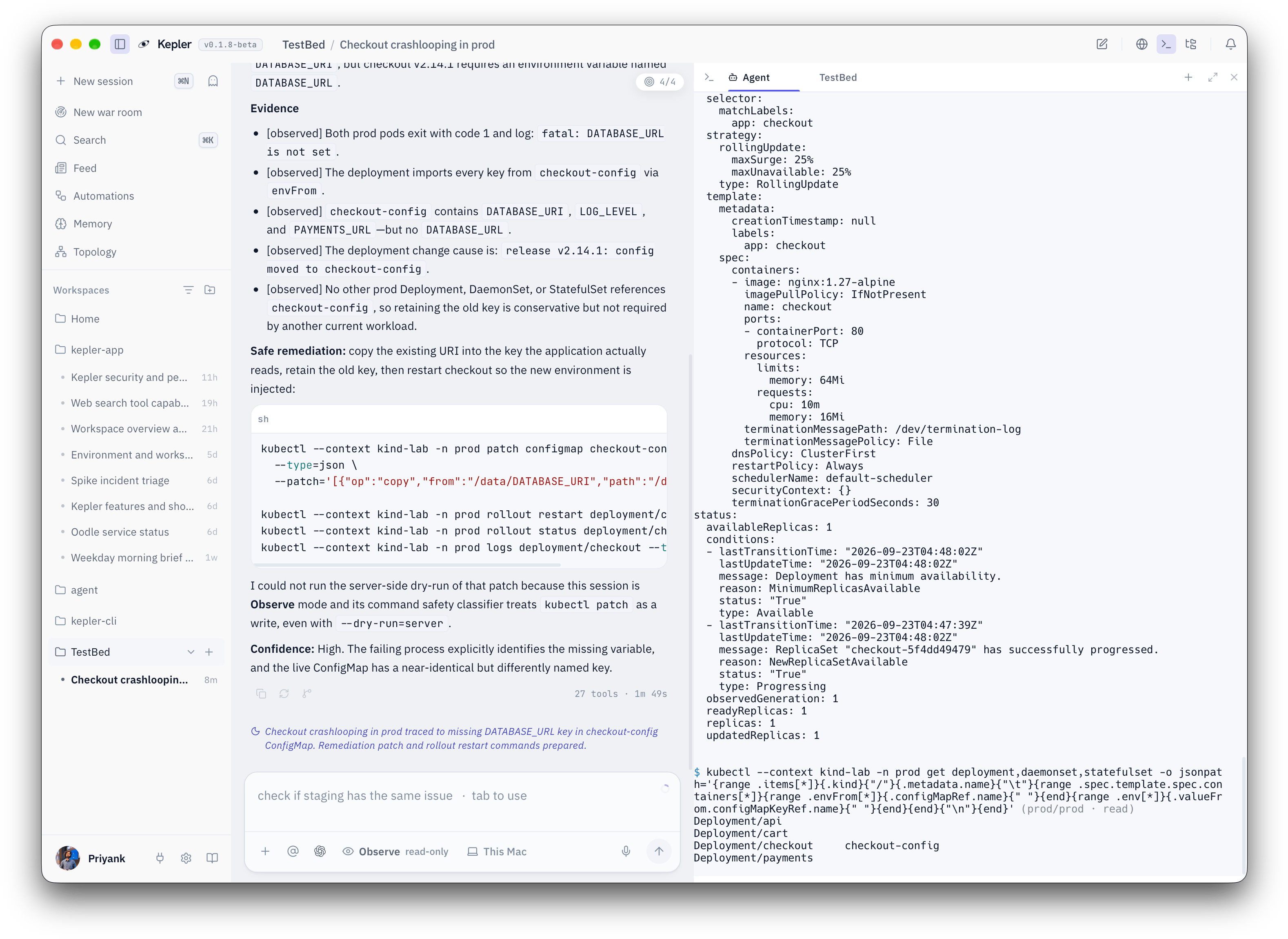
The sidebar
Toggle the sidebar withCmd+\. From top to bottom it holds:
Right-click a session to pin, rename, export or delete it. Double-click its title to rename it in place.
The chat
The chat is where you talk to Kepler. Type anywhere in the window and the text goes to the composer.Enter sends, Shift+Enter adds a line. Type / for commands and @ to attach context.
While Kepler works you see its thinking, a card for each tool it runs, and the exact command it ran. Type while a run is in progress and the message is queued and sent as its own turn when the run ends. Press Esc to stop a run.
A few things dock above the composer when they need you:
- Posture chip: the autonomy dial. Click it or press
Shift+Tabto cycle Observe, Assist and Yolo. See Postures. - Model picker: which model this conversation uses. Open it from the composer or with
/model. Kepler never switches models on its own. - Approval dock: the command Kepler wants to run, with Run, Reject, and two ways to stop being asked again: This session for this conversation, Always for every conversation from now on.
Cmd+Enterruns,Cmd+Shift+Enterallows for the session,Escrejects. - Clarification card: when Kepler hits a real fork it asks instead of guessing.
- Todo tracker: the steps of a longer task, ticked off as Kepler goes.
- Machine control: beside Send, once Remote access is on. It names the machine this thread’s commands and files run on, This Mac until you pick another. See Remote access.
Operator shell mode
Type! at the start of an empty composer and it turns into a shell prompt. The command you type runs in your terminal, and Kepler reads the output on your next message. This works in every posture, Observe included, because you are the one running the command. The always-blocked list still applies. Press Esc to leave shell mode.
Panels
Each panel opens beside the chat with a shortcut. Press the shortcut again to close it.
Feed and Topology open from the sidebar.
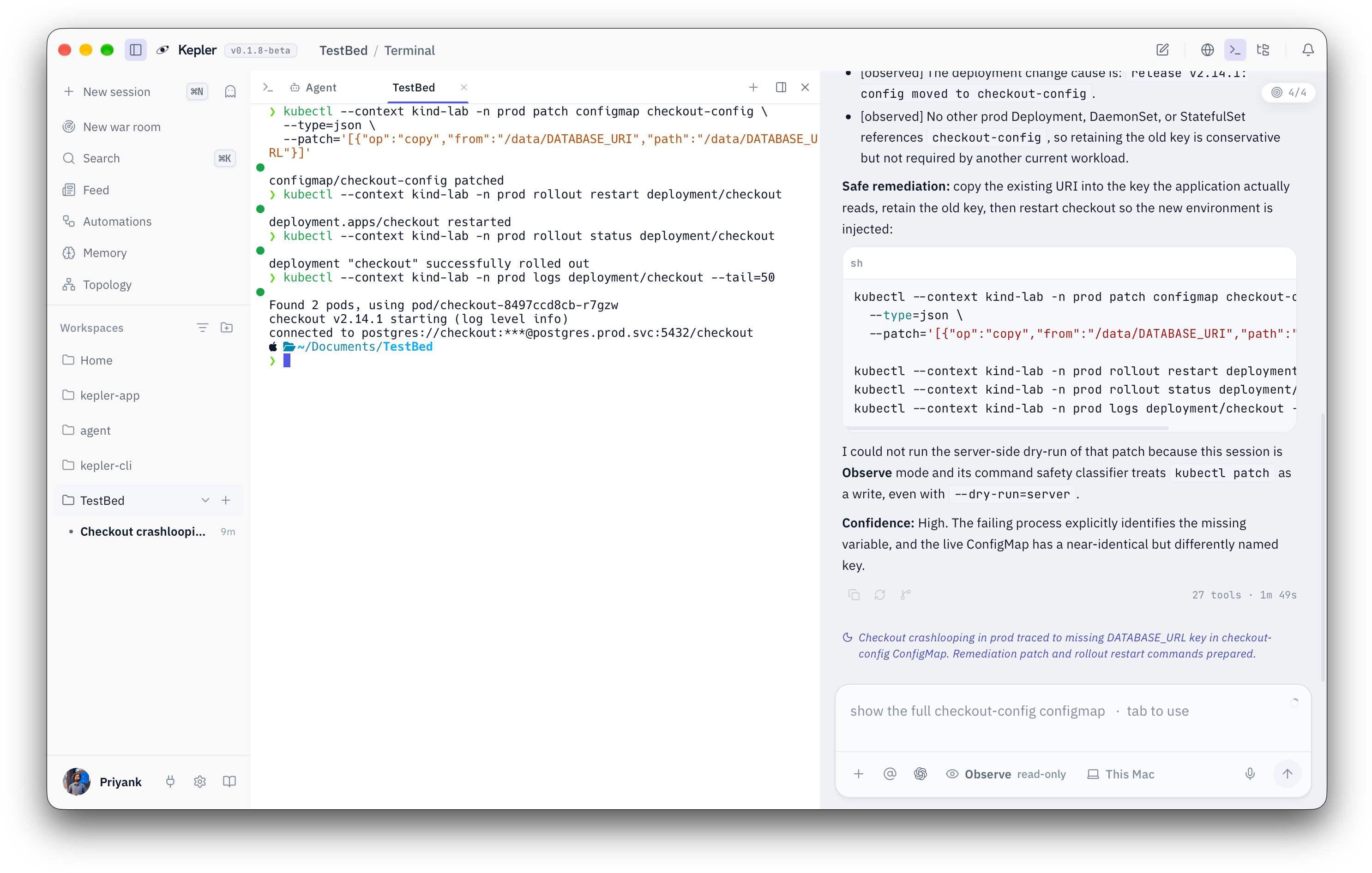
Terminal
The Terminal is your shell, not an emulation. Open more shells with New shell in the tab strip. Copy withCmd+C and paste with Cmd+V (Ctrl+Shift+C and Ctrl+Shift+V on Windows and Linux).
Every command you run gets a dot in the gutter: hollow while it runs, green when it exits 0, red otherwise. Click a command in the scrollback (its dot, or right-click anywhere in its output) and pick Add to chat to send the command and its output into the conversation. That is the fastest way to hand Kepler something you already ran.
Browser
The Browser panel has tabs and an address bar. Paste a dashboard URL into the chat, or ask Kepler to open one, and it navigates, reads the page, clicks and scrolls. A banner above the page says Kepler is browsing while it drives. Click Take control to use the page yourself, then Give back to Kepler when you are done. Log into a dashboard once in the panel and Kepler can read that dashboard from then on. A Grafana board or a cloud console you are signed into stays readable across sessions.Editor and file explorer
Cmd+E, or the Explorer button in the top bar, opens a file tree and an editor. The tree only shows folders in the current workspace. Pick a file to open it. Files too large to load whole open read-only. Ask Kepler to change a file and it shows the diff and asks before writing, in any posture that allows writes.
Memory, Feed and Topology
The Memory panel (Cmd+M) shows what Kepler has learned, in three tabs: Graph, Pages and Artifacts. The Feed lists activity and, under Waiting, anything that needs an answer from you. Topology shows the clusters, hosts and accounts Kepler found from your local config, with drafts you approve or reject before they join the map. See Memory for how to edit what Kepler remembers.
Center stage
Double-click a panel’s header to move it to the middle of the window, where the chat usually sits. Use it when you want a full-width terminal or browser. PressEsc, or click Back to the side, to return the chat to the center.
Workspaces
A workspace is the set of folders Kepler is allowed to read and edit. Nothing outside it is visible to Kepler, not in the Editor, not through file tools, and not through a shell command that names a path outside it. That fence is the reason Kepler can be trusted with a terminal: it can only reach what you handed it. To add a folder:1
Open a workspace
Press
Cmd+O, or click Open workspace in the sidebar, and pick a folder. That folder becomes a workspace.2
Grant more folders
Click the workspace in the sidebar to open its settings and use Add folder, or type
/workspace add <dir> in the chat. /workspace remove <dir> takes one away.3
Answer the fence prompt when it appears
If Kepler needs a path you have not granted, it stops and asks, in every posture. The card offers to grant the enclosing folder for the session.
kepler.md with conventions for that project. Run /init to draft one. See Memory.
Sessions and incognito sessions
A session is one conversation. It keeps its own posture, model, and history, and it belongs to a workspace. Start a new one withCmd+N or /new. Come back to an older one and a short recap of where the work stands waits at the tail of the thread. Everything Kepler learns in a session, such as a service name, an incident, or a preference, goes into memory for later.
An incognito session is the exception. Start one from the ghost button next to New session. It reads no memory, writes no memory, and nothing said in it is learned. Use it for a one-off question you do not want to shape future answers, or for anything you would rather Kepler forget. You can turn incognito off for a session from its right-click menu, but you cannot turn it on after the fact.
Where to go next
Postures
Observe, Assist and Yolo, and what each one asks you about.
Commands and shortcuts
Every slash command and keyboard shortcut.
Memory
What Kepler remembers and how to edit it.
War room
Run an incident with a team of agents.