

checkout or db-7 and Kepler already knows which cluster, host or account you mean.
The map stays on your machine. Kepler only reads what you already have access to, and it does not contact your clusters until you have chosen a model.
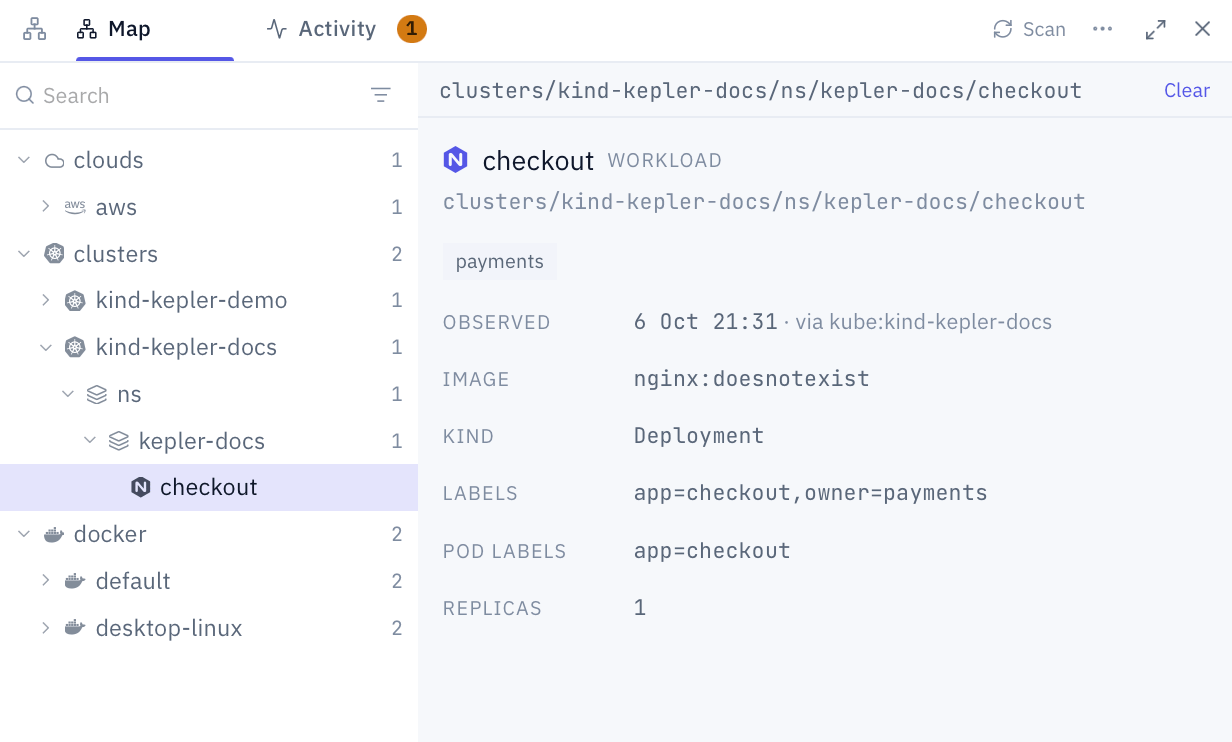
Open the map
Click Topology in the sidebar. The panel has two tabs:
Scan at the top of the panel scans everything now. The More menu holds Recent changes, a list of what changed across the map, and Sources and settings, which opens Settings > Topology.
Right-click any item for its actions:
With Remote access on, a host’s detail also shows whether it is connected, with Connect or Disconnect, and Work here, which moves the current conversation onto that machine.
What Kepler reads
Each place Kepler reads is a source. Sources are found on your machine automatically.How things got there
The map follows the delivery path, so you can ask what built a workload, what installed it and what manages it:- CI workflows from GitHub Actions, GitLab CI, CircleCI and Jenkins sit under the repository that owns them. Each one records what triggers it, the image it builds, and the secrets it needs, by name only.
- Helm releases sit in their namespace.
- Argo CD and Flux applications carry the repository and namespace they declare.
Where the data lives
Databases, caches, queues and buckets are on the map too:
A database keeps its address, so Kepler can match it to the workloads that connect to it:
Where to look when it breaks
Kepler finds the monitoring tools inside your clusters and records the address of each one, so it stops asking where your Grafana is:Add what no scan can see
A database somebody runs by hand, or a machine that is on no list, can be added yourself. Kepler keeps a plain file of these at~/.kepler/topology/kepler-list.jsonl, one JSON object per line. The file opens with sample lines to copy:
hostnameis the field worth filling in. It is what lets Kepler connect a workload’s connection string to the database.enginenames the database and gives it its mark on the map. Kepler recognises the common ones, frompostgres,mysqlandmongodbtocassandra,kafka,redisandelasticsearch. The file lists them all. Any other engine works too and gets a generic mark.- Delete a line and the next scan takes it off the map.
Answer what Kepler proposes
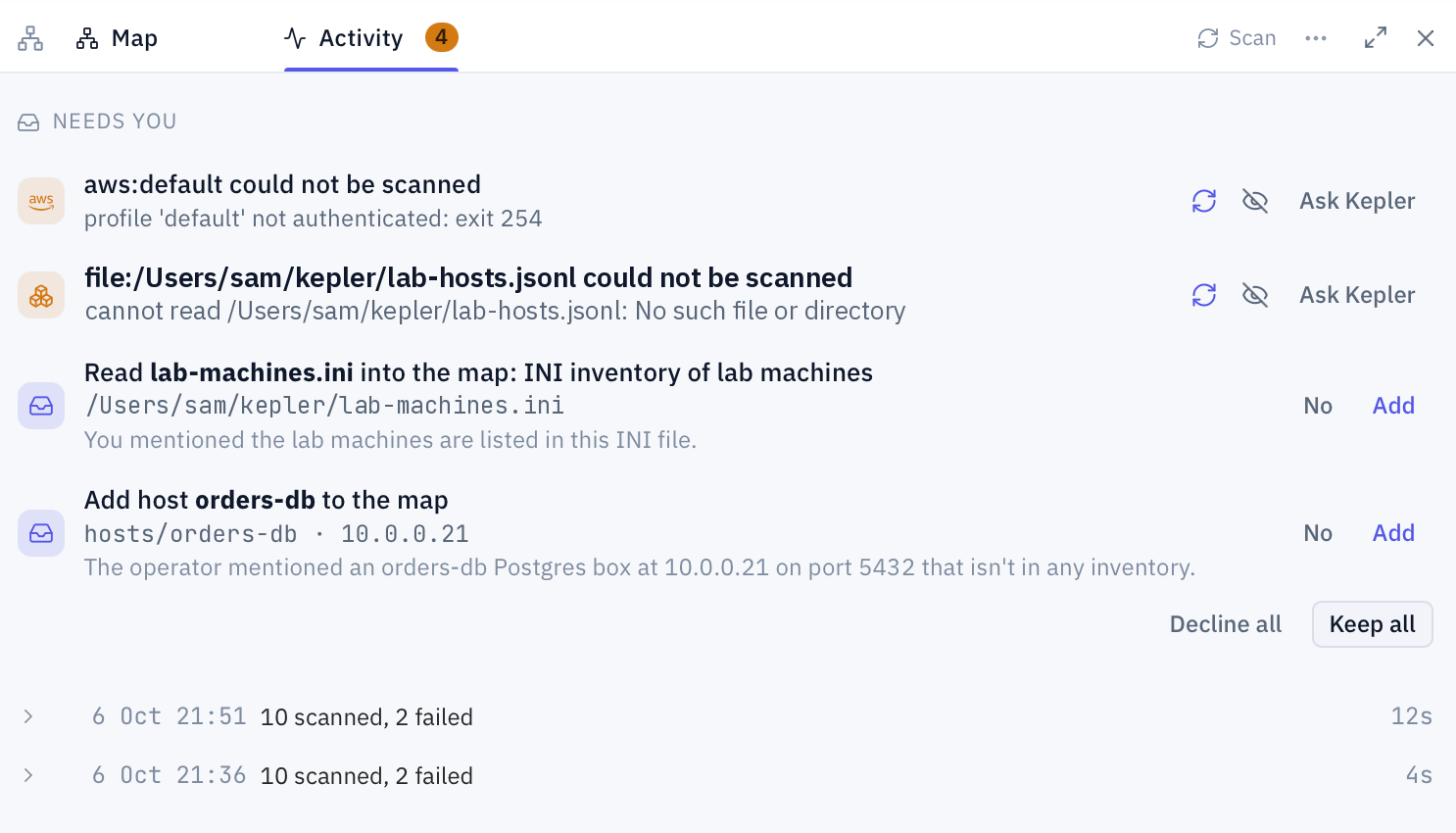
Kepler learns from your conversations. When you mention a host it has never seen, an inventory file, or a nickname for something on the map, it proposes adding it. A proposal never changes the map on its own. It waits under Needs you on the Activity tab:
Each proposal quotes what was said that led to it, and counts how often it came up. When several are waiting, Keep all and Decline all answer them in one step. A proposal you decline is not offered again, and one nobody answers expires after 30 days.
Telling Kepler something directly is different from Kepler working it out. “When I say prod, I mean gke-prod-eu” is an instruction and is saved at once. A guess from the conversation always waits for you.
When a source fails
A source that cannot be read shows under Needs you with the reason it gave, such as an expired cloud login. Three ways out:- Try again scans that source once more. Use it after you have signed in again or fixed access.
- Ignore opens the source in Settings > Topology, where you can skip it.
- Ask Kepler starts a conversation with the error, so Kepler can work out the cause and tell you what to run.
Settings > Topology
Ask about it in chat
You rarely need to open the panel. Ask in plain words and Kepler looks it up on the map:Where to go next
Remote access
Work on a host from the map.
Memory
What Kepler remembers beyond the map.
Extend Kepler
Integrations that feed the map.
Settings reference
The Topology section in Settings.