

Connect a channel
Open Settings > Gateway and choose Connect a channel. Each channel walks you through its own steps.- Telegram
- Slack
- Discord
- WhatsApp
1
Create a bot
Open Telegram and message @BotFather. Send
/newbot and give it a name.2
Paste the token
BotFather replies with a bot token. Paste it into Kepler as the Bot token.
3
Add yourself
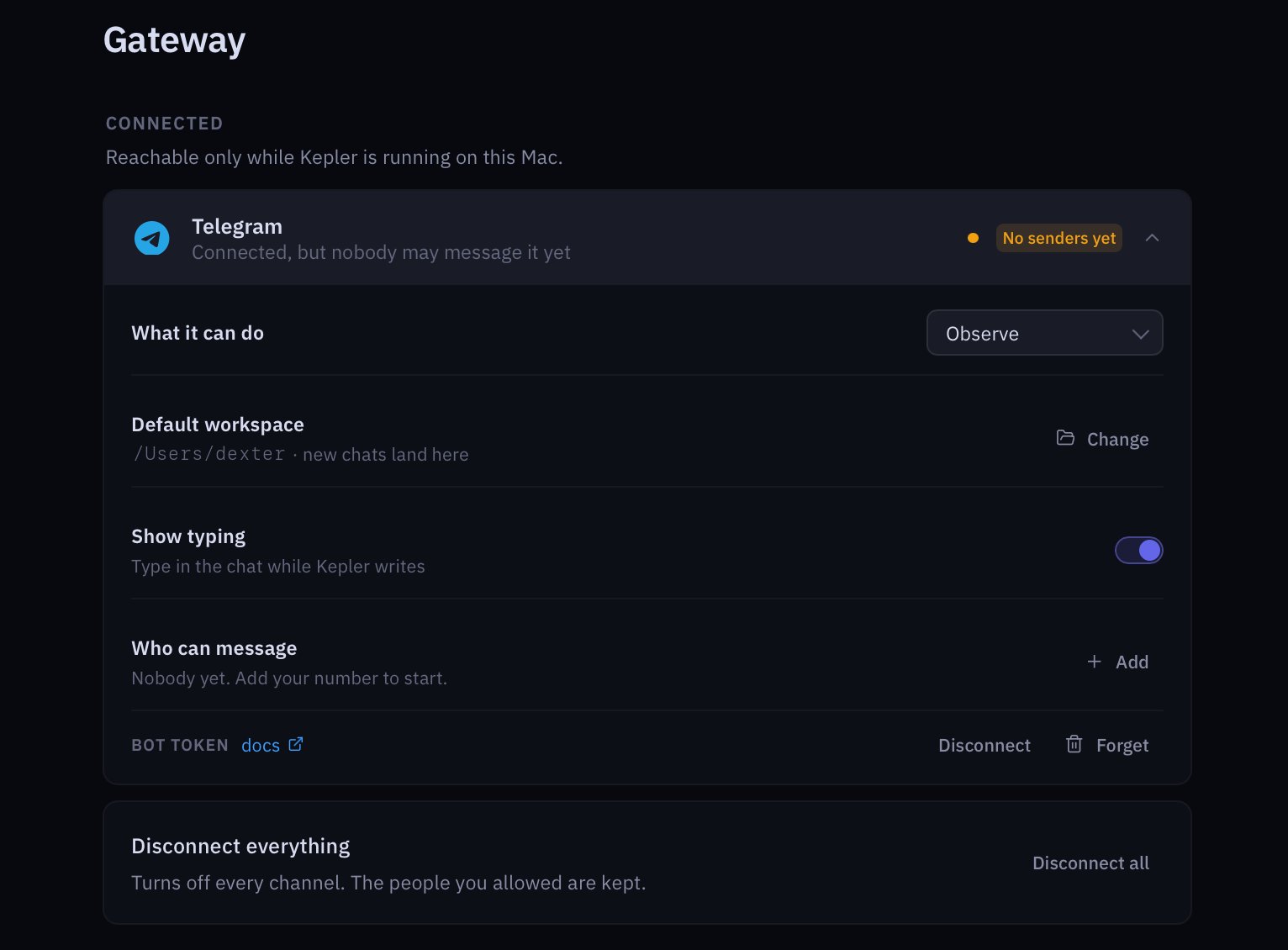
Under Who can message, add your @username or numeric user ID. Telegram never gives a bot your phone number, so a phone number here will not match.
Bind a session to your phone
By default a message from your phone starts or continues a chat in the channel’s default workspace. To drive a specific session you already have open, run this in that session:whatsapp for telegram, slack or discord. Turn it off with:
What you can do from the channel
- Ask anything you would ask at your desk. The session keeps its context, so “and the logs?” means what it would mean in the app.
- Answer approvals. When Kepler is waiting on a command in Assist, the approval reaches the channel. Reply
yesorno, or/approveor/deny, and it counts the same as pressing the button in the app. - Be woken by a watcher. With Reach me when I’m away on under Settings > General > When you’re away, alerts that need action go to a connected channel once your screen is locked or idle. Routine notifications never do.
Channel options
Each connected channel has its own settings in Settings > Gateway.
Disconnect everything turns off every channel at once. The people you allowed are kept, so reconnecting is quick.
How Kepler signs its replies
Kepler stamps a name and emoji on the replies it sends, so a message from Kepler never reads as one from you. Set them in Settings > Customize > Signature. On WhatsApp self-chat every reply is signed. On Telegram, Slack and Discord the bot already has its own name, so Sign replies everywhere stays off unless you want it.Where to go next
Watchers
The thing most worth being woken for.
Postures
What Observe, Assist and Yolo mean for a channel.
Troubleshooting
Dropped links and silent bots.
Settings reference
The Gateway section in Settings.