

- An outage with more than one plausible cause, where you would normally have three people each chasing a theory.
- A bad deploy where someone needs to read the pods, someone the diff, and someone the dashboards, at the same time.
- Latency or behaviour that changed when nothing obvious shipped.
Start a war room
Choose New war room in the sidebar. The landing asks one thing: What are you seeing? A symptom is enough.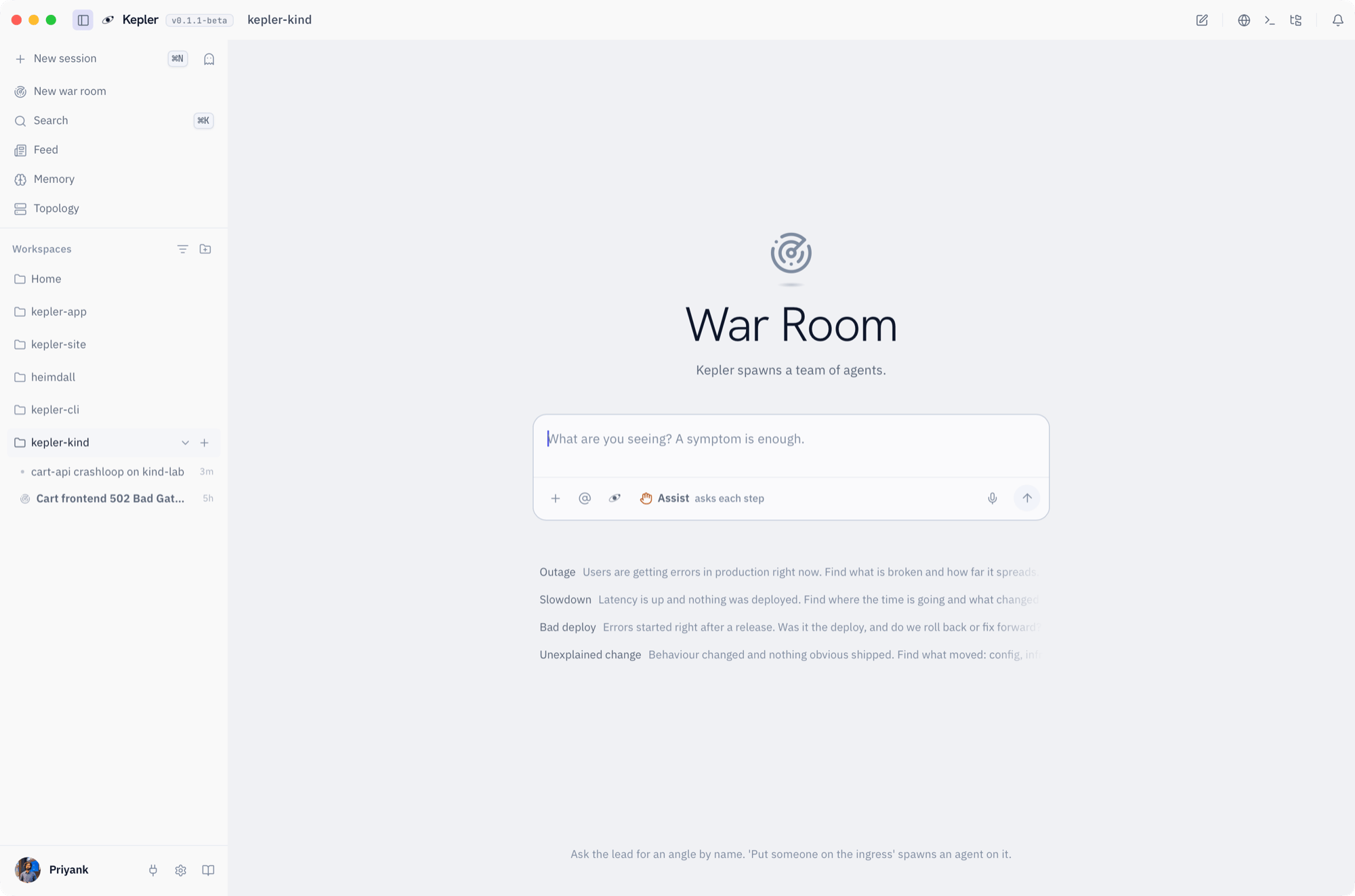
Clicking a chip inserts the text rather than sending it, because you have the specifics and the card does not. Add the service, the time, the cluster, then send.
A war room runs in Assist or Yolo, chosen when you open it. Observe is not offered here: the room exists so that members can work, and Observe would leave them unable to. The always-blocked list still applies to every member.
Starter prompt
What you see
Kepler answers first as the lead, then spawns members as the investigation branches. Each member gets its own pane beside the conversation, with a name, a colour and its own transcript. Members persist: they keep their context and are re-entered as the room needs them, rather than answering once and disappearing.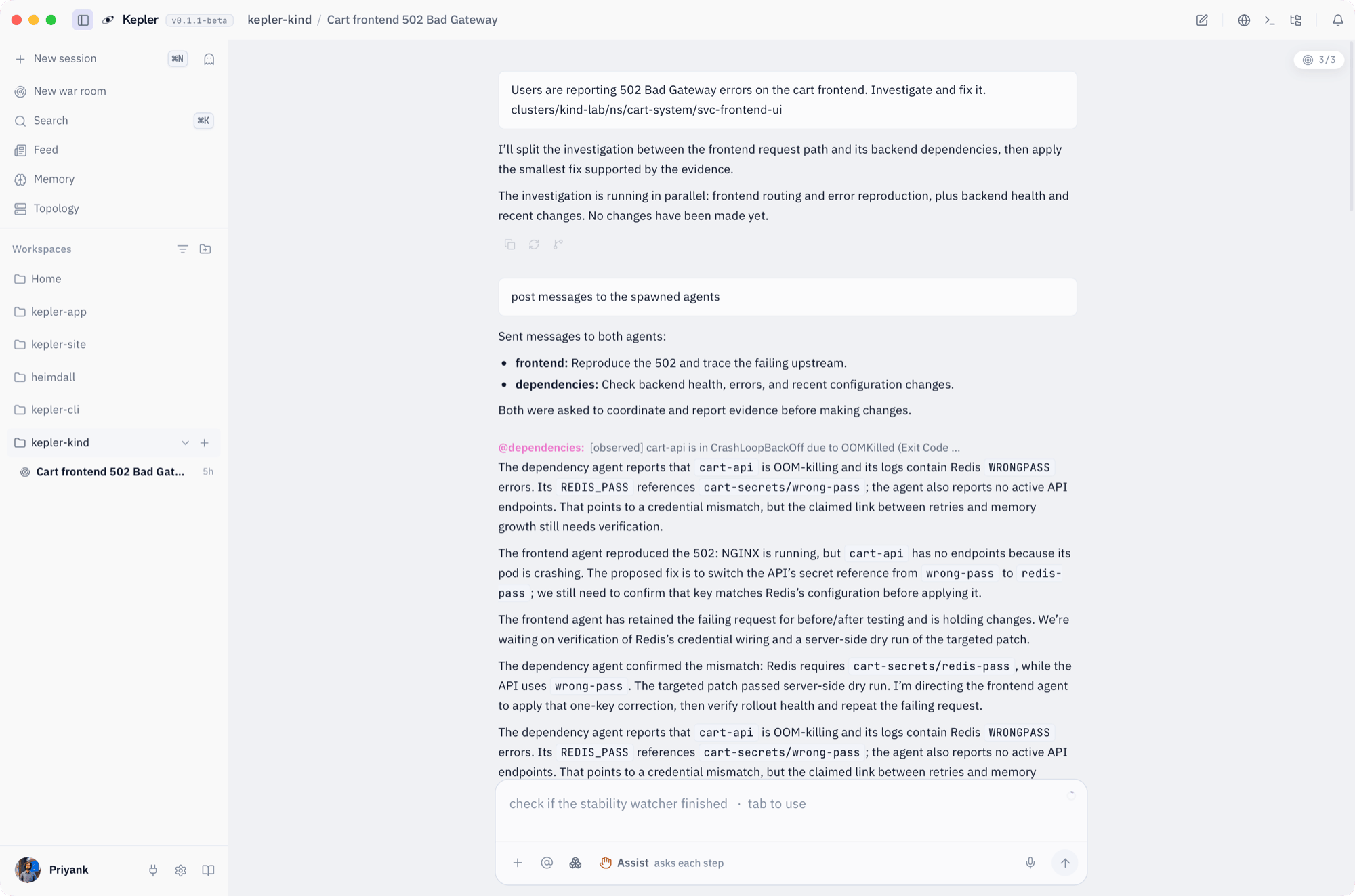
What to expect
An illustrative run of the starter prompt above:
Kepler (lead): Two things to establish first: whether the 502s correlate with the 09:35 rollout, and how many requests are failing. Spawning three members.
pods: checkout-api has 4/6 pods Ready. Two pods restarting with exit code 137 since 09:36. Memory limit is 512Mi, and usage on the healthy pods is at 490Mi.
deploy-diff: The 09:35 release bumped the image to v2.14.1 and raised the default page size from 50 to 500 in the ConfigMap. Nothing else changed.
dashboards: Error rate rose from 0.2% to 11% at 09:37 on the checkout Grafana board. p99 doubled at the same minute. Traffic is flat, so this is not load.
Kepler (lead): Pinned: the page-size change is the likely cause. The bigger responses push the pods past their memory limit and they are killed. Rolling back the ConfigMap value reverts the behaviour without a redeploy. This needs your approval: kubectl apply of the previous ConfigMap is waiting in the queue.
Your real run will differ. What stays the same is the shape: a lead that keeps the goal in view, members that each own one angle, pinned findings that cross between them, and one queue for approvals.
Rules of the room
- Members share the room’s posture and cannot widen it. A member cannot switch itself to Yolo.
- Only Kepler, as lead, spawns or stops members. Members can post findings and read the room, and nothing more.
- The always-blocked list applies to everyone in the room. See Permissions.
- Closing the room stops every member.
Make it your own
Where to go next
Postures
Assist and Yolo, and what the approval dock shows you.
Everyday workflows
Single-thread investigations, triage and RCA.
Watchers
Keep an eye on the fix after the room closes.
Memory
Where the room’s findings go afterwards.