

Integrations (MCP servers)
An integration gives Kepler tools for one part of your stack: query Grafana, list PagerDuty incidents, read a GitHub pull request, describe an EC2 instance. Integrations speak MCP, so anything with an MCP server can be connected. Open Settings > Tools & MCP. The catalog lists the integrations Kepler knows how to set up: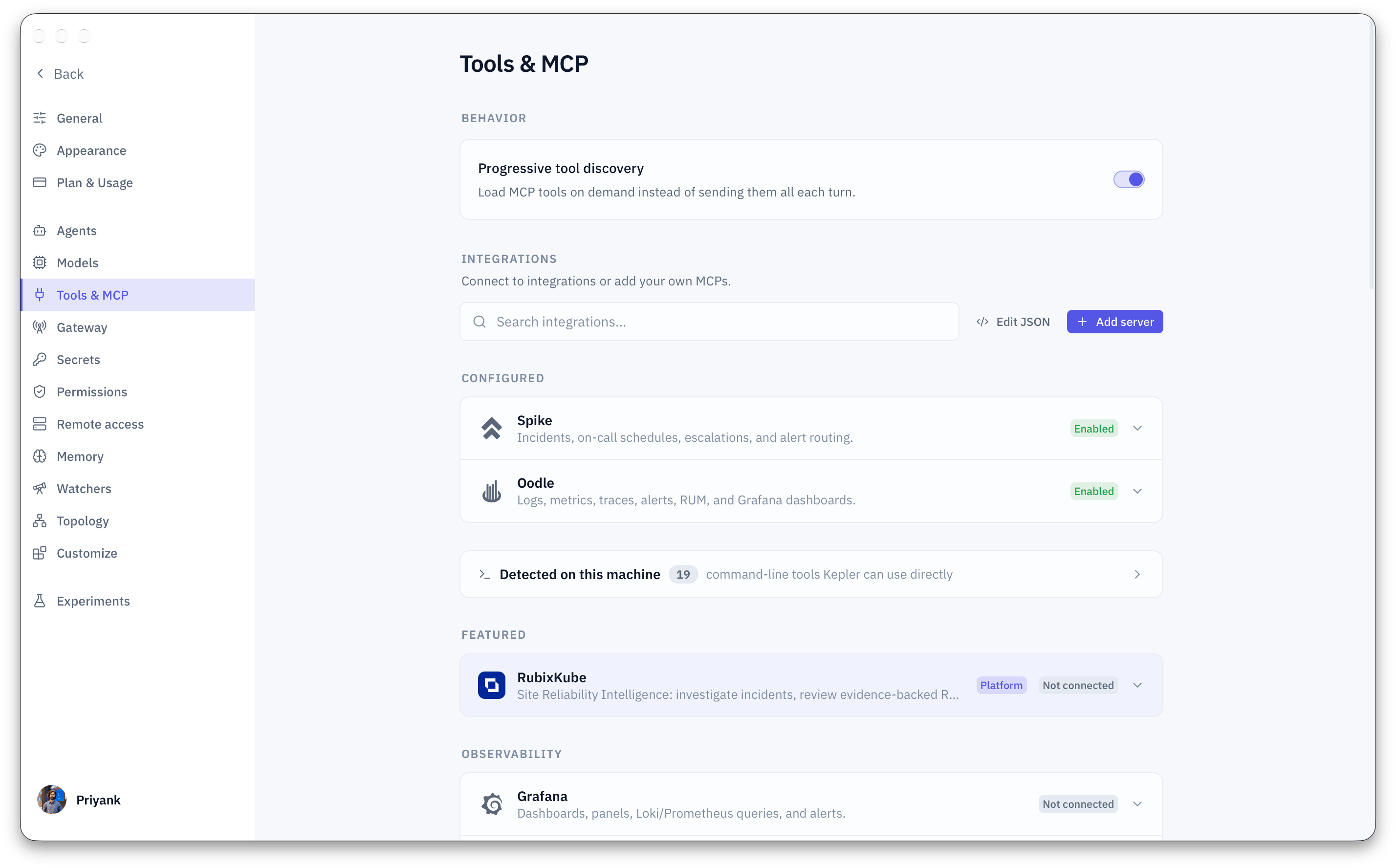
Add an integration
1
Pick it from the catalog
Open Settings > Tools & MCP and choose the integration. Each card tells you what credential it needs.
2
Add the credential as a secret
Kepler stores tokens in your operating system keychain and refers to them by name. See Secrets below.
3
Ask for it in chat
You do not need to restart anything. On the next turn, Kepler can use the new tools.
What integrations look like in practice
Large servers hand over their tools a few at a time, so the conversation stays fast even with many integrations connected. Progressive tool discovery in Settings > Tools & MCP controls this. Leave it on.
Secrets
Credentials never sit in a config file. Settings > Secrets keeps named credentials in your operating system keychain. An integration config only ever holds the name, written as${NAME}.
1
Add a credential
In Settings > Secrets, add a name such as
GRAFANA_TOKEN and paste the value.2
Reference it by name
In the integration’s settings, use
${GRAFANA_TOKEN} wherever the token is needed.Skills
A skill is a capability written in Markdown: aSKILL.md file, and optionally scripts beside it, in its own folder. Kepler loads a skill the moment it is needed, or when you trigger it as a slash command.
Skills live in ~/.kepler/skills for everything you do, or in .kepler/skills inside a workspace for one project. Claude Code skill folders work as they are: drop them in, or import them from Settings > Customize, which lists any Claude Code skills it finds on your machine.
A skill worth writing is one you would otherwise explain every time:
~/.kepler/skills/pod-crashloop-triage/SKILL.md. It appears in the / menu as /pod-crashloop-triage, and Kepler also reaches for it on its own when the situation fits.
Manage skills in Settings > Customize: create one from a template, import from Claude Code, edit the file, add a script.
Custom slash commands
A custom command is a prompt you keep retyping, saved under a name. The quickest way to make one is to describe it:$ARGUMENTS inside the file is replaced by whatever you type after the command.
See Commands and shortcuts for the full built-in list.
Specialist agents
A specialist is a read-only agent with its own persona and tools. Kepler builds one-off specialists on its own when it fans out an investigation, so you do not have to think about them. Save one yourself when you ask the same kind of question often:Identity on your channels
When Kepler reaches you on WhatsApp, Slack, Telegram or Discord, it signs its replies with a name and emoji you choose in Settings > Customize, so its messages never read as yours. See Chat from your phone.Standing rules and lifecycle hooks (run a command before a tool, after a run, or on approval) are listed under Settings > Customize as coming soon. They are not available in this release.
Where to go next
Permissions
Set MCP servers to allow, ask or block.
Commands and shortcuts
Every built-in slash command.
Everyday workflows
Prompts that use your integrations.
Settings reference
Tools & MCP, Secrets, Agents and Customize, in detail.