

First run
After installation, launch with no arguments:~/.rubix/auth.json. You do not re-login every time.
Starting a chat
The default command launches the interactive chat UI: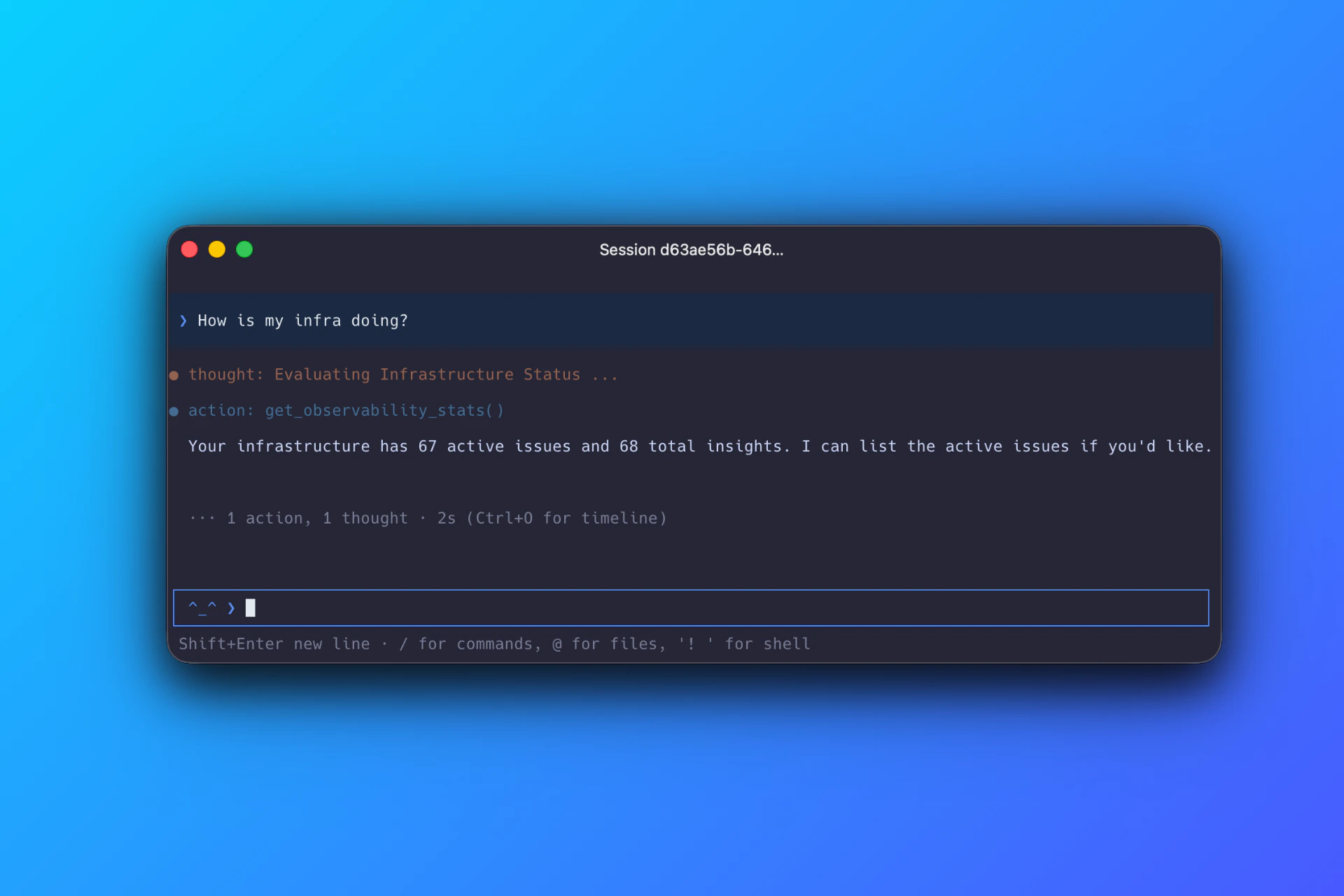
Scripting a single prompt
To send a prompt and exit (useful in CI or for saving shell aliases):--session-id to append into an existing conversation.
Resuming a session
List previous sessions:/resume and pick from the list.
Switching environments
The active environment determines the scope of the next question. Switch on the fly:Switching the AI model
Some accounts have access to multiple model options for chat. Switch inside a session:Feeding shell output into chat
When you want the agent to read command output directly, run the command in your shell, then drop into chat and run:Keystroke shortcuts
Submit a message
Submit a message
Enter submits. Shift+Enter adds a newline.
Slash commands
Slash commands
Type
/ anywhere to open the slash menu. Arrow keys navigate, enter confirms.Clipboard paste
Clipboard paste
/paste inserts clipboard content cleanly, bypassing terminal paste truncation that can mangle long inputs.Exit
Exit
/exit or /quit, or Ctrl+C.Logging out
rubix run will prompt for the device-code flow again.
Where to go next
Configuration
Where credentials and settings live, how trust is scoped per directory.
Commands
Complete reference for top-level commands and slash commands.
Examples
Concrete daily flows: on-call triage, post-deploy verification, cost reviews.
Troubleshooting
Login issues, stale auth, proxy problems.