> ## Documentation Index
> Fetch the complete documentation index at: https://docs.rubixkube.ai/llms.txt
> Use this file to discover all available pages before exploring further.
# Skills
> Enable system skills or create custom ones to extend the capabilities of your agents.
# Using Agent Skills
The **Skills** page is your hub for managing Agent Skills — structured workflows that give the SRI Agent domain expertise. Enable pre-built system skills, create custom skills tailored to your team's runbooks, and manage everything from one place.
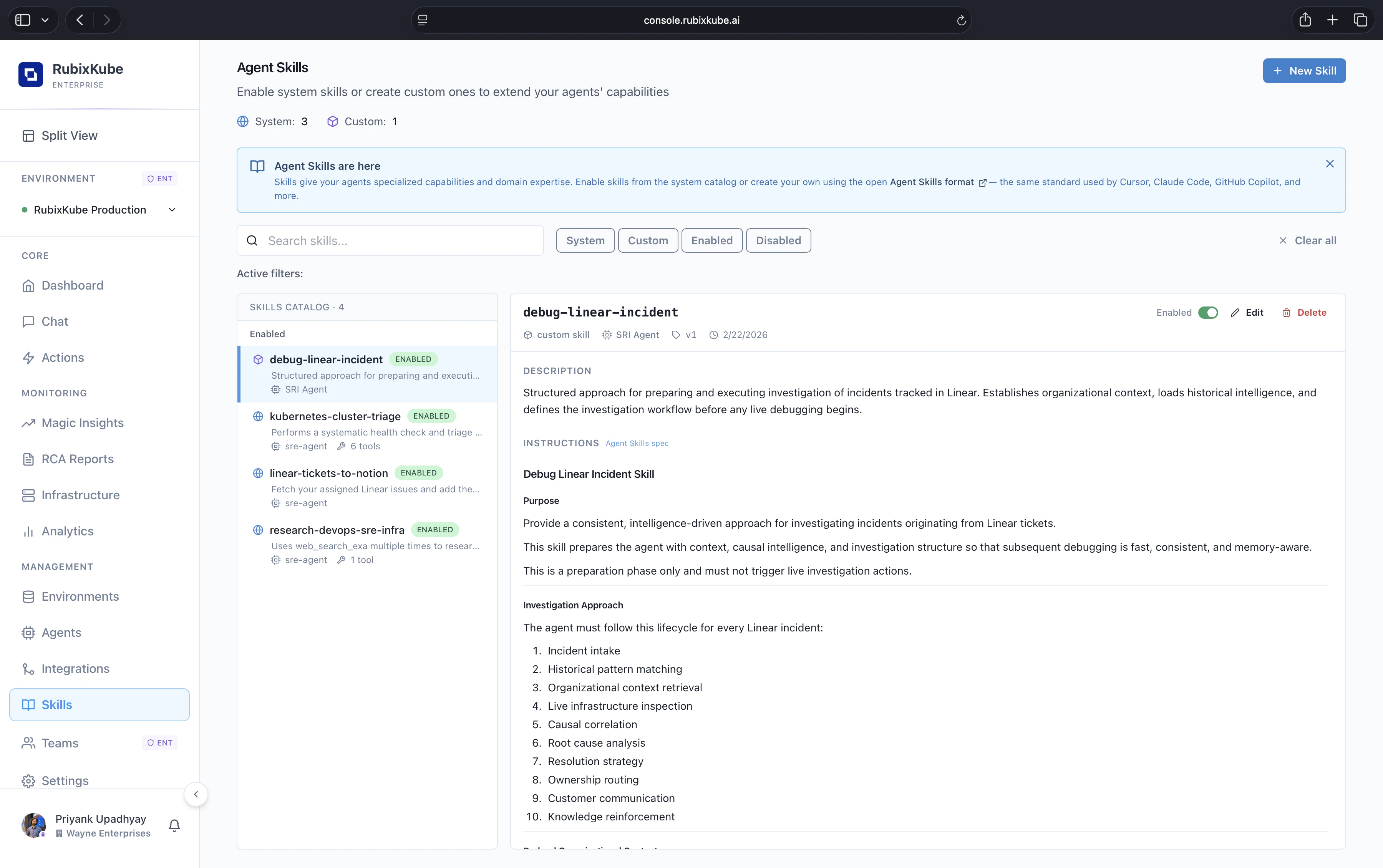 The Skills catalogue. System skills ship with the product, custom skills are authored in the open Agent Skills format, the same standard used by other AI agents.
***
## Skills Page Overview
When you open **Skills** from the left sidebar, you'll see:
* **Skill counts** — Total **System** and **Custom** skills at a glance
* **Filter tabs** — Switch between **System**, **Custom**, **Enabled**, and **Disabled** views
* **Search bar** — Find skills by name or description
* **Skills catalog** — List of all available skills with status badges
* **+ New Skill** button — Create a custom skill (top-right corner)
First time here? A banner at the top introduces Agent Skills and links to the open Agent Skills format documentation.
***
## Browsing Skills
### Filter Tabs
Use the filter tabs above the catalog to narrow your view:
| Filter | Shows |
| ------------ | ---------------------------------------- |
| **System** | Pre-built skills maintained by RubixKube |
| **Custom** | Skills created by your team |
| **Enabled** | All currently active skills |
| **Disabled** | Skills that are available but not active |
You can also use the **Search bar** to find skills by name or keyword.
### Skill Cards
Each skill in the catalog shows:
* **Name** with an **ENABLED** or **DISABLED** badge
* **Brief description** of what the skill does
* **Agent assignment** (`sre-agent`)
* **Tool count** — how many tools the skill uses
***
## Viewing Skill Details
Click on any skill in the catalog to see its full details in the right panel:
The Skills catalogue. System skills ship with the product, custom skills are authored in the open Agent Skills format, the same standard used by other AI agents.
***
## Skills Page Overview
When you open **Skills** from the left sidebar, you'll see:
* **Skill counts** — Total **System** and **Custom** skills at a glance
* **Filter tabs** — Switch between **System**, **Custom**, **Enabled**, and **Disabled** views
* **Search bar** — Find skills by name or description
* **Skills catalog** — List of all available skills with status badges
* **+ New Skill** button — Create a custom skill (top-right corner)
First time here? A banner at the top introduces Agent Skills and links to the open Agent Skills format documentation.
***
## Browsing Skills
### Filter Tabs
Use the filter tabs above the catalog to narrow your view:
| Filter | Shows |
| ------------ | ---------------------------------------- |
| **System** | Pre-built skills maintained by RubixKube |
| **Custom** | Skills created by your team |
| **Enabled** | All currently active skills |
| **Disabled** | Skills that are available but not active |
You can also use the **Search bar** to find skills by name or keyword.
### Skill Cards
Each skill in the catalog shows:
* **Name** with an **ENABLED** or **DISABLED** badge
* **Brief description** of what the skill does
* **Agent assignment** (`sre-agent`)
* **Tool count** — how many tools the skill uses
***
## Viewing Skill Details
Click on any skill in the catalog to see its full details in the right panel:
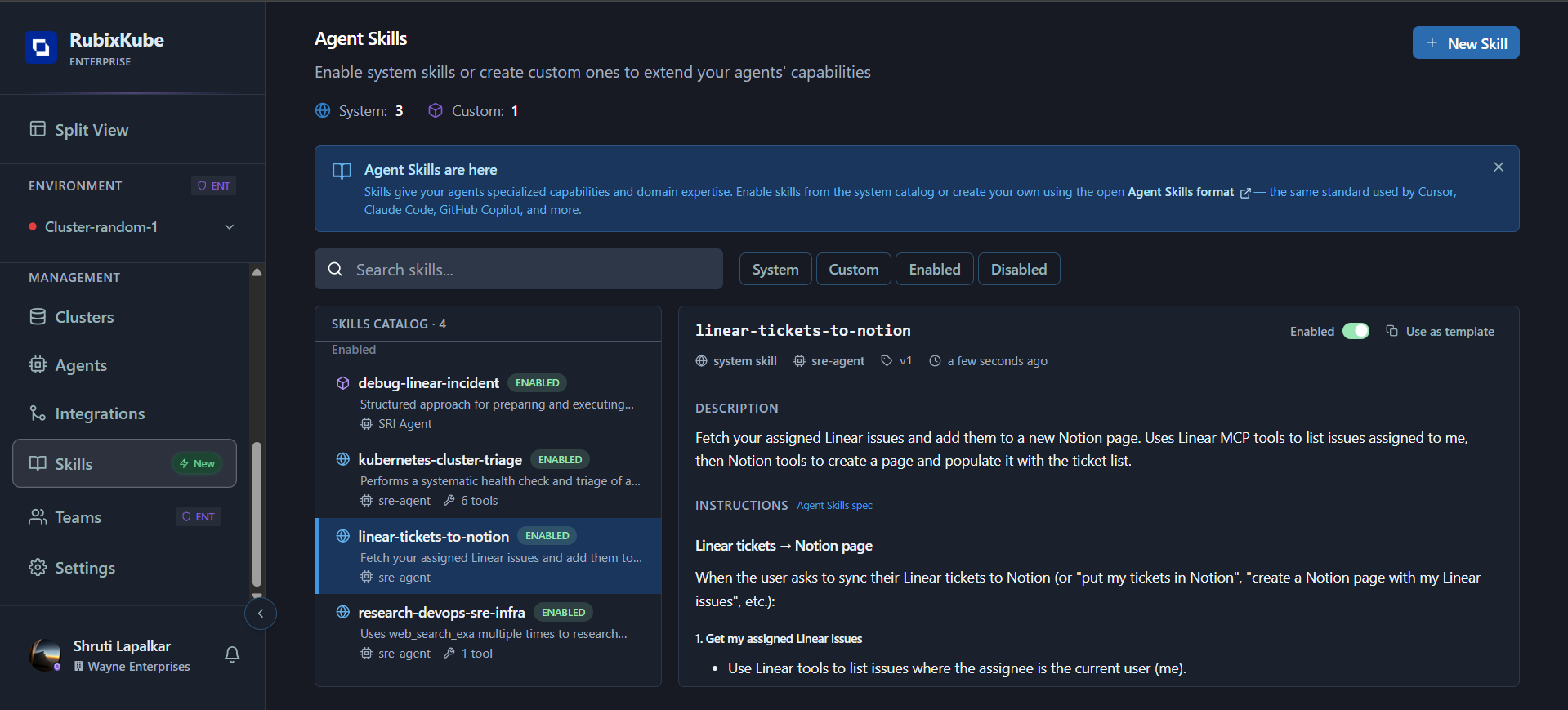 Detail view of the linear-tickets-to-notion skill with description and instructions
The detail panel displays:
* **Skill type** — `system skill` or `custom`
* **Agent** — Which agent uses this skill (currently `sre-agent`)
* **Version** — Skill version number
* **Last updated** — When the skill was last modified
* **Enabled toggle** — Enable or disable the skill for your tenant
* **Use as template** — Create a custom skill based on this one
* **Description** — Full description of the skill's purpose
* **Instructions** — The step-by-step workflow the agent follows, including which tools to use at each step
***
## Enabling and Disabling Skills
### Enable a Skill
To make a skill available to the SRI Agent:
1. Navigate to the **Skills** page
2. Find the skill you want to enable in the catalog
3. Click on the skill to open its detail panel
4. Toggle the **Enabled** switch to on
The skill becomes immediately available — the next time you ask a relevant question in Chat, the SRI Agent will use this skill's instructions.
### Disable a Skill
To stop a skill from being used:
1. Open the skill's detail panel
2. Toggle the **Enabled** switch to off
Disabling a skill does not delete it. You can re-enable it at any time.
***
## Creating Custom Skills
You can create custom skills in two ways: **from scratch** or **from a template**.
### Option 1: Create from Scratch
Detail view of the linear-tickets-to-notion skill with description and instructions
The detail panel displays:
* **Skill type** — `system skill` or `custom`
* **Agent** — Which agent uses this skill (currently `sre-agent`)
* **Version** — Skill version number
* **Last updated** — When the skill was last modified
* **Enabled toggle** — Enable or disable the skill for your tenant
* **Use as template** — Create a custom skill based on this one
* **Description** — Full description of the skill's purpose
* **Instructions** — The step-by-step workflow the agent follows, including which tools to use at each step
***
## Enabling and Disabling Skills
### Enable a Skill
To make a skill available to the SRI Agent:
1. Navigate to the **Skills** page
2. Find the skill you want to enable in the catalog
3. Click on the skill to open its detail panel
4. Toggle the **Enabled** switch to on
The skill becomes immediately available — the next time you ask a relevant question in Chat, the SRI Agent will use this skill's instructions.
### Disable a Skill
To stop a skill from being used:
1. Open the skill's detail panel
2. Toggle the **Enabled** switch to off
Disabling a skill does not delete it. You can re-enable it at any time.
***
## Creating Custom Skills
You can create custom skills in two ways: **from scratch** or **from a template**.
### Option 1: Create from Scratch
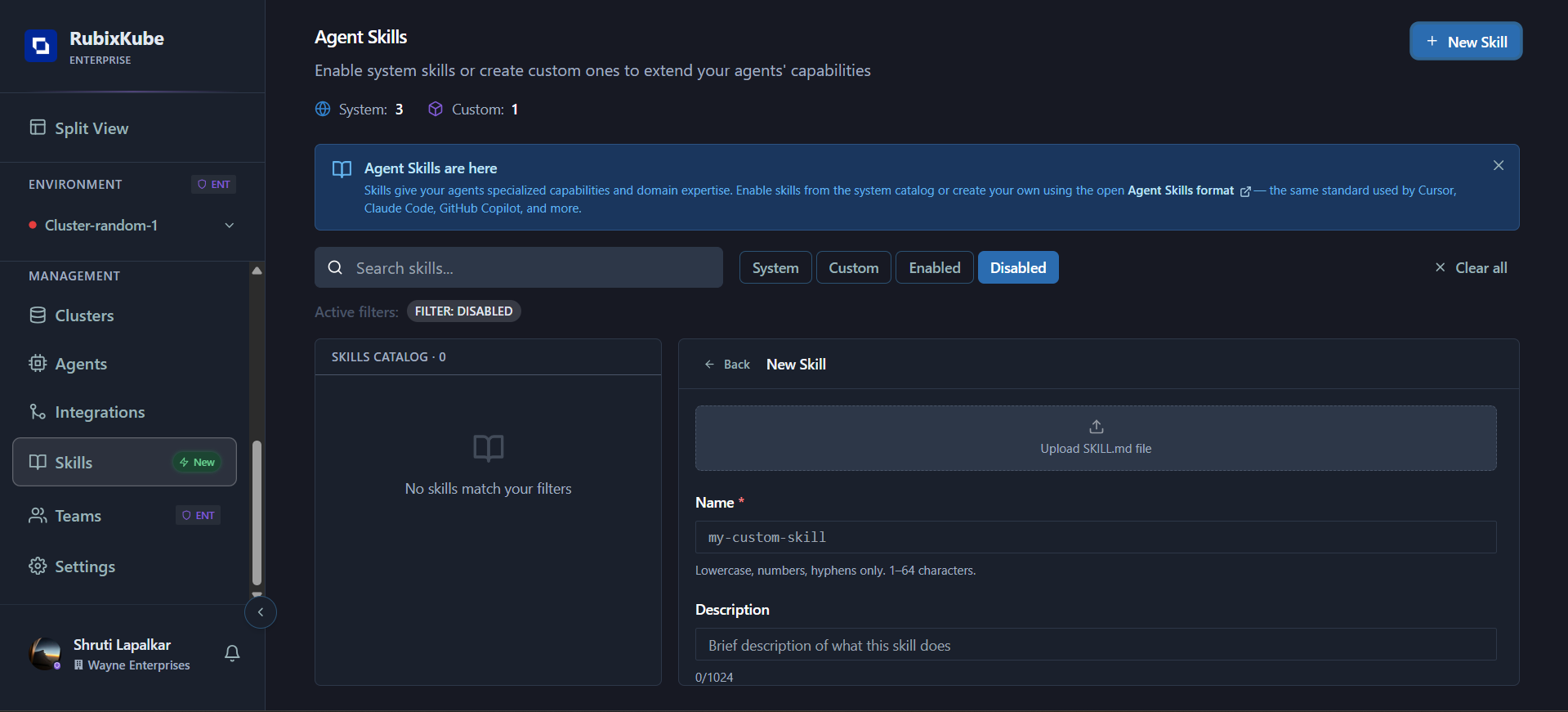 New Skill creation form — upload a SKILL.md file or fill in the fields manually
Click the **"+ New Skill"** button in the top-right corner of the Skills page.
You have two options:
* **Upload a SKILL.md file** — Drag and drop a skill file that follows the open [Agent Skills format](https://agentskills.io/home). The fields will be auto-populated.
* **Fill in manually** — Enter the skill details directly in the form.
Fill in the following fields:
| Field | Description | Rules |
| ----------------- | ------------------------------- | ----------------------------------------------------- |
| **Name** | Unique skill identifier | Lowercase, numbers, hyphens only. 1–64 characters |
| **Description** | What the skill does | Up to 1024 characters |
| **Agent** | Which agent will use this skill | Select **SRI Agent** from the dropdown |
| **Allowed Tools** | Tools this skill can use | Comma-separated tool names. Leave empty for all tools |
| **Instructions** | Step-by-step workflow | The detailed instructions the agent will follow |
From the **Agent** dropdown, select **SRI Agent**. This is currently the only agent available for skill assignment.
Click **"Create skill"** to save. The skill will appear in the catalog under the **Custom** filter tab.
### Option 2: Create from Template
New Skill creation form — upload a SKILL.md file or fill in the fields manually
Click the **"+ New Skill"** button in the top-right corner of the Skills page.
You have two options:
* **Upload a SKILL.md file** — Drag and drop a skill file that follows the open [Agent Skills format](https://agentskills.io/home). The fields will be auto-populated.
* **Fill in manually** — Enter the skill details directly in the form.
Fill in the following fields:
| Field | Description | Rules |
| ----------------- | ------------------------------- | ----------------------------------------------------- |
| **Name** | Unique skill identifier | Lowercase, numbers, hyphens only. 1–64 characters |
| **Description** | What the skill does | Up to 1024 characters |
| **Agent** | Which agent will use this skill | Select **SRI Agent** from the dropdown |
| **Allowed Tools** | Tools this skill can use | Comma-separated tool names. Leave empty for all tools |
| **Instructions** | Step-by-step workflow | The detailed instructions the agent will follow |
From the **Agent** dropdown, select **SRI Agent**. This is currently the only agent available for skill assignment.
Click **"Create skill"** to save. The skill will appear in the catalog under the **Custom** filter tab.
### Option 2: Create from Template
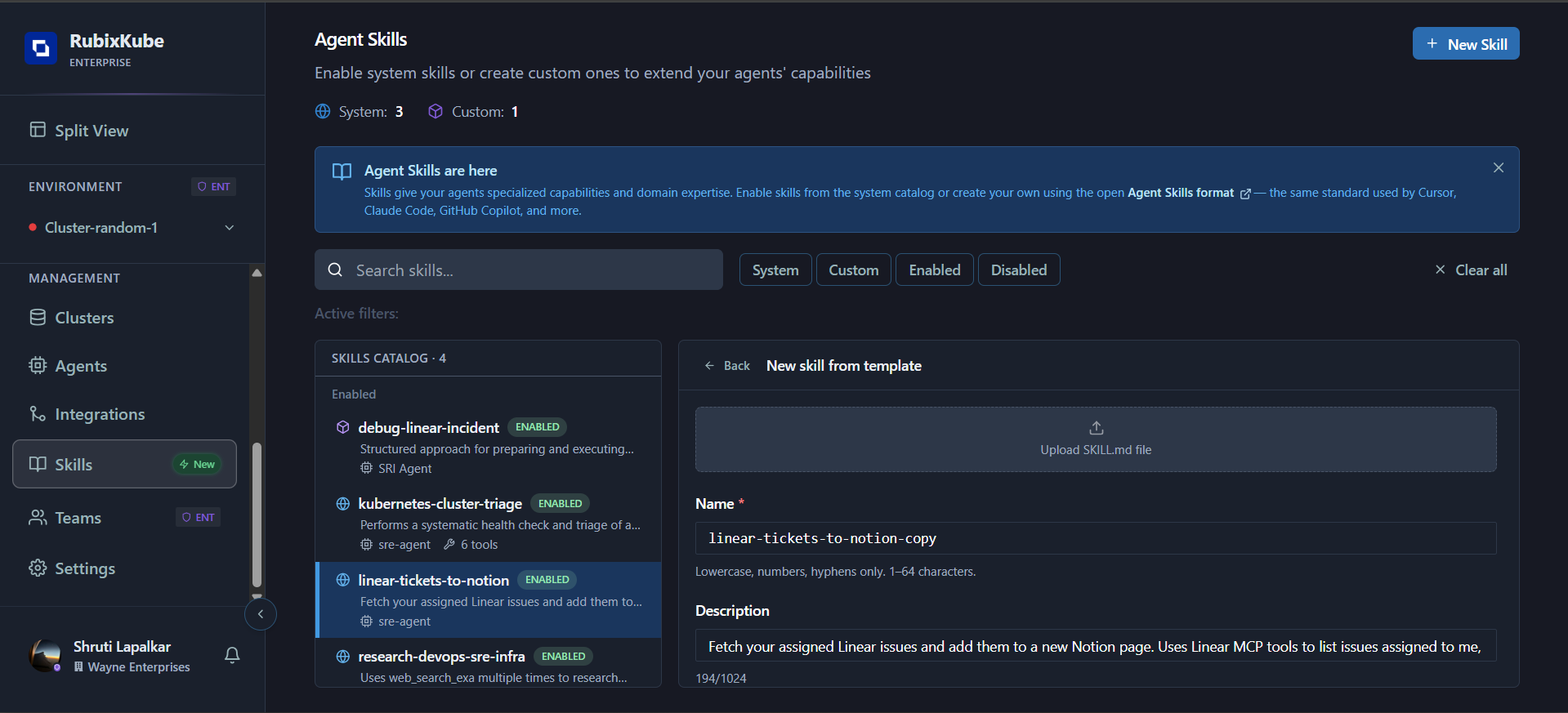 Creating a new skill from an existing system skill template
Click on any system skill in the catalog to open its detail panel.
Click **"Use as template"** in the top-right of the detail panel.
The form opens pre-populated with the system skill's details. Modify the **name**, **description**, **instructions**, and **allowed tools** to match your requirements.
Select **SRI Agent** from the agent dropdown and click **"Create skill"**.
Using templates is the fastest way to create custom skills — start from a proven workflow and adapt it to your environment.
***
## Editing Custom Skills
You can edit any custom skill after it has been created. System skills cannot be edited directly — use **"Use as template"** to create an editable copy instead.
Click on the custom skill in the catalog to open its detail panel.
Click the **"Edit"** button in the top-right of the detail panel. The skill form opens pre-populated with the current values.
Modify any of the editable fields:
| Field | Description |
| ----------------- | ----------------------------------------------------- |
| **Name** | Unique skill identifier (lowercase, numbers, hyphens) |
| **Description** | What the skill does and when to use it |
| **Agent** | Which agent will use this skill (SRI Agent) |
| **Allowed Tools** | Comma-separated tool names the skill can use |
| **Instructions** | Step-by-step workflow the agent follows |
Click **"Update skill"** to save. Changes take effect immediately — the next Chat interaction will use the updated skill definition.
Editing a skill's instructions or allowed tools takes effect immediately for all future executions. If a skill is currently in use by an active Chat session, the updated version applies to the next invocation.
***
## Agent Selection
Creating a new skill from an existing system skill template
Click on any system skill in the catalog to open its detail panel.
Click **"Use as template"** in the top-right of the detail panel.
The form opens pre-populated with the system skill's details. Modify the **name**, **description**, **instructions**, and **allowed tools** to match your requirements.
Select **SRI Agent** from the agent dropdown and click **"Create skill"**.
Using templates is the fastest way to create custom skills — start from a proven workflow and adapt it to your environment.
***
## Editing Custom Skills
You can edit any custom skill after it has been created. System skills cannot be edited directly — use **"Use as template"** to create an editable copy instead.
Click on the custom skill in the catalog to open its detail panel.
Click the **"Edit"** button in the top-right of the detail panel. The skill form opens pre-populated with the current values.
Modify any of the editable fields:
| Field | Description |
| ----------------- | ----------------------------------------------------- |
| **Name** | Unique skill identifier (lowercase, numbers, hyphens) |
| **Description** | What the skill does and when to use it |
| **Agent** | Which agent will use this skill (SRI Agent) |
| **Allowed Tools** | Comma-separated tool names the skill can use |
| **Instructions** | Step-by-step workflow the agent follows |
Click **"Update skill"** to save. Changes take effect immediately — the next Chat interaction will use the updated skill definition.
Editing a skill's instructions or allowed tools takes effect immediately for all future executions. If a skill is currently in use by an active Chat session, the updated version applies to the next invocation.
***
## Agent Selection
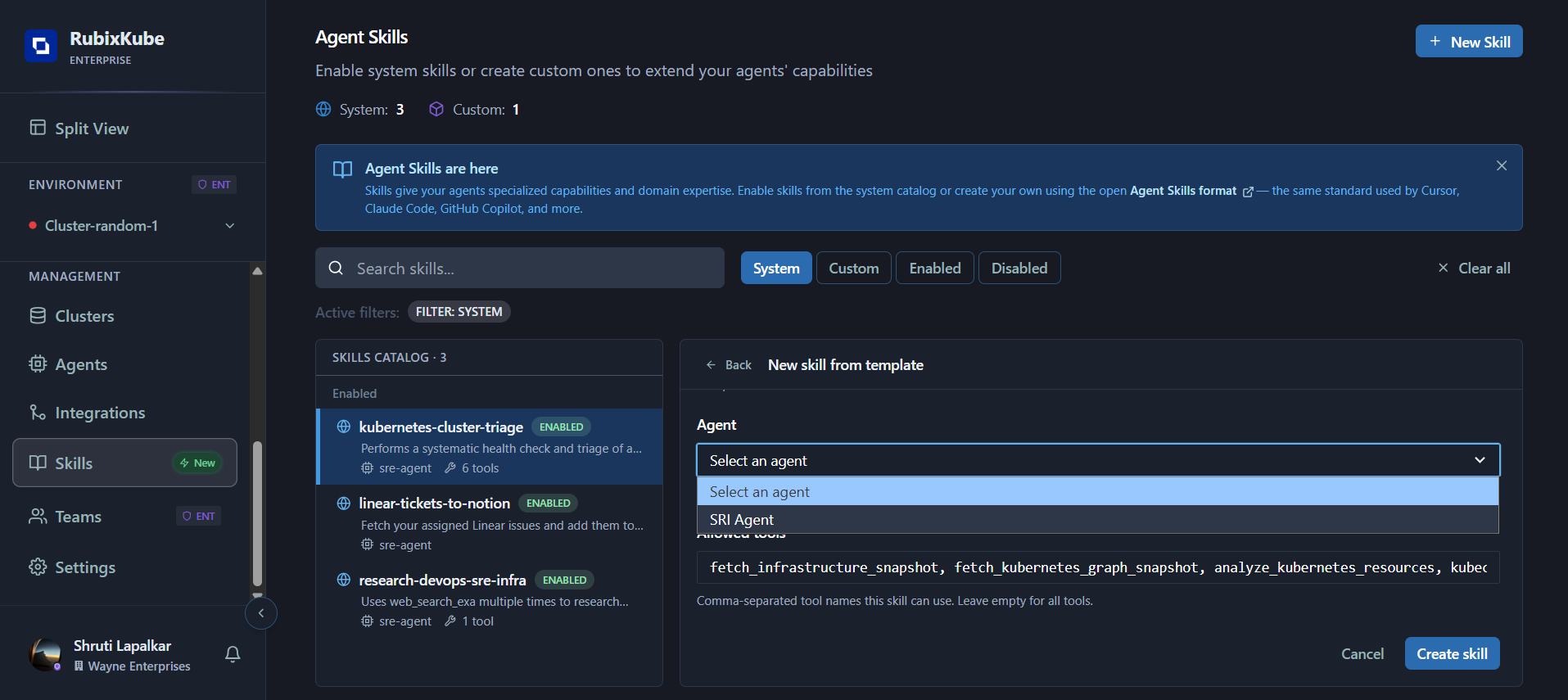 The Agent dropdown when creating a skill — currently only the SRI Agent is available
When creating or editing a custom skill, you'll see an **Agent** dropdown. Currently, the **SRI Agent** is the only agent available for skill assignment. The SRI Agent powers RubixKube's Chat interface — when you ask questions related to an enabled skill's domain, the agent automatically triggers the skill and follows its instructions.
***
## Allowed Tools
When creating a skill, you can specify which tools the skill is designed to use:
* **Comma-separated list** — Enter tool names separated by commas (e.g., `fetch_infrastructure_snapshot, fetch_kubernetes_logs, analyze_kubernetes_resources`)
* **Leave empty** — If left empty, the skill can reference all available tools
Common tools include:
The Agent dropdown when creating a skill — currently only the SRI Agent is available
When creating or editing a custom skill, you'll see an **Agent** dropdown. Currently, the **SRI Agent** is the only agent available for skill assignment. The SRI Agent powers RubixKube's Chat interface — when you ask questions related to an enabled skill's domain, the agent automatically triggers the skill and follows its instructions.
***
## Allowed Tools
When creating a skill, you can specify which tools the skill is designed to use:
* **Comma-separated list** — Enter tool names separated by commas (e.g., `fetch_infrastructure_snapshot, fetch_kubernetes_logs, analyze_kubernetes_resources`)
* **Leave empty** — If left empty, the skill can reference all available tools
Common tools include: fetch\_infrastructure\_snapshot, fetch\_kubernetes\_graph\_snapshot, analyze\_kubernetes\_resources, kubectl\_describe\_tool, fetch\_kubernetes\_logs, fetch\_kubernetes\_metrics
***
## Skill Format & Validation
RubixKube validates all skills against the open [Agent Skills specification](https://agentskills.io/specification). When you create or update a skill — whether through the console form or by uploading a `SKILL.md` file — the following rules are enforced.
### SKILL.md File Format
If you're uploading a skill file, it must follow the standard `SKILL.md` format with **YAML frontmatter** and a **markdown body**:
```md theme={null}
---
name: my-custom-skill
description: A clear description of what this skill does and when to use it.
allowed-tools: tool_one tool_two tool_three
---
## Instructions
Step 1: Do the first thing
Action: Describe what to do
Tool: tool_one
Step 2: Do the next thing
Action: Describe the follow-up action
Tool: tool_two
```
### Field Validation Rules
| Rule | Details |
| ------------------------------- | ---------------------------------------------------------------- |
| **Required** | Must be a non-empty string |
| **Length** | 1–64 characters |
| **Characters** | Lowercase letters, numbers, and hyphens only (`a-z`, `0-9`, `-`) |
| **No leading/trailing hyphens** | Cannot start or end with `-` |
| **No consecutive hyphens** | Cannot contain `--` |
```
✅ kubernetes-cluster-triage
✅ debug-linear-incident
✅ my-skill-v2
❌ My-Skill (uppercase not allowed)
❌ -my-skill (cannot start with hyphen)
❌ my--skill (consecutive hyphens not allowed)
❌ this-name-is-way-too-long-and-exceeds-the-sixty-four-character-maximum-limit
```
| Rule | Details |
| ----------------- | ----------------------------------------------------------------------------------------------------------------------------------- |
| **Required** | Must be a non-empty string |
| **Length** | 1–1024 characters |
| **Best practice** | Describe both *what* the skill does and *when* to use it. Include keywords that help the SRI Agent match user queries to this skill |
| Rule | Details |
| ----------------- | ------------------------------------------------------------------------ |
| **Required** | Must be a non-empty string |
| **Length** | Max 16,384 characters (16 KB) |
| **Best practice** | Use clear step-by-step structure. Specify which tool to use at each step |
Write instructions as structured steps:
```
Step 1: Obtain High-Level Cluster Overview
Action: Begin by getting a broad snapshot of the
entire cluster's state.
Tool: fetch_infrastructure_snapshot
Step 2: Analyze Resource Health
Action: Identify any resources in error, warning,
or degraded states.
Tool: analyze_kubernetes_resources
```
| Rule | Details |
| ------------ | --------------------------------------------------------------------------------------- |
| **Optional** | Can be left empty (skill can reference all available tools) |
| **Format** | Comma-separated tool names in the console, or space-delimited in `SKILL.md` frontmatter |
| Rule | Details |
| ------------ | ---------------------------------------------------------------- |
| **Optional** | Only include if your skill has specific environment requirements |
| **Type** | Must be a string |
| **Length** | Max 500 characters |
| Rule | Details |
| ---------------- | ------------------------------------ |
| **Max keys** | 50 |
| **Key length** | Max 64 characters per key |
| **Value length** | Max 1000 characters per string value |
### Allowed Frontmatter Fields
Only the following fields are recognized in the `SKILL.md` frontmatter:
| Field | Required | Description |
| --------------- | -------- | -------------------------------------- |
| `name` | ✅ | Unique skill identifier |
| `description` | ✅ | What the skill does and when to use it |
| `allowed-tools` | ❌ | Tools this skill is designed to use |
| `license` | ❌ | License applied to the skill |
| `compatibility` | ❌ | Environment requirements |
| `metadata` | ❌ | Custom key-value pairs |
RubixKube follows the open Agent Skills specification from Anthropic. You can validate your SKILL.md files locally using the skills-ref reference library.
You can also upload a SKILL.md file following the open Agent Skills specification — the same format used by Cursor, Claude Code, and GitHub Copilot.
***
## How Skills Get Triggered
Skills can be triggered in two ways through **Chat**: **automatically** by intent matching, or **explicitly** using the `@` mention.
### Automatic Matching
When you ask the SRI Agent a question, it silently compares your intent against all enabled skills. If a match is found, the agent loads and follows that skill's instructions — no special syntax needed.
For example:
* Asking *"What's wrong with my cluster?"* → triggers **kubernetes-cluster-triage**
* Asking *"Put my Linear tickets in Notion"* → triggers **linear-tickets-to-notion**
### Explicit @ Mention
You can also invoke a skill directly by typing **`@`** in the Chat input. This opens a context menu listing all enabled skills — click the one you want, then type your message.
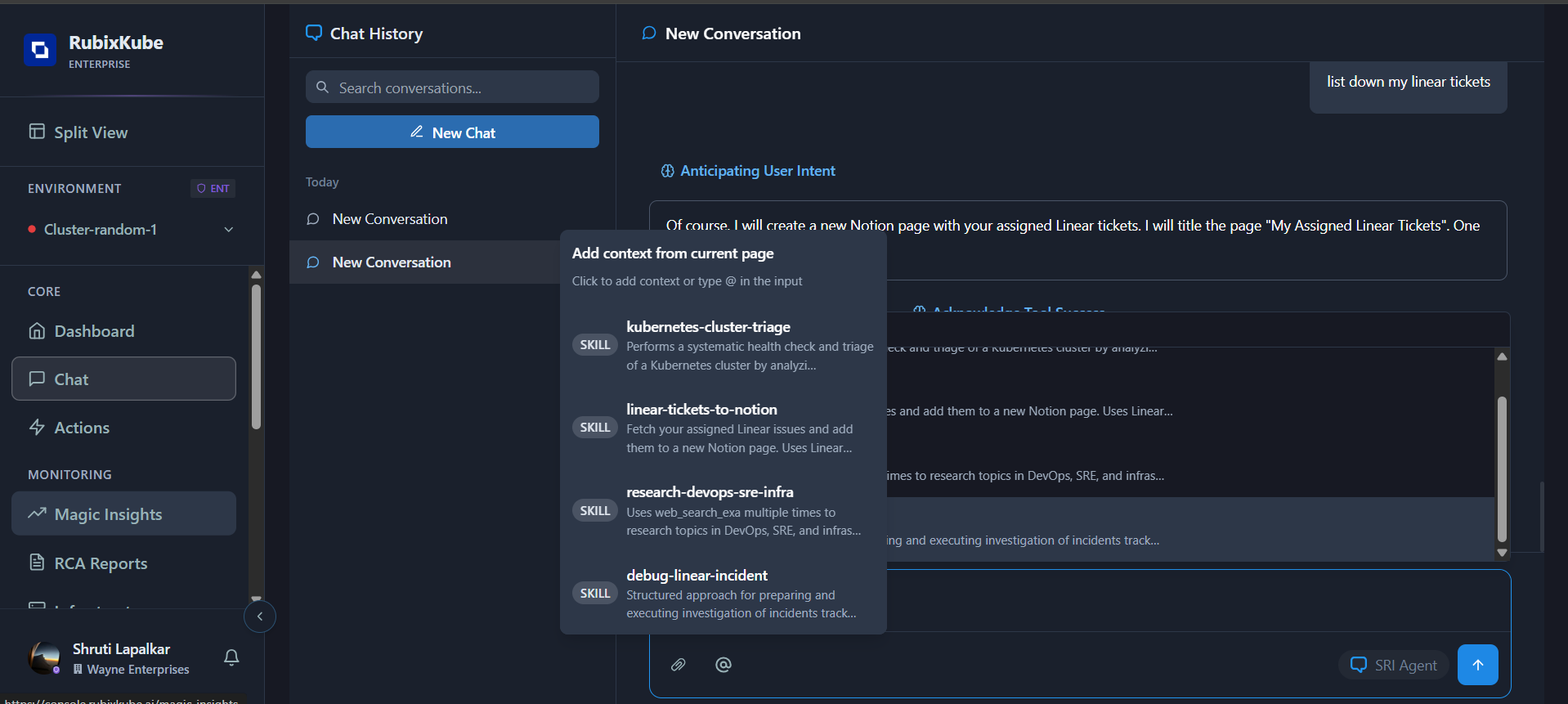 Typing @ in Chat shows all enabled skills — click to attach a skill to your message
This is useful when you want to **explicitly choose** which skill the agent should follow, rather than relying on automatic matching.
### Skill Execution
Once a skill is triggered (by either method), the SRI Agent:
1. **Loads** the skill's detailed instructions
2. **Executes** each step using the specified tools (you'll see `fetch_skill_details` in the Chat activity)
3. **Returns** structured results in your conversation
Typing @ in Chat shows all enabled skills — click to attach a skill to your message
This is useful when you want to **explicitly choose** which skill the agent should follow, rather than relying on automatic matching.
### Skill Execution
Once a skill is triggered (by either method), the SRI Agent:
1. **Loads** the skill's detailed instructions
2. **Executes** each step using the specified tools (you'll see `fetch_skill_details` in the Chat activity)
3. **Returns** structured results in your conversation
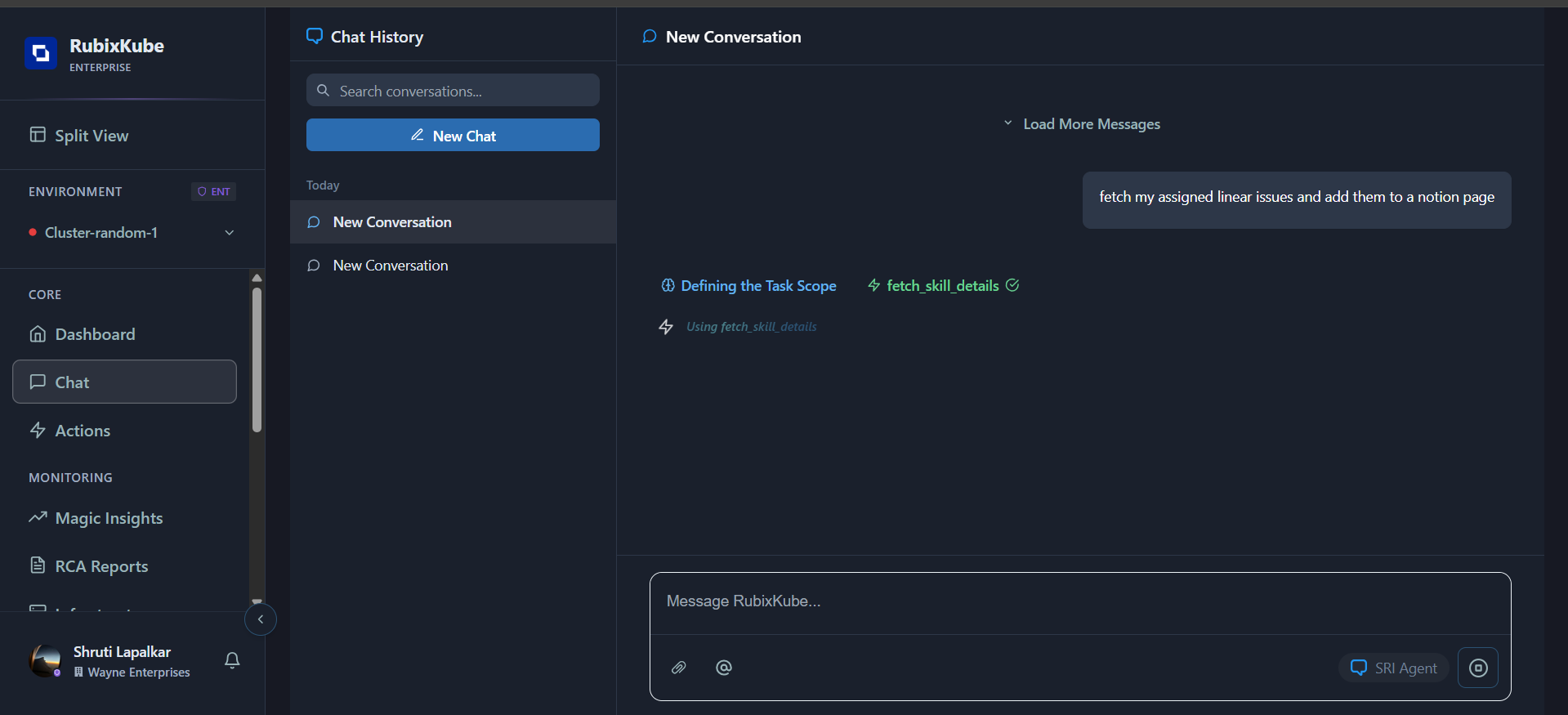 The SRI Agent loading and executing a skill — note the fetch\_skill\_details tool call
You don't need to mention the skill by name when using automatic matching — the SRI Agent infers the match from context. Use
The SRI Agent loading and executing a skill — note the fetch\_skill\_details tool call
You don't need to mention the skill by name when using automatic matching — the SRI Agent infers the match from context. Use @ when you want to be explicit.
***
## System Skills Reference
RubixKube includes the following pre-built system skills:
| Skill | Description | Tools |
| ----------------------------- | ----------------------------------------------------------------------------------------------------------------------------------------- | --------- |
| **kubernetes-cluster-triage** | Systematic health check and triage of a Kubernetes cluster — analyzes infrastructure, identifies unhealthy resources, gathers diagnostics | 6 tools |
| **linear-tickets-to-notion** | Fetches assigned Linear issues and adds them to a new Notion page using Linear and Notion MCP tools | sre-agent |
| **research-devops-sre-infra** | Uses web search to research DevOps, SRE, and infrastructure topics | 1 tool |
***
## What You Learned
* How to browse and filter skills in the catalog
* How to view skill details including description, instructions, and tools
* How to enable and disable skills
* How to create custom skills from scratch or from a template
* How skills get triggered through Chat
* The system skills available out of the box
***
## Next: [Using Settings](/using/settings)
***
## Related Guides
* [Using Agents & Tools](/using/agents) — Monitor agent health and capabilities
* [Skills Concepts](/concepts/skills), how skills work and why they matter
* [Dashboard](/using/dashboard) — Your command center for infrastructure health
* [Integrations](/using/integrations) — Connect external tools and services
***
## Need Help?
Email: [connect@rubixkube.ai](mailto:connect@rubixkube.ai)
Please include your Tenant ID (Settings → Organization), timestamp, and screenshots.
Step-by-step fixes for common issues across Dashboard, Insights, Agents, and more.
Answers to common questions about setup, RCA, agents, and docs.
Browse all guides to learn workflows and best practices.