> ## Documentation Index
> Fetch the complete documentation index at: https://docs.rubixkube.ai/llms.txt
> Use this file to discover all available pages before exploring further.
# Action Center
> Manage and track remediation actions from RCA reports and incidents in one place.
# Using Actions Center: Complete Guide
The **Actions Center** is your command center for managing and tracking all remediation actions. This powerful interface helps you prioritize, track, and implement fixes across your infrastructure.
Key Features: Prioritize, assign, and track remediation actions. Use Ask SRI (⚡) for instant implementation help at any stage. Start, review, complete, or reopen actions with a single click.
***
## Actions Center Overview
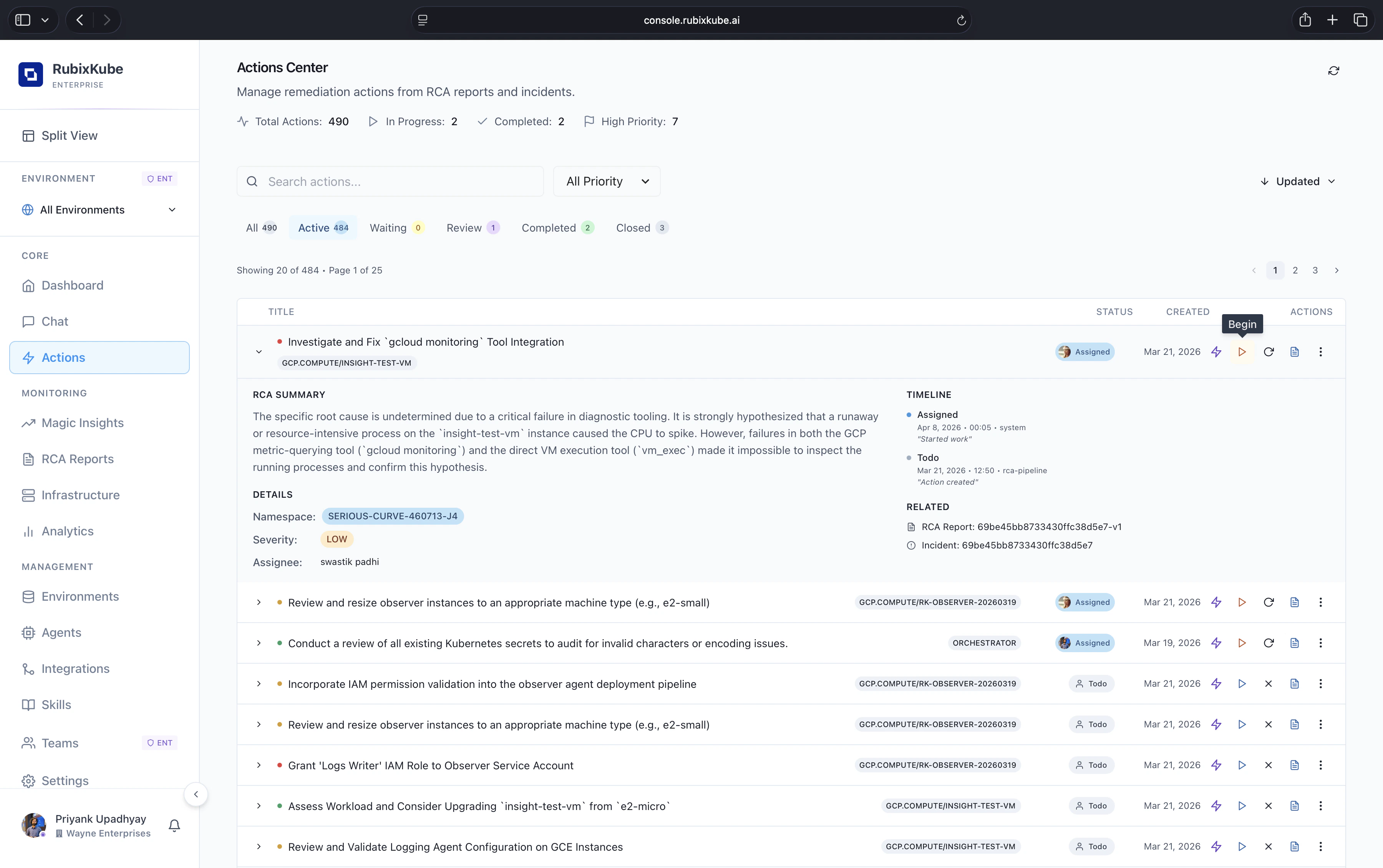 The Actions Center. Headline counters on top, status tabs for triage, and an expandable row per action that reveals the RCA summary, timeline, and the RCA report it links back to.
**The header shows:**
* **Total Actions**: every remediation task ever created for this environment.
* **In Progress**: actions a human has started.
* **Completed**: actions that have finished verification.
* **High Priority**: urgent actions that need attention first.
***
## Navigation and Status Management
The Actions Center provides comprehensive navigation through different action states and priority levels:
### Status Navigation Tabs
**Action States:**
* **All** - Complete view of all actions
* **Active** - Currently actionable items
* **Waiting** - Blocked or dependent actions
* **Review** - Items needing verification
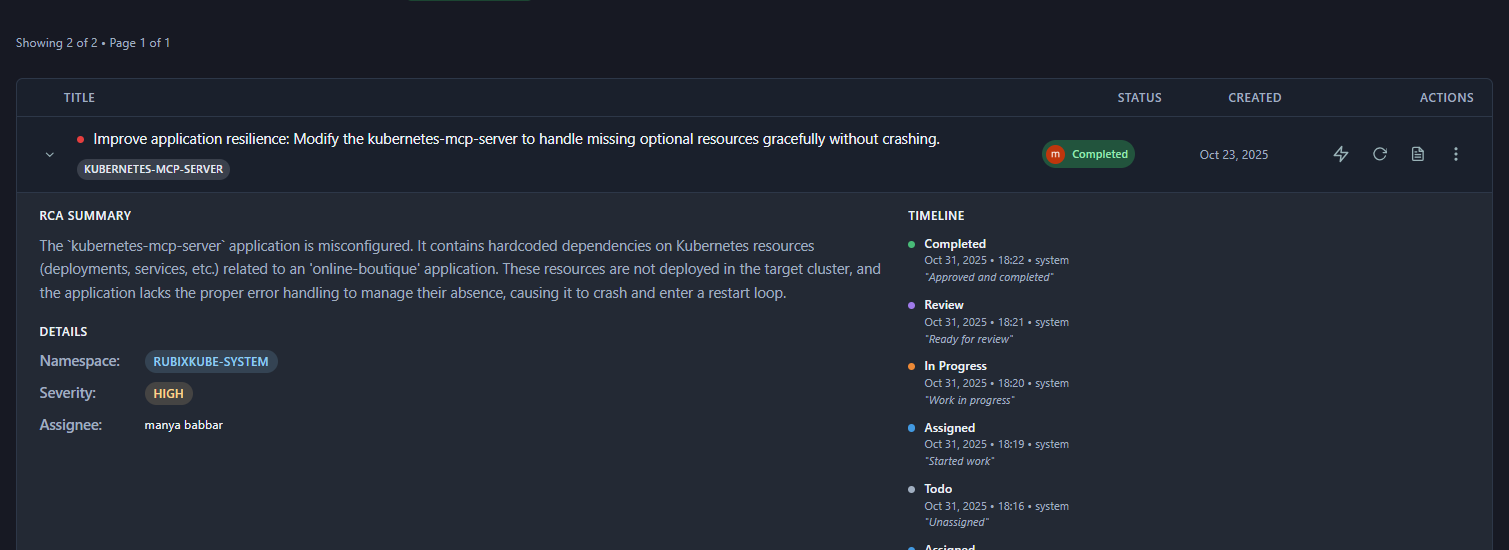
* **Completed** - Successfully resolved actions
* **Closed** - Cancelled or dismissed items
### Priority Filtering
The Priority dropdown allows sorting actions by:
* **High** - Urgent items requiring immediate attention
* **Medium** - Important but not time-critical
* **Low** - Minor improvements or optimizations
### Search
Use the search bar at the top of the actions list to quickly find items.
### Sorting
On the right side of the list header there is a sort dropdown. Use it to order the list by:
* **Updated** (default) — most recently changed actions first
* **Created Date** — chronological by creation time
* **Priority** — group items by priority (High → Low)
The search input and the sort dropdown together let you quickly narrow and order results to focus work.
***
## Action Card Structure
Each action card shows:
* Priority (color dot)
* Description
* Resource tag
* Status badge
* Created date
* Key buttons: Ask SRI (⚡), Start Work (▶), Cancel (✕), RCA Report (📄), Reassign (⟳), More (⋮)
***
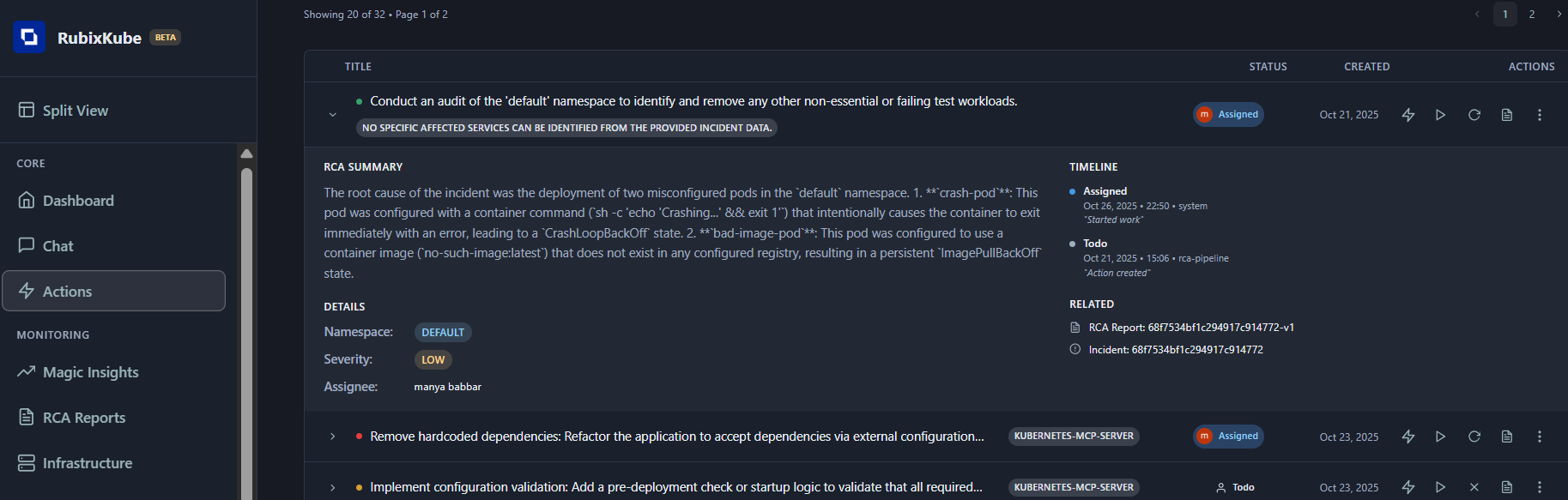
## Action Detail Panel
Click any action to expand details, including:
* RCA summary
* Namespace and severity
* Timeline of status changes
* Links to RCA report and related incidents
The Actions Center. Headline counters on top, status tabs for triage, and an expandable row per action that reveals the RCA summary, timeline, and the RCA report it links back to.
**The header shows:**
* **Total Actions**: every remediation task ever created for this environment.
* **In Progress**: actions a human has started.
* **Completed**: actions that have finished verification.
* **High Priority**: urgent actions that need attention first.
***
## Navigation and Status Management
The Actions Center provides comprehensive navigation through different action states and priority levels:
### Status Navigation Tabs
**Action States:**
* **All** - Complete view of all actions
* **Active** - Currently actionable items
* **Waiting** - Blocked or dependent actions
* **Review** - Items needing verification
* **Completed** - Successfully resolved actions
* **Closed** - Cancelled or dismissed items
### Priority Filtering
The Priority dropdown allows sorting actions by:
* **High** - Urgent items requiring immediate attention
* **Medium** - Important but not time-critical
* **Low** - Minor improvements or optimizations
### Search
Use the search bar at the top of the actions list to quickly find items.
### Sorting
On the right side of the list header there is a sort dropdown. Use it to order the list by:
* **Updated** (default) — most recently changed actions first
* **Created Date** — chronological by creation time
* **Priority** — group items by priority (High → Low)
The search input and the sort dropdown together let you quickly narrow and order results to focus work.
***
## Action Card Structure
Each action card shows:
* Priority (color dot)
* Description
* Resource tag
* Status badge
* Created date
* Key buttons: Ask SRI (⚡), Start Work (▶), Cancel (✕), RCA Report (📄), Reassign (⟳), More (⋮)
***
## Action Detail Panel
Click any action to expand details, including:
* RCA summary
* Namespace and severity
* Timeline of status changes
* Links to RCA report and related incidents
 ***
## Key Action Buttons
* **Ask SRI (⚡):** Get instant implementation help, code, and troubleshooting at any stage.
* **Start Work (▶):** Assigns the action to you and moves it to In Progress.
* **Cancel (✕):** Moves action to Closed (reversible).
* **RCA Report (📄):** View full root cause analysis and evidence.
* **Reassign (⟳):** Change ownership or return to unassigned pool.
* **More (⋮):** Delete, add notes, change priority, or view full history.
***
## Workflow Stages
At any stage, use **Ask SRI (⚡)** for instant help, code, or troubleshooting. The professional workflow is:
**Stage 0 – Start Work (Play ▶):** Click Play to assign the action to yourself (Assigned status).
***
## Key Action Buttons
* **Ask SRI (⚡):** Get instant implementation help, code, and troubleshooting at any stage.
* **Start Work (▶):** Assigns the action to you and moves it to In Progress.
* **Cancel (✕):** Moves action to Closed (reversible).
* **RCA Report (📄):** View full root cause analysis and evidence.
* **Reassign (⟳):** Change ownership or return to unassigned pool.
* **More (⋮):** Delete, add notes, change priority, or view full history.
***
## Workflow Stages
At any stage, use **Ask SRI (⚡)** for instant help, code, or troubleshooting. The professional workflow is:
**Stage 0 – Start Work (Play ▶):** Click Play to assign the action to yourself (Assigned status).
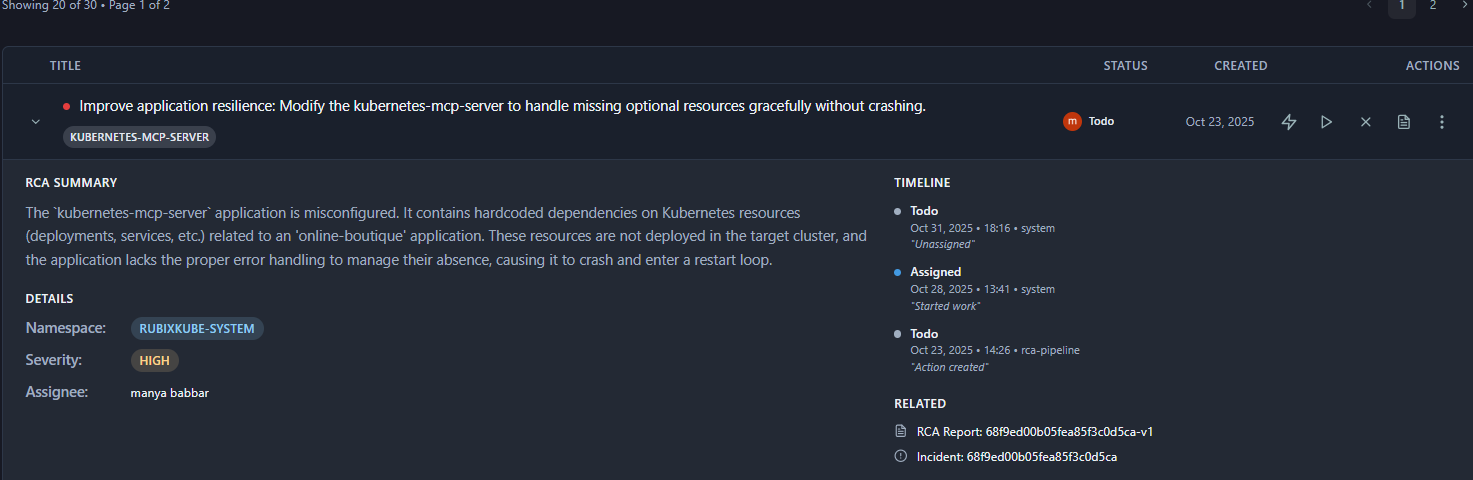 **Stage 1 – Begin Work (Play ▶ again):** Click Play again to mark as In Progress. Replay button appears for reassignment.
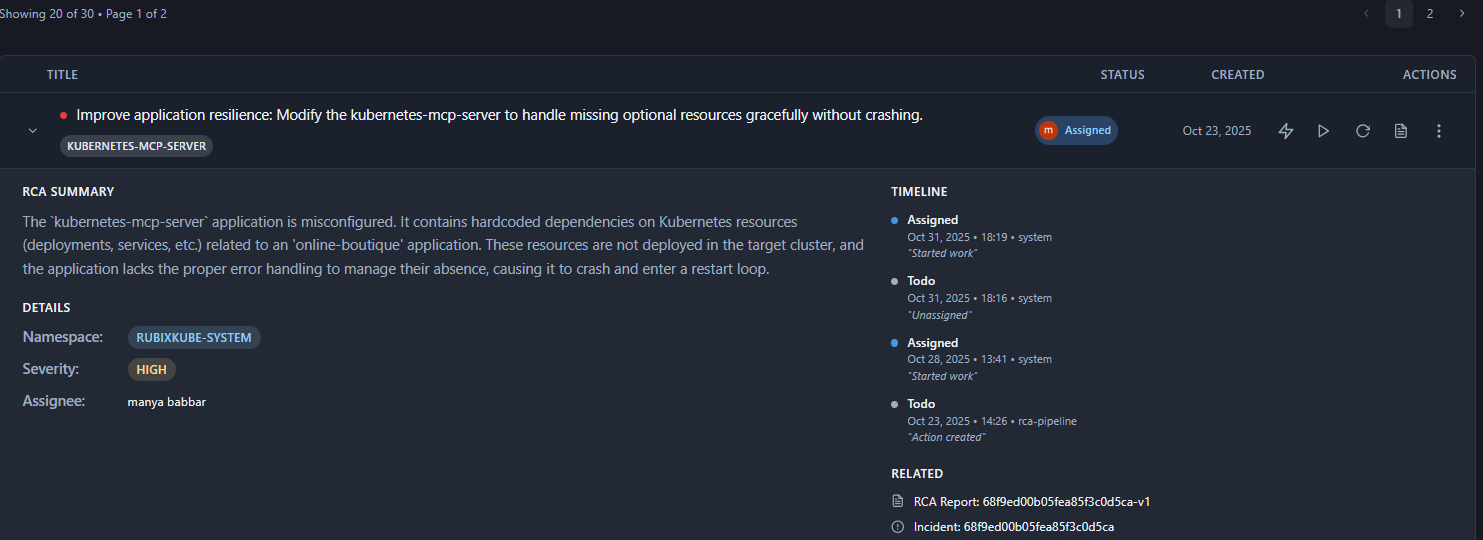 **Stage 2 – In Progress:** Work on the task while it’s In Progress. Replay is available for reassignment. Once finished, click Complete (✔) or Review for feedback and verification.
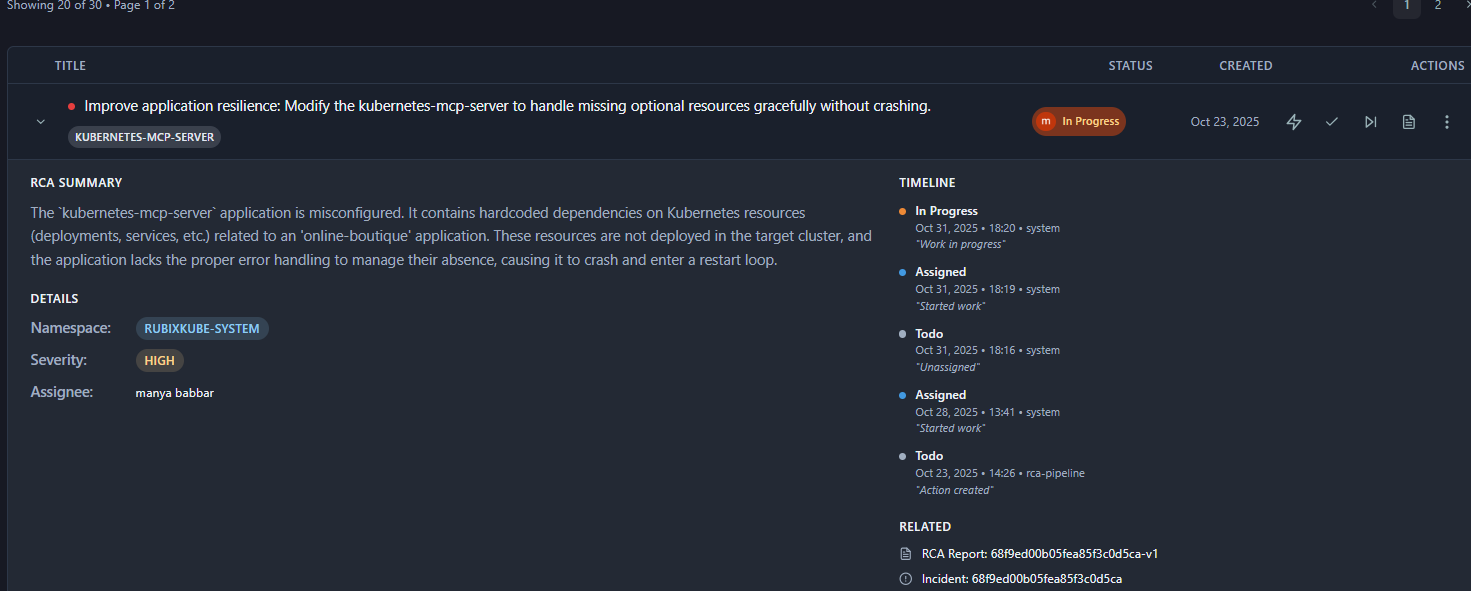 **Stage 3 – Review Actions:** Reviewer can Complete (finalize) or select Changes (Replay) to send back to In Progress.
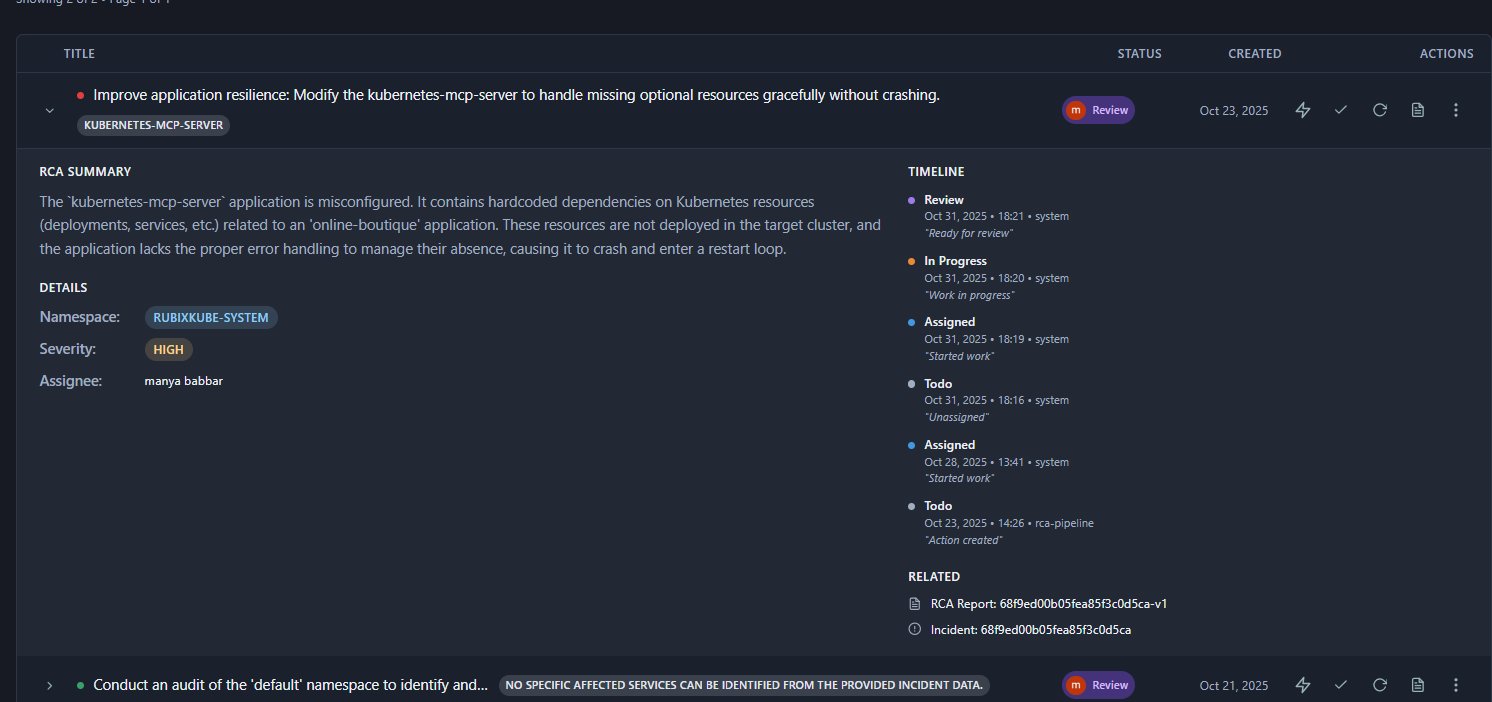 **Stage 4 – Completed & Reopen:** After marking as Complete, use Reopen to move back to In Progress if needed.
 ***
## Action Lifecycle (at-a-glance)
Below is a clean, easy-to-read diagram that summarizes the primary state transitions for an action. Use this as a quick reference for how tasks flow through the system.
```
Todo
|
v
Assigned
|
v
In Progress -----> Review -----> Completed
^ | |
| | v
| +----------> Reopened
| |
+-------------------------------+
Other transitions:
- Any state -> Waiting (blocked)
- Any state -> Cancelled/Closed
```
This diagram highlights the common linear flow (Todo → Assigned → In Progress → Review → Completed) and the two important loops: Replay/Reopen sends items back to In Progress, and any state can be moved to Waiting or Cancelled when appropriate.
### Status Definitions
#### Todo
* Initial state for new actions
* Ready to be worked on
* Not yet assigned to anyone
#### In Progress
* Action being actively worked on
* Assigned to a team member
* Implementation underway
#### Waiting
* Blocked by dependencies
* Awaiting external input
* Can occur at any stage
#### Review
* Implementation completed
* Needs verification
* Awaiting testing or approval
#### Completed
* Successfully implemented
* Verified working
* No further action needed
#### Cancelled/Closed
* Action no longer needed
* Duplicate of another action
* Invalid or irrelevant
* Can be reopened if needed
***
## Integration with Other Features
### Actions → Chat
**⚡ Ask SRI** sends full context to Chat including RCA summary, affected resources, and evidence.
### Actions → Insights
**📄 RCA Report** opens full incident with complete Root Cause Analysis.
### Actions → Infrastructure
Namespace badges and resource tags link to topology view.
***
## Real Example: Configuration Fix
**Action:**
> "Remove hardcoded dependencies: Refactor the application to accept dependencies via external configuration (e.g., ConfigMaps)"
**Namespace:** RUBIXKUBE-SYSTEM\
**Severity:** HIGH\
**Status:** Todo
### Implementation Steps:
AI provides ConfigMap example and refactoring guidance
```yaml theme={null}
apiVersion: v1
kind: ConfigMap
metadata:
name: app-dependencies
namespace: rubixkube-system
data:
ONLINE_BOUTIQUE_ENABLED: "false"
```
```yaml theme={null}
spec:
containers:
- name: app
envFrom:
- configMapRef:
name: app-dependencies
```
```bash theme={null}
kubectl apply -f configmap.yaml
kubectl apply -f deployment.yaml
kubectl logs -l app=kubernetes-mcp-server --tail=50
```
Click **✓ Complete** and add comment
***
## Troubleshooting
### Actions not appearing from RCA
* Check RCA confidence level (may be below threshold)
* Look for recommendations in RCA Analysis tab
* Check RCA Pipeline logs for errors
### Action stuck "In Progress"
* Check timeline for last update
* Contact assigned person
* Reassign if needed via **⋮ More Options**
### High Priority count keeps increasing
* Daily action review meetings
* Assign owners to every HIGH action
* Group related actions and fix root causes
***
## Best Practices
* Always prioritize High priority actions first.
* Use **Ask SRI (⚡)** before implementing for best practices and code.
* Verify changes before completing: deploy, monitor logs, confirm incident resolved, and check metrics.
* Batch related actions (same namespace, RCA, or dependencies) for efficiency.
***
## Quick Reference
| Element | Purpose |
| ------------------- | --------------------------------- |
| **⚡ Ask SRI** | Get AI implementation guidance |
| **▶ Start Work** | Mark as In Progress |
| **✕ Cancel** | Dismiss action (reversible) |
| **📄 RCA Report** | View source analysis |
| **🗑️ Delete** | Permanently remove (irreversible) |
| **Priority Filter** | Focus on urgent tasks |
| **Active Tab** | Default view for daily work |
***
## Need Help?
Email: [connect@rubixkube.ai](mailto:connect@rubixkube.ai)
***
## Action Lifecycle (at-a-glance)
Below is a clean, easy-to-read diagram that summarizes the primary state transitions for an action. Use this as a quick reference for how tasks flow through the system.
```
Todo
|
v
Assigned
|
v
In Progress -----> Review -----> Completed
^ | |
| | v
| +----------> Reopened
| |
+-------------------------------+
Other transitions:
- Any state -> Waiting (blocked)
- Any state -> Cancelled/Closed
```
This diagram highlights the common linear flow (Todo → Assigned → In Progress → Review → Completed) and the two important loops: Replay/Reopen sends items back to In Progress, and any state can be moved to Waiting or Cancelled when appropriate.
### Status Definitions
#### Todo
* Initial state for new actions
* Ready to be worked on
* Not yet assigned to anyone
#### In Progress
* Action being actively worked on
* Assigned to a team member
* Implementation underway
#### Waiting
* Blocked by dependencies
* Awaiting external input
* Can occur at any stage
#### Review
* Implementation completed
* Needs verification
* Awaiting testing or approval
#### Completed
* Successfully implemented
* Verified working
* No further action needed
#### Cancelled/Closed
* Action no longer needed
* Duplicate of another action
* Invalid or irrelevant
* Can be reopened if needed
***
## Integration with Other Features
### Actions → Chat
**⚡ Ask SRI** sends full context to Chat including RCA summary, affected resources, and evidence.
### Actions → Insights
**📄 RCA Report** opens full incident with complete Root Cause Analysis.
### Actions → Infrastructure
Namespace badges and resource tags link to topology view.
***
## Real Example: Configuration Fix
**Action:**
> "Remove hardcoded dependencies: Refactor the application to accept dependencies via external configuration (e.g., ConfigMaps)"
**Namespace:** RUBIXKUBE-SYSTEM\
**Severity:** HIGH\
**Status:** Todo
### Implementation Steps:
AI provides ConfigMap example and refactoring guidance
```yaml theme={null}
apiVersion: v1
kind: ConfigMap
metadata:
name: app-dependencies
namespace: rubixkube-system
data:
ONLINE_BOUTIQUE_ENABLED: "false"
```
```yaml theme={null}
spec:
containers:
- name: app
envFrom:
- configMapRef:
name: app-dependencies
```
```bash theme={null}
kubectl apply -f configmap.yaml
kubectl apply -f deployment.yaml
kubectl logs -l app=kubernetes-mcp-server --tail=50
```
Click **✓ Complete** and add comment
***
## Troubleshooting
### Actions not appearing from RCA
* Check RCA confidence level (may be below threshold)
* Look for recommendations in RCA Analysis tab
* Check RCA Pipeline logs for errors
### Action stuck "In Progress"
* Check timeline for last update
* Contact assigned person
* Reassign if needed via **⋮ More Options**
### High Priority count keeps increasing
* Daily action review meetings
* Assign owners to every HIGH action
* Group related actions and fix root causes
***
## Best Practices
* Always prioritize High priority actions first.
* Use **Ask SRI (⚡)** before implementing for best practices and code.
* Verify changes before completing: deploy, monitor logs, confirm incident resolved, and check metrics.
* Batch related actions (same namespace, RCA, or dependencies) for efficiency.
***
## Quick Reference
| Element | Purpose |
| ------------------- | --------------------------------- |
| **⚡ Ask SRI** | Get AI implementation guidance |
| **▶ Start Work** | Mark as In Progress |
| **✕ Cancel** | Dismiss action (reversible) |
| **📄 RCA Report** | View source analysis |
| **🗑️ Delete** | Permanently remove (irreversible) |
| **Priority Filter** | Focus on urgent tasks |
| **Active Tab** | Default view for daily work |
***
## Need Help?
Email: [connect@rubixkube.ai](mailto:connect@rubixkube.ai)
Please include your Tenant ID (Settings → Organization), timestamp, and screenshots.
Step-by-step fixes for common issues across Dashboard, Insights, Agents, and more.
Answers to common questions about setup, RCA, agents, and docs.
Browse all guides to learn workflows and best practices.
***
*Last updated: October 26, 2025*
*Guide version: 1.0*
*Based on RubixKube Console v1.0*