> ## Documentation Index
> Fetch the complete documentation index at: https://docs.rubixkube.ai/llms.txt
> Use this file to discover all available pages before exploring further.
# Kepler quickstart
> Go from a fresh install to your first approved change in ten minutes. Sign in, connect a model, open a workspace, ask a read-only question, then make one small change in Assist.
This walkthrough takes a fresh Kepler from sign-in to a small, reviewed change against a real cluster. Every step is safe to do against production: nothing writes until step 6, and even then you approve each command. If you have not installed Kepler yet, start with [Installation](/kepler/installation).
Shortcuts below use `Cmd`. On Windows and Linux, use `Ctrl`.
Launch Kepler and click **Sign in to Kepler**. Your browser opens. Continue with Google, GitHub, or email, then return to the app. It picks up the session on its own.
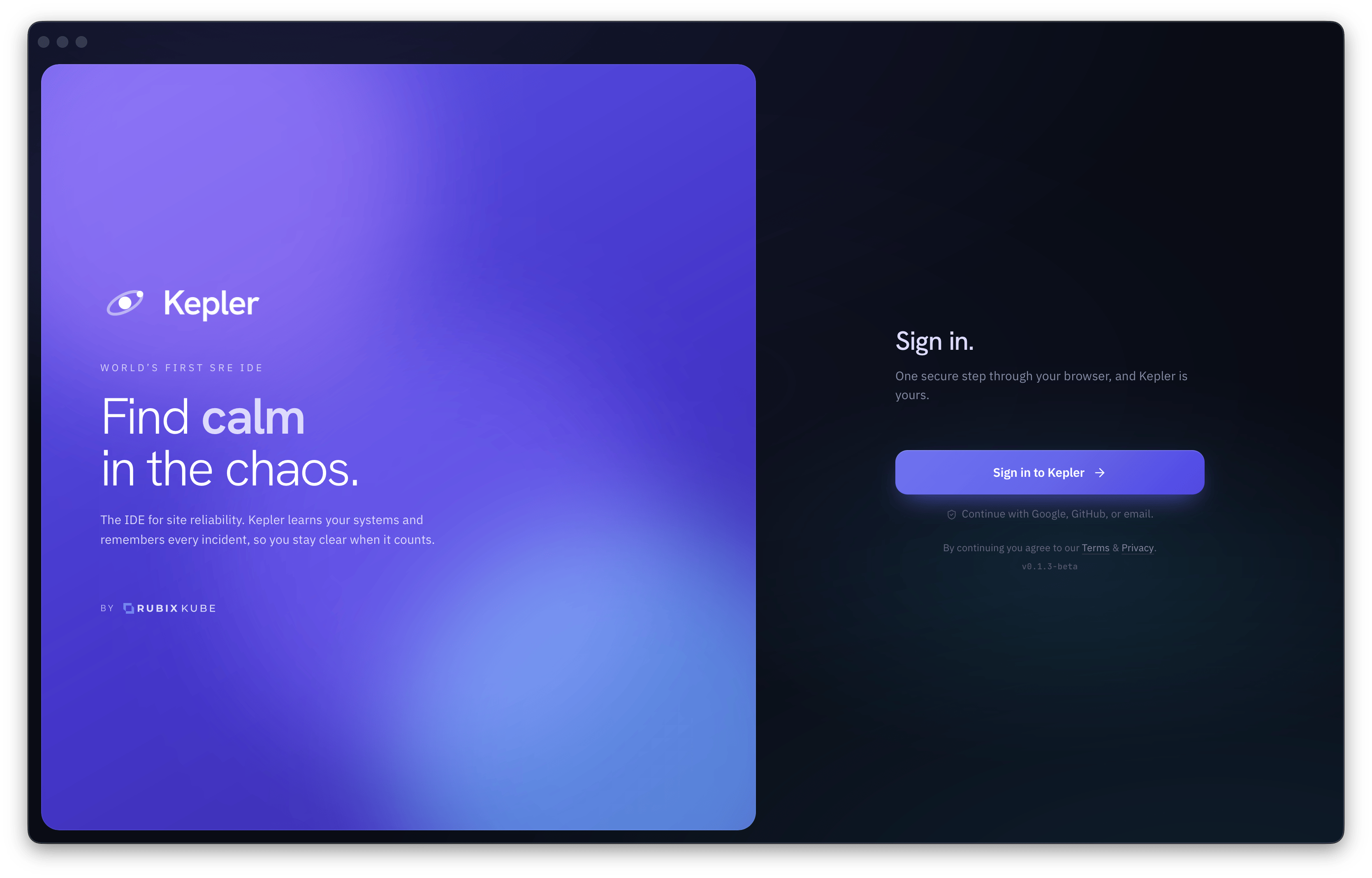 One step through your browser. Kepler remembers the sign-in from then on.
Signing in is what unlocks the hosted Kepler models. Your conversations and memory never go to the sign-in service. To sign out later, use **Settings > General > Account**.
Kepler asks what to call you, where you live in the stack, and what is under your watch. Pick from the chips or type your own. The answers seed your profile so Kepler talks to you like someone who runs Kubernetes, not someone who is asking what a pod is.
One step through your browser. Kepler remembers the sign-in from then on.
Signing in is what unlocks the hosted Kepler models. Your conversations and memory never go to the sign-in service. To sign out later, use **Settings > General > Account**.
Kepler asks what to call you, where you live in the stack, and what is under your watch. Pick from the chips or type your own. The answers seed your profile so Kepler talks to you like someone who runs Kubernetes, not someone who is asking what a pod is.
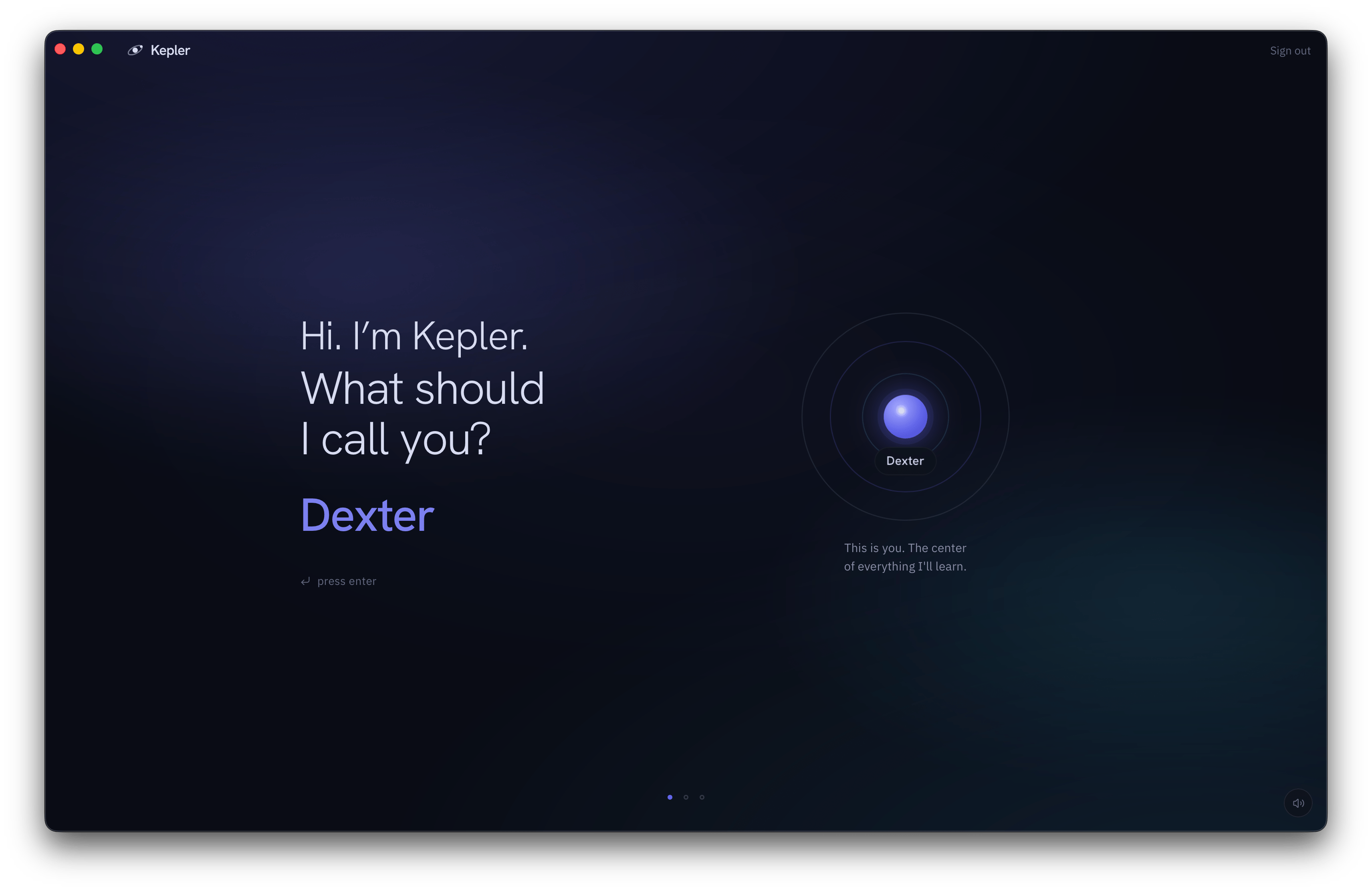 The first of three questions. You can change any of them later in your profile file.
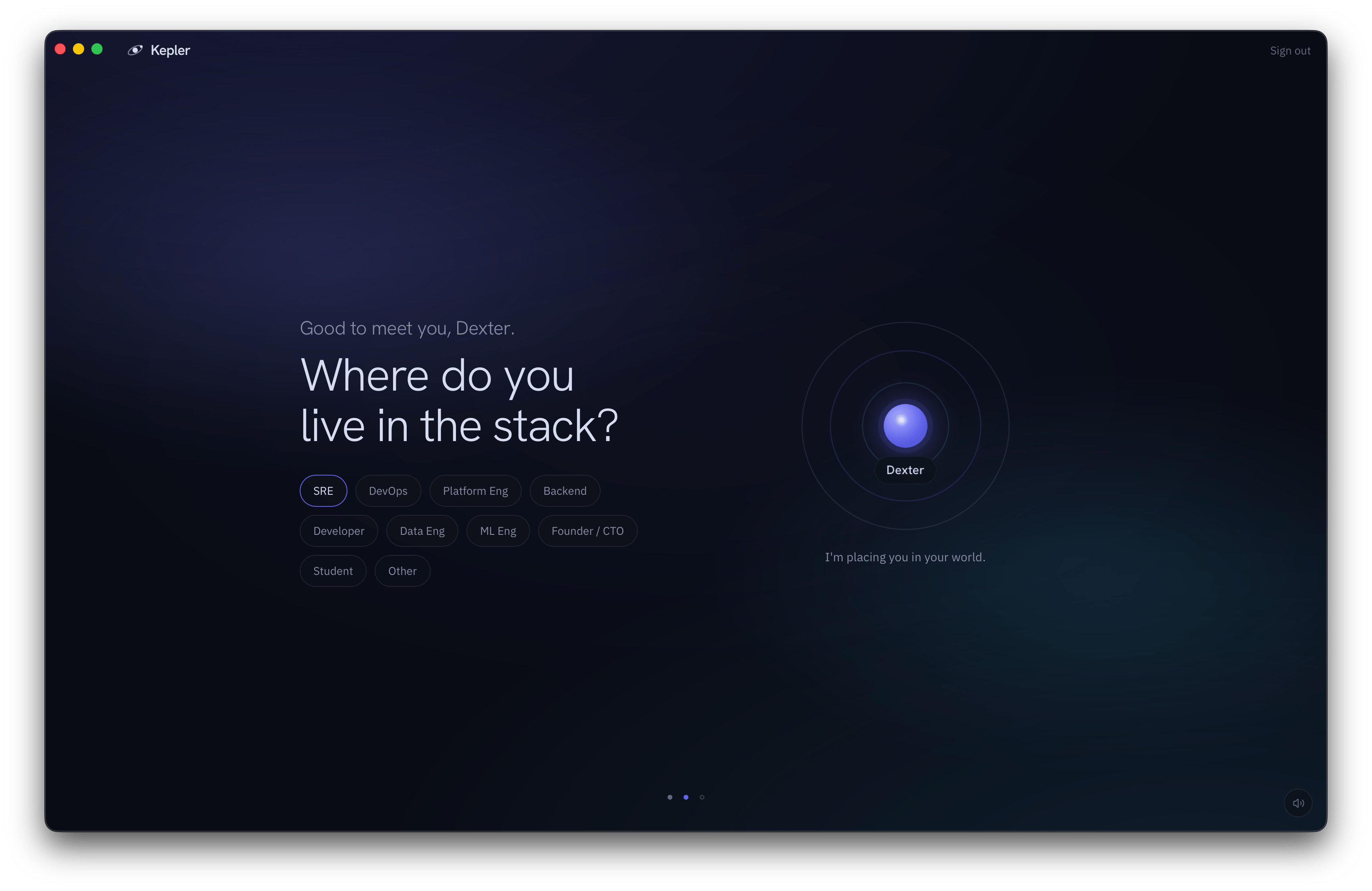 Your role sets the altitude Kepler explains things at.
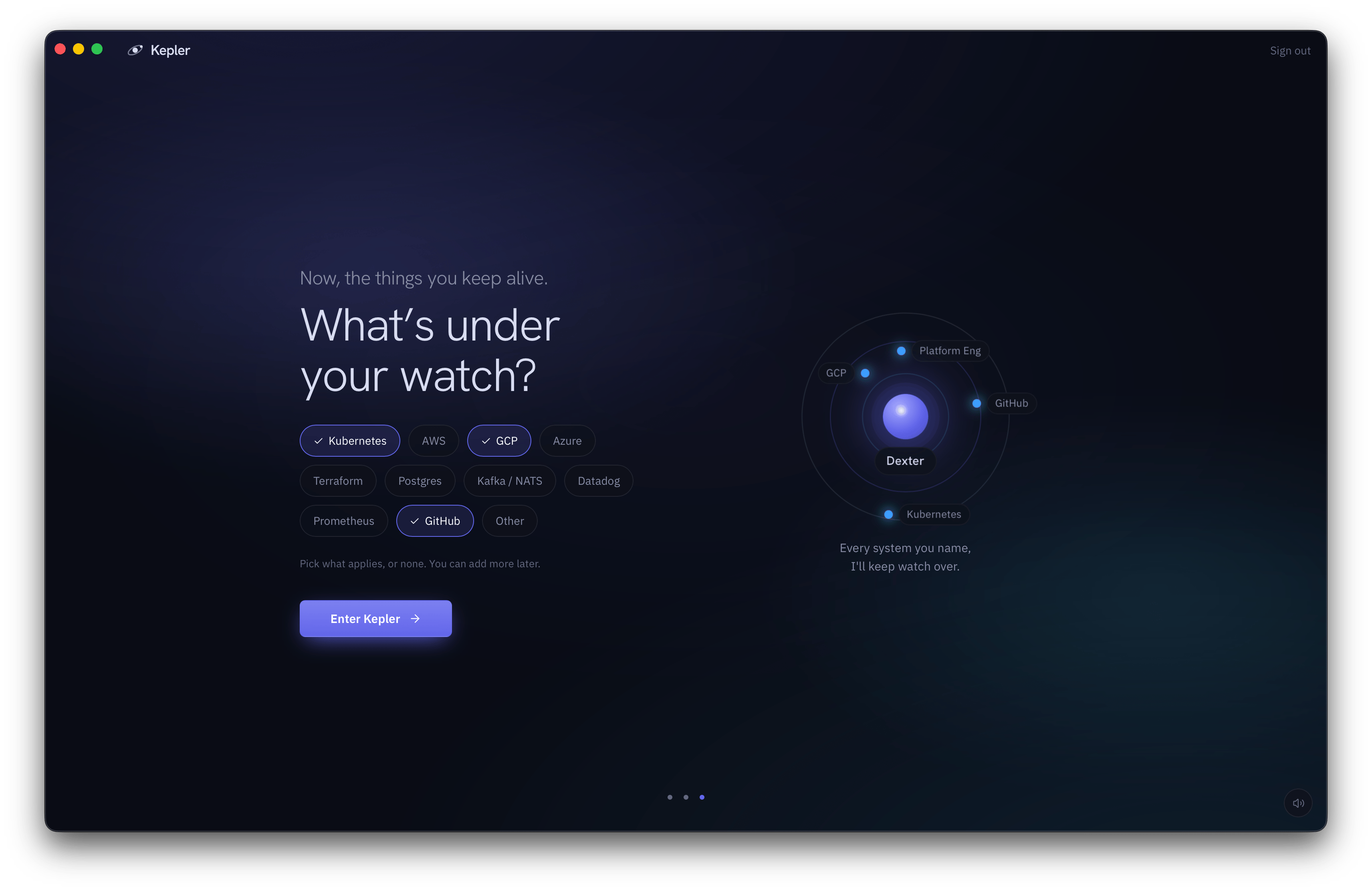 Every system you name becomes a node in your world model. You can add more later.
If you quit partway through, Kepler resumes at the same question next launch.
You land on the home screen. It greets you by name, lists what Kepler noticed on your machine, and says **Choose an AI to start**. Pick one there. Later, the model pill on the composer reads **Connect a model** whenever nothing usable is set up; click it, or type `/model`.
Every system you name becomes a node in your world model. You can add more later.
If you quit partway through, Kepler resumes at the same question next launch.
You land on the home screen. It greets you by name, lists what Kepler noticed on your machine, and says **Choose an AI to start**. Pick one there. Later, the model pill on the composer reads **Connect a model** whenever nothing usable is set up; click it, or type `/model`.
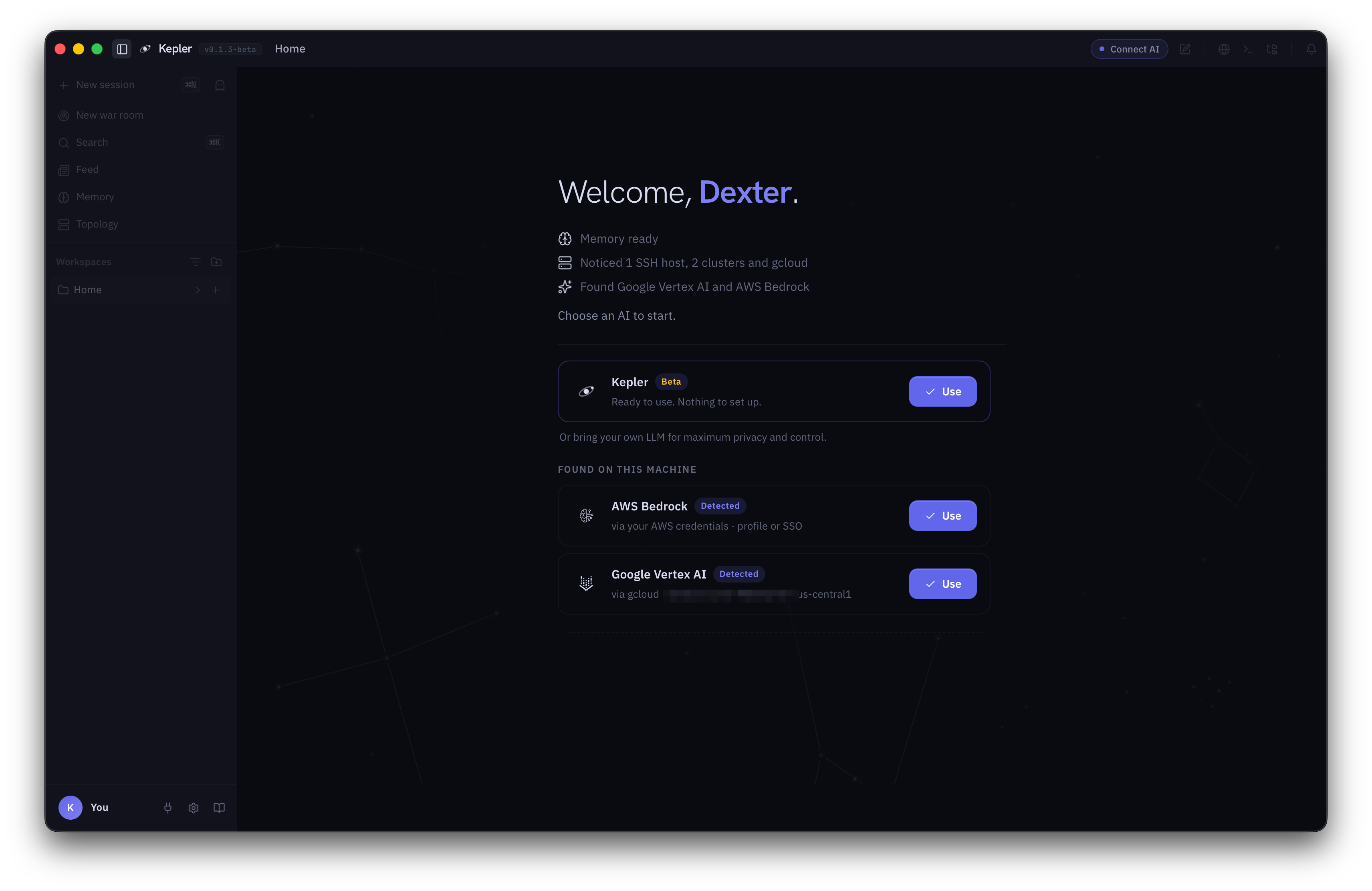 Kepler reports what it found on your machine, then lets you pick what to run on.
You have two choices:
* **Hosted Kepler models.** Available right away with your sign-in, no key needed. Pick `kepler-expert` and go.
* **Your own key.** Open **Settings > Models > Providers** and add a key for Anthropic, OpenAI, Google (Gemini API or Vertex AI), xAI, AWS Bedrock, or an OpenAI-compatible endpoint. Ollama shows up under **Found on this machine** if it is running.
Kepler reports what it found on your machine, then lets you pick what to run on.
You have two choices:
* **Hosted Kepler models.** Available right away with your sign-in, no key needed. Pick `kepler-expert` and go.
* **Your own key.** Open **Settings > Models > Providers** and add a key for Anthropic, OpenAI, Google (Gemini API or Vertex AI), xAI, AWS Bedrock, or an OpenAI-compatible endpoint. Ollama shows up under **Found on this machine** if it is running.
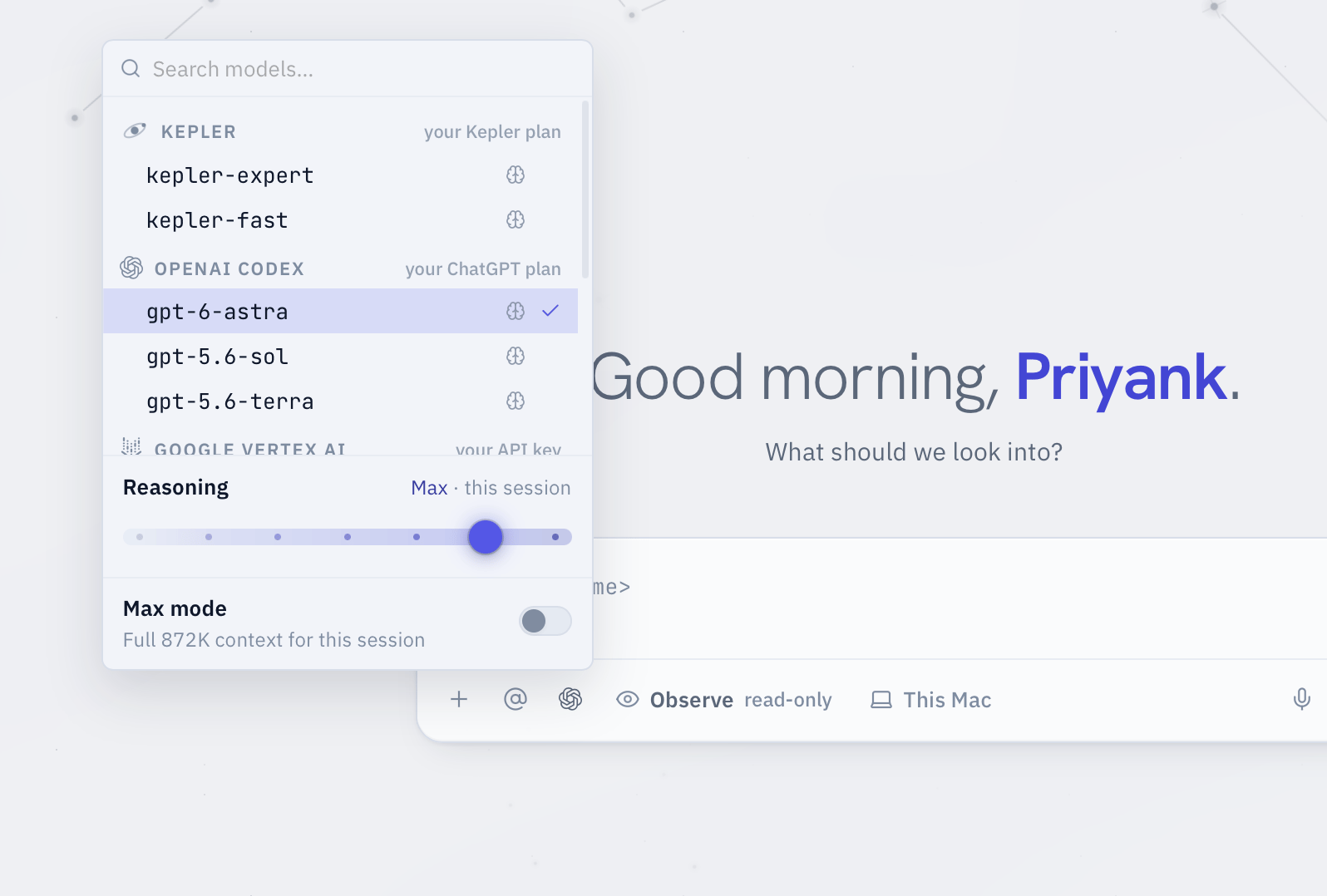 Pick a model once. Kepler never switches models on its own after that.
Keys you add stay on this machine, in your operating system's keychain. Kepler never uploads them. Whichever model you pick, Kepler keeps using it until you change it. It does not fall back to a different model when one fails. It retries the same one or tells you.
Press `Cmd+O` and pick a folder, or type `/workspace add ` in the composer. Your infra repo or a folder with your manifests is a good first workspace.
Kepler can only read and edit files inside folders you have granted. It starts with your home folder as a default workspace. When a command reaches outside the granted folders, Kepler stops and asks, and you can allow it once, for this session, or add the folder to the workspace.
You do not need to hand over kubeconfigs or cloud credentials. Kepler uses whatever `kubectl`, `aws`, `gcloud`, and `ssh` already have on your machine.
New conversations start in **Observe**, the read-only posture. The chip on the composer shows it. Kepler will run reads (`kubectl get`, `kubectl logs`, `describe`, log greps) without asking, and will not run anything that writes.
Type something you would ask a colleague:
```
Why is checkout crashlooping in prod?
```
What you will see, in order:
1. **The thinking orbit** while Kepler works out what to check.
2. **Tool cards**, one per command. Each shows the exact command and its output. Expand any of them to read the raw text yourself.
3. **A diagnosis with evidence.** Kepler quotes the lines it is relying on (an OOMKilled event, a missing secret, a bad image tag) so you can check its reasoning against what actually ran.
4. **A suggested fix.** In Observe this is a proposal, not an action. Nothing changes until you say so.
Pick a model once. Kepler never switches models on its own after that.
Keys you add stay on this machine, in your operating system's keychain. Kepler never uploads them. Whichever model you pick, Kepler keeps using it until you change it. It does not fall back to a different model when one fails. It retries the same one or tells you.
Press `Cmd+O` and pick a folder, or type `/workspace add ` in the composer. Your infra repo or a folder with your manifests is a good first workspace.
Kepler can only read and edit files inside folders you have granted. It starts with your home folder as a default workspace. When a command reaches outside the granted folders, Kepler stops and asks, and you can allow it once, for this session, or add the folder to the workspace.
You do not need to hand over kubeconfigs or cloud credentials. Kepler uses whatever `kubectl`, `aws`, `gcloud`, and `ssh` already have on your machine.
New conversations start in **Observe**, the read-only posture. The chip on the composer shows it. Kepler will run reads (`kubectl get`, `kubectl logs`, `describe`, log greps) without asking, and will not run anything that writes.
Type something you would ask a colleague:
```
Why is checkout crashlooping in prod?
```
What you will see, in order:
1. **The thinking orbit** while Kepler works out what to check.
2. **Tool cards**, one per command. Each shows the exact command and its output. Expand any of them to read the raw text yourself.
3. **A diagnosis with evidence.** Kepler quotes the lines it is relying on (an OOMKilled event, a missing secret, a bad image tag) so you can check its reasoning against what actually ran.
4. **A suggested fix.** In Observe this is a proposal, not an action. Nothing changes until you say so.
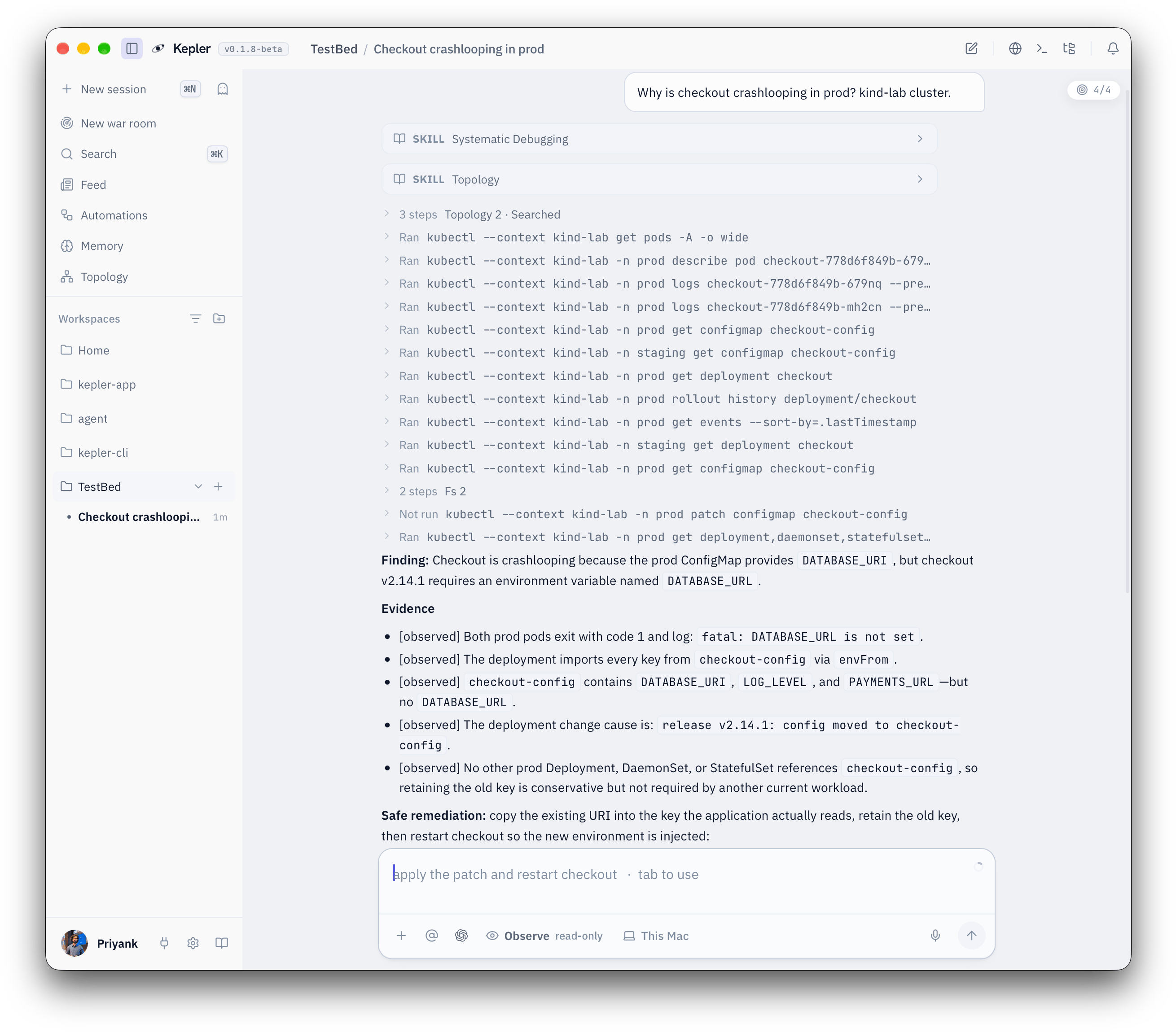 Observe is read-only. Every claim points at a command you can expand, and the one write Kepler wanted shows as Not run. The fix is proposed, not applied.
Try a few more while you are here:
```
What changed in the payments namespace in the last two hours?
```
```
/triage api-gateway
```
```
/plan bump the checkout memory limit to 1Gi and roll it out safely
```
`/plan` makes Kepler investigate and then write a reviewable plan with steps, blast radius, and rollback, and stop there.
Press `Shift+Tab` to move the posture chip from **Observe** to **Assist**, or type `/mode assist`. Assist lets Kepler act, but it asks before every change.
Ask for something small and reversible:
```
Add the label owner=payments to the checkout deployment in staging.
```
Kepler runs the reads it needs, then stops. An **approval dock** slides in above the composer showing the exact `kubectl` command it wants to run, and a preview where one is available. You have four choices:
* **Run**: run this one command and continue. `Cmd+Enter` does the same.
* **This session**: run it, and stop asking about `kubectl label` for the rest of this conversation. `Cmd+Shift+Enter` does the same.
* **Always**: run it, and allow `kubectl label` from now on in every conversation. This one saves a permanent rule, so use it only for verbs you are happy for Kepler to run unattended.
* **Reject**: stop. Type a note first if you want to steer what Kepler tries next.
Observe is read-only. Every claim points at a command you can expand, and the one write Kepler wanted shows as Not run. The fix is proposed, not applied.
Try a few more while you are here:
```
What changed in the payments namespace in the last two hours?
```
```
/triage api-gateway
```
```
/plan bump the checkout memory limit to 1Gi and roll it out safely
```
`/plan` makes Kepler investigate and then write a reviewable plan with steps, blast radius, and rollback, and stop there.
Press `Shift+Tab` to move the posture chip from **Observe** to **Assist**, or type `/mode assist`. Assist lets Kepler act, but it asks before every change.
Ask for something small and reversible:
```
Add the label owner=payments to the checkout deployment in staging.
```
Kepler runs the reads it needs, then stops. An **approval dock** slides in above the composer showing the exact `kubectl` command it wants to run, and a preview where one is available. You have four choices:
* **Run**: run this one command and continue. `Cmd+Enter` does the same.
* **This session**: run it, and stop asking about `kubectl label` for the rest of this conversation. `Cmd+Shift+Enter` does the same.
* **Always**: run it, and allow `kubectl label` from now on in every conversation. This one saves a permanent rule, so use it only for verbs you are happy for Kepler to run unattended.
* **Reject**: stop. Type a note first if you want to steer what Kepler tries next.
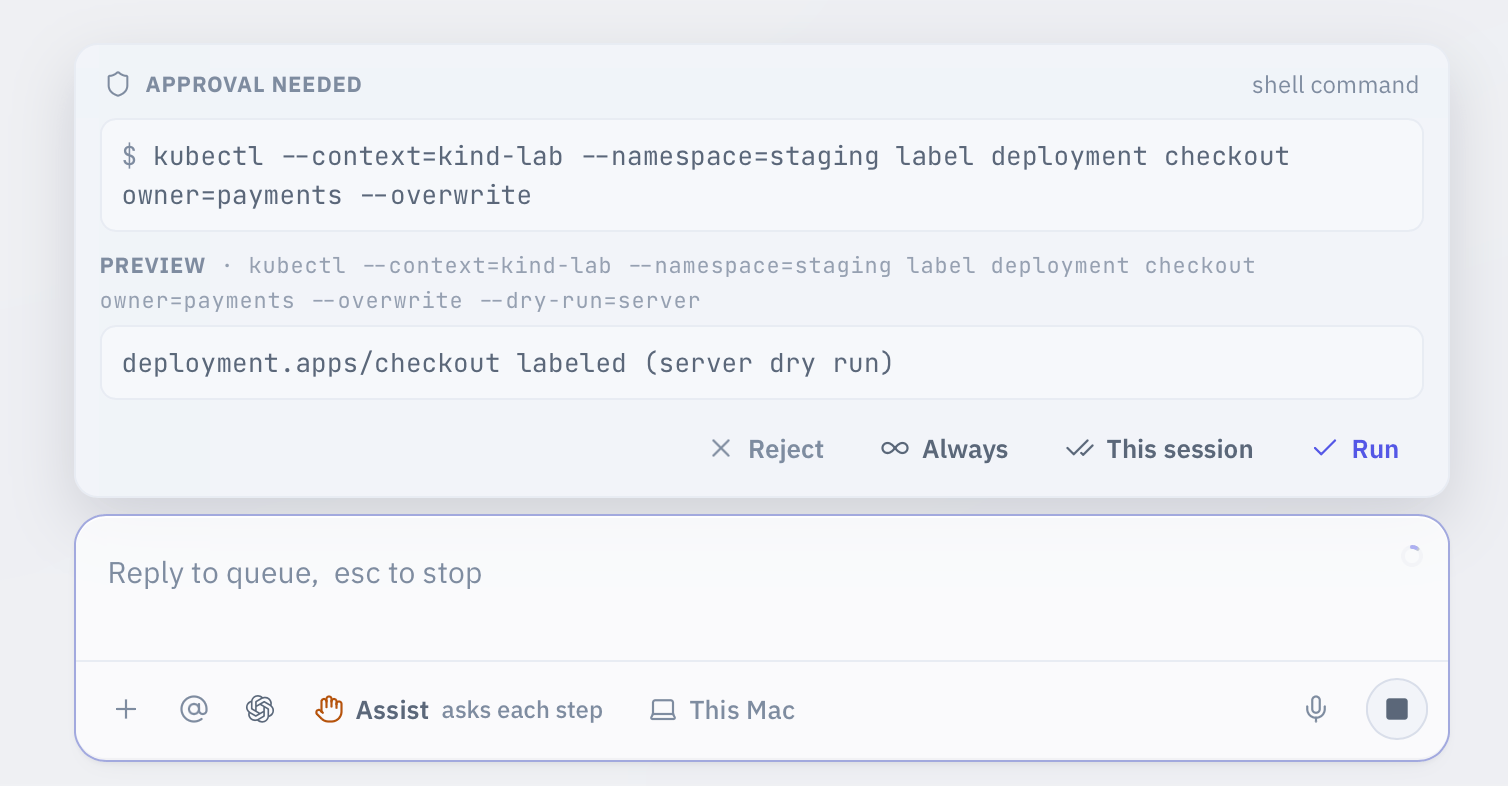 In Assist, every write pauses here. You see the exact command, and a dry run of what it would do, before it runs.
Click **Run**. Kepler applies the label, verifies it with a read, and reports back.
Approvals come in three lifetimes: this once, for the rest of the session, or from now on. Which ones the dock offers depends on what is pending. A command outside your workspace folders can be added to the workspace for good, and a command Kepler has never seen gets its own card with **Trust as read-only**, which saves a rule that applies everywhere. Rules live in **Settings > Permissions**. Delete, scale, restart, and `rm -rf` are never offered in any posture.
## Essential shortcuts and commands
| Action | Shortcut or command |
| ----------------------------------------------- | ---------------------------------------------- |
| Cycle posture (Observe, Assist, Yolo) | `Shift+Tab` or `/mode ` |
| Open a workspace folder | `Cmd+O` or `/workspace add ` |
| Terminal panel | `Cmd+J` |
| Browser panel | `Cmd+B` |
| Editor and file tree | `Cmd+E` |
| Memory panel | `Cmd+M` |
| Search sessions and more | `Cmd+K` |
| Toggle the sidebar | `Cmd+\` |
| Settings | `Cmd+,` or `/settings` |
| Switch model | `/model ` |
| New session | `/new` |
| Run a shell command yourself, from the composer | Start the line with `!` |
| Approve the pending command | `Cmd+Enter` |
| Reject the pending command | `Esc` |
| See everything Kepler can do | `/help` |
## Where to go next
Observe, Assist, and Yolo in detail, and when to use each.
Panels, center stage, and how you and Kepler share the terminal and browser.
Per-tool switches, command rules, and the always-blocked list.
Every slash command, from `/investigate` to `/handoff`.
In Assist, every write pauses here. You see the exact command, and a dry run of what it would do, before it runs.
Click **Run**. Kepler applies the label, verifies it with a read, and reports back.
Approvals come in three lifetimes: this once, for the rest of the session, or from now on. Which ones the dock offers depends on what is pending. A command outside your workspace folders can be added to the workspace for good, and a command Kepler has never seen gets its own card with **Trust as read-only**, which saves a rule that applies everywhere. Rules live in **Settings > Permissions**. Delete, scale, restart, and `rm -rf` are never offered in any posture.
## Essential shortcuts and commands
| Action | Shortcut or command |
| ----------------------------------------------- | ---------------------------------------------- |
| Cycle posture (Observe, Assist, Yolo) | `Shift+Tab` or `/mode ` |
| Open a workspace folder | `Cmd+O` or `/workspace add ` |
| Terminal panel | `Cmd+J` |
| Browser panel | `Cmd+B` |
| Editor and file tree | `Cmd+E` |
| Memory panel | `Cmd+M` |
| Search sessions and more | `Cmd+K` |
| Toggle the sidebar | `Cmd+\` |
| Settings | `Cmd+,` or `/settings` |
| Switch model | `/model ` |
| New session | `/new` |
| Run a shell command yourself, from the composer | Start the line with `!` |
| Approve the pending command | `Cmd+Enter` |
| Reject the pending command | `Esc` |
| See everything Kepler can do | `/help` |
## Where to go next
Observe, Assist, and Yolo in detail, and when to use each.
Panels, center stage, and how you and Kepler share the terminal and browser.
Per-tool switches, command rules, and the always-blocked list.
Every slash command, from `/investigate` to `/handoff`.