> ## Documentation Index
> Fetch the complete documentation index at: https://docs.rubixkube.ai/llms.txt
> Use this file to discover all available pages before exploring further.
# Postures: Observe, Assist, and Yolo
> How much Kepler does on its own. Observe is read-only, Assist asks before every change, Yolo acts within limits. How to switch, what the approval dock asks, and what each answer remembers.
Start in **Observe**. It is the default, it is read-only, and it is enough for most investigations: Kepler runs read commands, reads dashboards, and tells you what it found and what it would do. Switch to **Assist** when you want it to make a change and you want to approve each step. Use **Yolo** when you trust the task and want fewer prompts.
Whatever the posture, the [always-blocked list](/kepler/permissions#always-blocked) still holds. Delete, scale, restart, `rm -rf` and their relatives never run.
## The three postures
| Posture | What Kepler does on its own | What it asks you about | Use it when |
| ----------- | ------------------------------------------------------------------------------------------------- | ----------------------------------------------------------------------------------------------------------------------------------- | ----------------------------------------------------------------------------------------------------------------------- |
| **Observe** | Runs read-only commands, reads pages and files, recalls memory, writes a plan if you ask for one. | Nothing. Anything that would change state is not offered, so there is nothing to approve. | Triage, investigation, on-call questions, anything where you want the answer and will act yourself. |
| **Assist** | Everything Observe does. | Every change: a write command, a file edit, a command Kepler does not recognise. Each one docks above the composer for a yes or no. | Applying a fix, editing a manifest, running a rollback, when you want to see each step before it runs. |
| **Yolo** | Everything Assist does, plus writes, without a prompt per step. | Commands it does not recognise, paths outside your workspace, and any tool you set to Ask in [Permissions](/kepler/permissions). | A task you have done with Kepler before, in a non-production environment, or when you are watching the terminal anyway. |
In Observe a write is not just gated, it is off the table: Kepler is told the tool is unavailable and advises instead. In Assist a write shows up as an approval. In Yolo it runs.
## Switching posture
The posture chip sits on the composer toolbar and shows the current posture with a short hint: **Observe** read-only, **Assist** asks each step, **YOLO** acts freely. Three ways to change it:
* Click the chip. It cycles Observe, Assist, Yolo, Observe.
* Press `Shift+Tab` with the composer focused. Same cycle.
* Type `/mode assist`, `/mode yolo` or `/mode observe`. A bare `/mode` cycles.
Posture is per conversation. Changing it in one session does not touch another, and a new session starts in Observe. The one exception is a [war room](/kepler/war-room), which opens in Assist or Yolo and cannot be set to Observe: a room exists to act, and its member agents share the room's posture without being able to widen it.
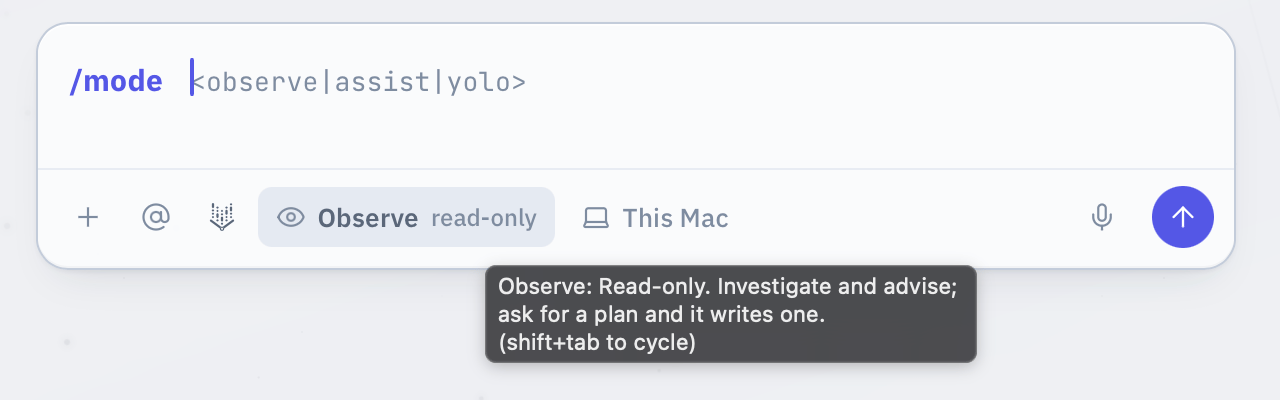 The posture chip on the composer, here in Observe. Click it, press Shift+Tab, or type /mode.
## The approval dock
When Kepler wants to do something the posture does not let it do silently, a card docks above the composer. It shows the exact command, character for character, with a `$` prompt. For a file edit it shows the diff. For a tool with no command it shows the tool name and its arguments. If the command is a write to a file, some approvals also show a preview of the change.
You have four answers, in order of how long they last:
| Answer | What happens | What Kepler remembers |
| ------------------------------------ | -------------------------------------------------------------------------------------------------------------------- | ---------------------------------------------------------------------------------------------------------------------------------------------------- |
| **Run** (`Cmd+Enter`) | Runs this command, once. | Nothing. The next command asks again. |
| **This session** (`Cmd+Shift+Enter`) | Runs it and allows every command starting with the same verb, such as `kubectl apply`, until this conversation ends. | The prefix, until the session ends. Not offered for shells and interpreters like `bash` or `python`, because approving those would approve anything. |
| **Always** | Runs it and allows that same verb prefix from now on, in every conversation. | A rule, permanently. It shows up under **Always allowed** in **Settings > Permissions** and you can delete it there. |
| **Reject** (`Esc`) | Does not run it. You can type a short note first, and Kepler takes the note as direction. | Your note, for this turn. |
**Always** is the one to read twice: it is the only button here that outlives the conversation, and it applies in watchers and workflows too. **This session** is the safer habit when you just want Kepler to stop asking about the same verb for the next ten minutes.
For a command Kepler does not recognise, the [unknown-command card](#the-unknown-command-card) offers **Trust as read-only**, which saves a rule of its own. Rules from either route sit in [Settings > Permissions](/kepler/permissions), in a list you can read and change later.
The posture chip on the composer, here in Observe. Click it, press Shift+Tab, or type /mode.
## The approval dock
When Kepler wants to do something the posture does not let it do silently, a card docks above the composer. It shows the exact command, character for character, with a `$` prompt. For a file edit it shows the diff. For a tool with no command it shows the tool name and its arguments. If the command is a write to a file, some approvals also show a preview of the change.
You have four answers, in order of how long they last:
| Answer | What happens | What Kepler remembers |
| ------------------------------------ | -------------------------------------------------------------------------------------------------------------------- | ---------------------------------------------------------------------------------------------------------------------------------------------------- |
| **Run** (`Cmd+Enter`) | Runs this command, once. | Nothing. The next command asks again. |
| **This session** (`Cmd+Shift+Enter`) | Runs it and allows every command starting with the same verb, such as `kubectl apply`, until this conversation ends. | The prefix, until the session ends. Not offered for shells and interpreters like `bash` or `python`, because approving those would approve anything. |
| **Always** | Runs it and allows that same verb prefix from now on, in every conversation. | A rule, permanently. It shows up under **Always allowed** in **Settings > Permissions** and you can delete it there. |
| **Reject** (`Esc`) | Does not run it. You can type a short note first, and Kepler takes the note as direction. | Your note, for this turn. |
**Always** is the one to read twice: it is the only button here that outlives the conversation, and it applies in watchers and workflows too. **This session** is the safer habit when you just want Kepler to stop asking about the same verb for the next ten minutes.
For a command Kepler does not recognise, the [unknown-command card](#the-unknown-command-card) offers **Trust as read-only**, which saves a rule of its own. Rules from either route sit in [Settings > Permissions](/kepler/permissions), in a list you can read and change later.
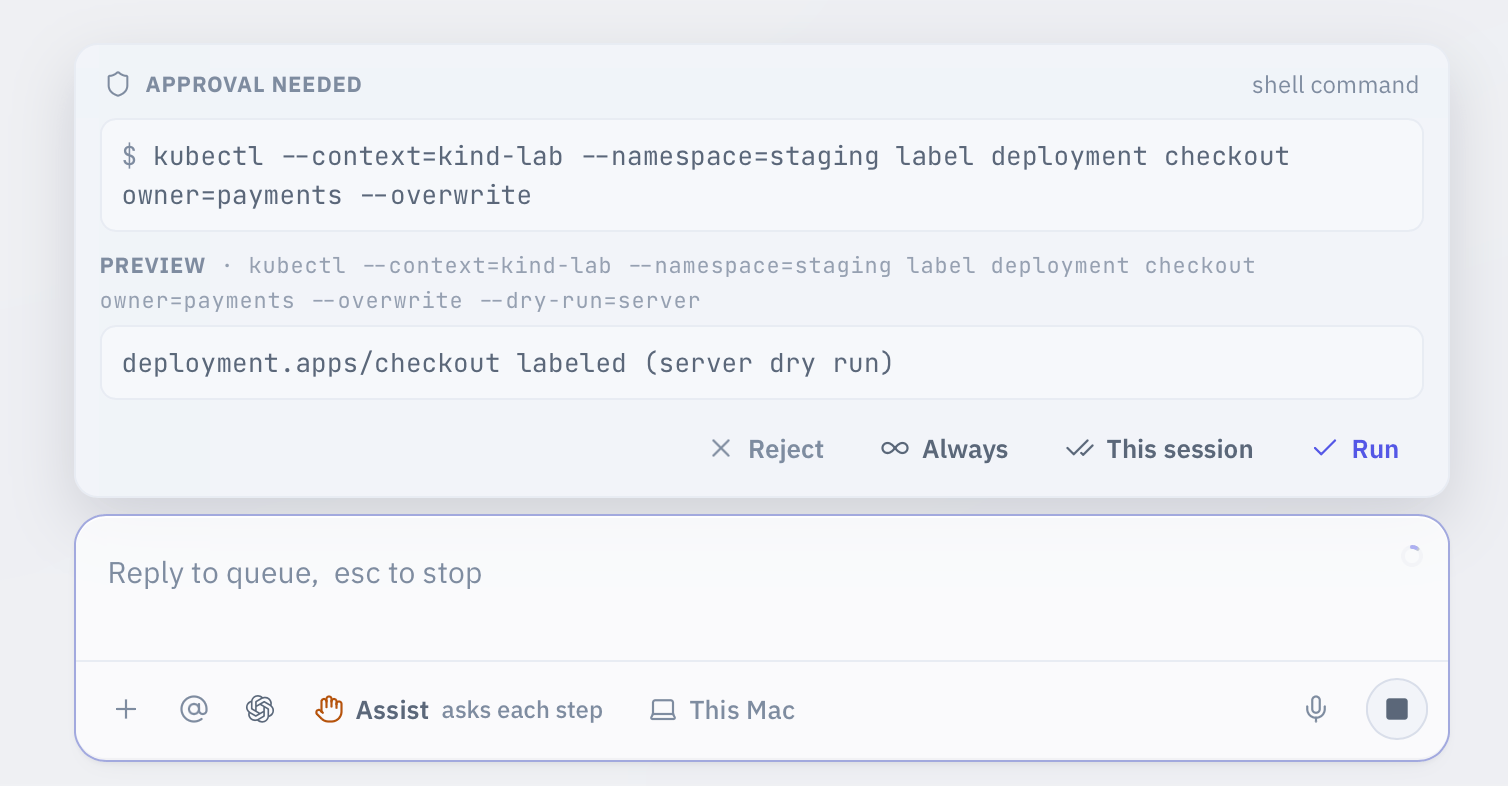 The dock shows the exact command, and a dry run of what it would do. Run it once, allow the verb for this session, allow it for good, or reject with a note.
## The unknown-command card
Kepler knows what most commands do. When it meets a binary it does not recognise, it cannot tell whether the command is read-only, so it stops and asks rather than guessing. The card says **Unrecognised command** and names the binary.
| Answer | What happens | What Kepler remembers |
| ---------------------- | --------------------------------------------------------------------------------------- | ----------------------------------------------------------------------------------------------------------------------------------------------------------- |
| **Trust as read-only** | Saves a rule that this binary (or this verb of it) is read-only, then runs the command. | The rule, permanently. It applies in every conversation, in watchers, in workflows and in `!` shell mode. Change it later under **Settings > Permissions**. |
| **Run once** | Runs the command with no rule saved. | Nothing. |
| **Don't run** | Skips it. | Your note, if you left one. |
**Run once** is only offered in Assist and Yolo. In Observe the card offers trust or nothing, because Observe promises that no write runs, and Kepler cannot make that promise for a command it does not understand. Watchers never get **Run once** either: a watcher only runs commands Kepler can vouch for.
The dock shows the exact command, and a dry run of what it would do. Run it once, allow the verb for this session, allow it for good, or reject with a note.
## The unknown-command card
Kepler knows what most commands do. When it meets a binary it does not recognise, it cannot tell whether the command is read-only, so it stops and asks rather than guessing. The card says **Unrecognised command** and names the binary.
| Answer | What happens | What Kepler remembers |
| ---------------------- | --------------------------------------------------------------------------------------- | ----------------------------------------------------------------------------------------------------------------------------------------------------------- |
| **Trust as read-only** | Saves a rule that this binary (or this verb of it) is read-only, then runs the command. | The rule, permanently. It applies in every conversation, in watchers, in workflows and in `!` shell mode. Change it later under **Settings > Permissions**. |
| **Run once** | Runs the command with no rule saved. | Nothing. |
| **Don't run** | Skips it. | Your note, if you left one. |
**Run once** is only offered in Assist and Yolo. In Observe the card offers trust or nothing, because Observe promises that no write runs, and Kepler cannot make that promise for a command it does not understand. Watchers never get **Run once** either: a watcher only runs commands Kepler can vouch for.
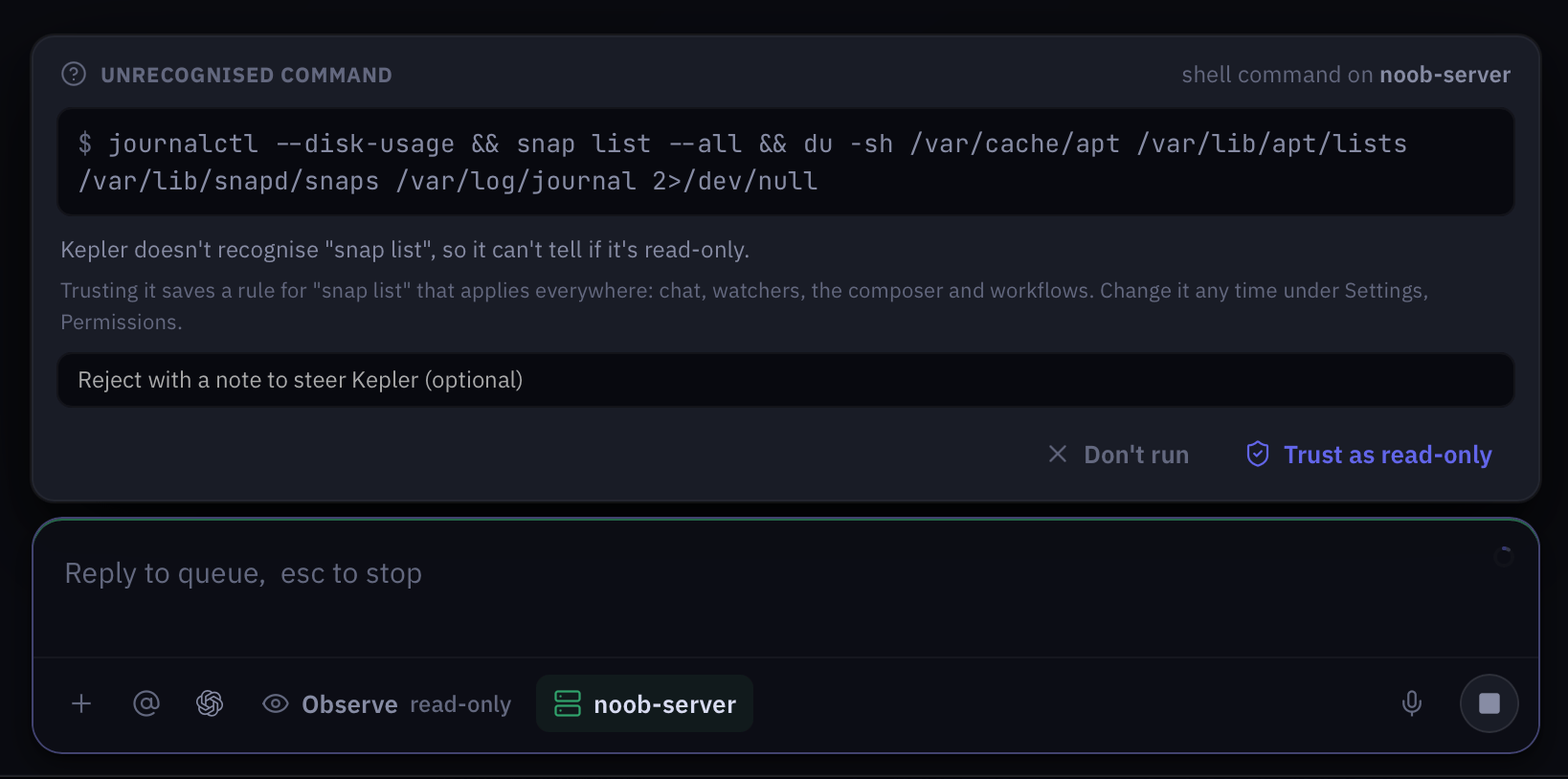 Kepler names the exact part it does not know. In Observe there is no Run once: trust it, or it does not run. Trusting saves a rule you can edit later under Settings > Permissions.
## A worked example
Send the same prompt in two postures.
```
Checkout pods are restarting in prod. Find out why and fix it if it's config.
```
In **Observe**, Kepler runs `kubectl get pods`, `kubectl describe`, and pulls logs. It finds a bad environment variable in a ConfigMap and stops there. The reply ends with the exact `kubectl` command that would fix it, for you to run yourself, or you can ask for a plan with `/plan`.
In **Assist**, Kepler does the same investigation, then docks a card with the `kubectl apply` for the corrected ConfigMap. You read the command, press `Cmd+Enter`, and it applies. Kepler then re-checks the pods and reports whether the restarts stopped. If the fix had been a `kubectl rollout restart`, the card would never appear: that command is on the always-blocked list, and Kepler tells you so and suggests you run it yourself.
Do investigations in Observe and switch to Assist only for the fix. That keeps the noisy part of the work free of prompts and puts the one prompt where it matters.
## Where to go next
Per-tool allow, ask and block, your command rules, and the always-blocked list.
Where the posture chip, the approval dock and the panels live.
/mode, /plan and the rest of the slash commands.
Prompt recipes for triage, rollbacks and runbooks.
Kepler names the exact part it does not know. In Observe there is no Run once: trust it, or it does not run. Trusting saves a rule you can edit later under Settings > Permissions.
## A worked example
Send the same prompt in two postures.
```
Checkout pods are restarting in prod. Find out why and fix it if it's config.
```
In **Observe**, Kepler runs `kubectl get pods`, `kubectl describe`, and pulls logs. It finds a bad environment variable in a ConfigMap and stops there. The reply ends with the exact `kubectl` command that would fix it, for you to run yourself, or you can ask for a plan with `/plan`.
In **Assist**, Kepler does the same investigation, then docks a card with the `kubectl apply` for the corrected ConfigMap. You read the command, press `Cmd+Enter`, and it applies. Kepler then re-checks the pods and reports whether the restarts stopped. If the fix had been a `kubectl rollout restart`, the card would never appear: that command is on the always-blocked list, and Kepler tells you so and suggests you run it yourself.
Do investigations in Observe and switch to Assist only for the fix. That keeps the noisy part of the work free of prompts and puts the one prompt where it matters.
## Where to go next
Per-tool allow, ask and block, your command rules, and the always-blocked list.
Where the posture chip, the approval dock and the panels live.
/mode, /plan and the rest of the slash commands.
Prompt recipes for triage, rollbacks and runbooks.