> ## Documentation Index
> Fetch the complete documentation index at: https://docs.rubixkube.ai/llms.txt
> Use this file to discover all available pages before exploring further.
# Permissions and the always-blocked list
> Per-tool allow, ask and block for files, shell and MCP servers, the command rules you teach Kepler, and the always-blocked list of destructive commands that no setting can unlock.
Kepler has two controls and a floor. **Posture** decides how much Kepler does on its own in a conversation. **Permissions** decide, per tool, whether Kepler may use it, must ask first, or may not use it at all. The **always-blocked list** is the floor under both: a set of destructive commands that never run, whatever the posture, whatever the rule, whatever you click.
Leave the defaults on to start. Files, Shell, MCP servers and Secrets all ask by default, so the first time Kepler reaches for your terminal you see exactly what it wants to run. Approve a command prefix for the session and the prompts thin out fast. Loosen one control at a time once you know what a normal session looks like.
The controls only tighten. A posture cannot loosen a permission, a permission cannot loosen the floor, and Kepler cannot change any of them itself.
## Settings > Permissions
Open **Settings > Permissions** (`Cmd+,`, or `/settings`). The page has four parts, top to bottom: what you have allowed for good, your command rules, the always-blocked list, and the tool switches.
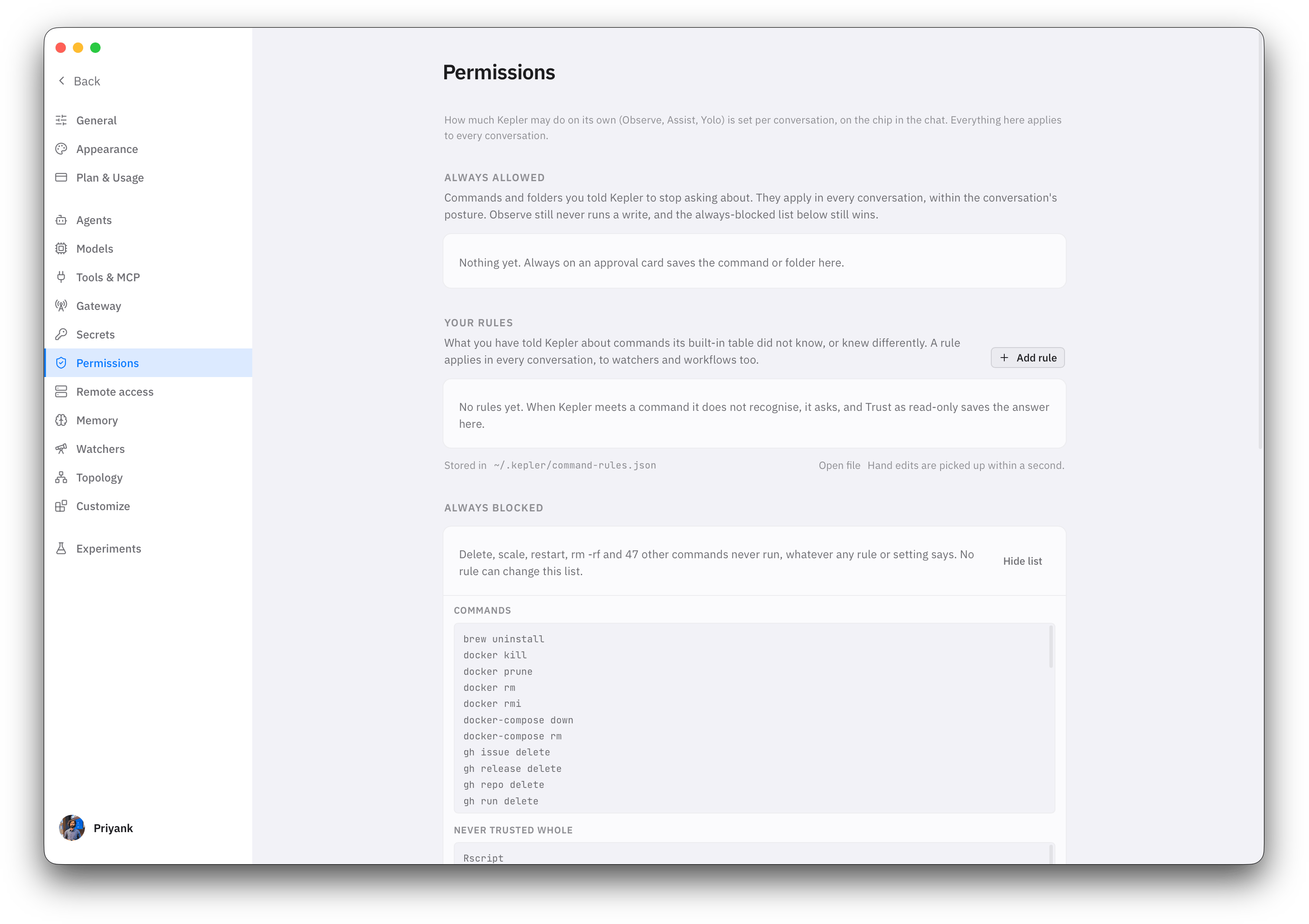 Always allowed and your rules at the top, the floor expanded below them. The tool switches follow further down the page.
### Tools
Each switch is Allow, Ask or Block. Allow never means writes run freely: it lets reads through without a prompt, and writes still follow the conversation's posture.
| Tool | Covers | Default | What Ask means |
| --------------- | ------------------------------------------------------------------------------------------------- | ------- | --------------------------------------------------------------------------------------------------------------------------------------------------------- |
| **Files** | Reading, listing and searching files in your workspace. | Ask | Every file read docks a card before it runs. |
| **Shell** | Commands Kepler runs in your terminal. | Ask | Every command asks, reads included. Set this to Allow once you trust the session and want read-only commands like `kubectl get` to flow without a prompt. |
| **MCP servers** | Tools from connected MCP integrations such as Grafana, AWS or PagerDuty. | Ask | Every MCP tool call asks. |
| **Secrets** | Commands and files that print credentials: `env`, `git credential fill`, `.ssh`, `.aws`, `.kube`. | Ask | Asks in every posture. Kepler sees the value once, then it is masked. |
The switches sit on top of posture and never loosen it. Shell on Allow in Observe still means no write command runs: Allow lets reads through without a prompt, and Observe keeps writes off the table. Shell on Ask in Yolo means Yolo asks about every command, which is the point of Ask.
**Block** removes the tool. Kepler is told it is unavailable and works around it or tells you it cannot continue.
Browser and memory tools are allowed by default. They are Kepler's own surfaces, and the browser drives only what is on screen in the Browser panel.
## Always allowed
Press **Always** on an approval card and the thing you approved stops asking, in every conversation, across restarts. This section lists what you have said that about. Two kinds of entry land here:
| Entry | Example | What it allows |
| -------------- | ----------------- | ---------------------------------------------------------------------------------------------------------------------------------------------- |
| Command prefix | `kubectl label *` | Every command starting with that verb. Saved from the **Always** button on a command approval. |
| Folder | `/srv/manifests` | Kepler may reach that folder from any workspace. Saved from **Always** on the card that appears when a command reaches outside your workspace. |
An entry here only removes the prompt. It never loosens the posture or the floor: Observe still runs no write, and the always-blocked list still wins. Remove an entry from its row when you no longer want it.
**Always** is not offered for shells and interpreters such as `bash` or `python`, for the same reason [This session](/kepler/postures#the-approval-dock) is not: approving those would approve anything they run.
## Your rules
Kepler ships with a table of what common commands do: `kubectl get` is a read, `kubectl apply` is a write, `helm list` is a read, and so on. That table decides whether a command runs silently, asks, or is refused in the current posture. When Kepler meets a command that is not in the table, it stops and shows the [unknown-command card](/kepler/postures#the-unknown-command-card). Choosing **Trust as read-only** there writes a rule, and this section is where those rules live.
A rule is one line about one command shape:
| Field | Example | Meaning |
| ---------------- | -------------------------- | --------------------------------------------------------------------------------------------------------- |
| Binary | `argocd` | The program. Required. |
| Verb | `app` | The first subcommand. Optional. Without it the rule covers every use of the binary. |
| Sub-verb | `list` | The subcommand after the verb, for tools like `argocd app list`. Optional. |
| Effect | Read, Write or Destructive | What that shape does. Read runs in every posture. Write follows the posture. Destructive joins the floor. |
| Escalating flags | `-X --data` | Flags that turn this read into a write. `curl` is a read until it carries `-X POST`. |
Rules apply everywhere at once: chat, watchers, workflows, and `!` shell mode. The table shows when each rule was added and whether it came from a card, from this page, or from a hand edit.
To add one without waiting for a card, click **Add rule**, fill in the binary and optional verb and sub-verb, pick the effect, and add any escalating flags. Search the table with the box above it, sort by any column, and change a rule's effect in place from its row.
### Editing the rules file by hand
The rules are a JSON file at `~/.kepler/command-rules.json`. Open it from the page and edit it in any editor. Kepler notices a changed file within a second and uses the new rules on the next command, with no restart.
Two things are refused, on the page and in the file. A rule that names a command on the always-blocked list is dropped. And a rule that trusts a whole shell or interpreter, such as `bash`, `python`, `sudo` or `git`, is refused: trusting `bash` would trust every script it runs. Those binaries appear under **Never trusted whole** in the floor, and you can only write rules for specific verbs of them.
## Always blocked
The **Always blocked** panel at the bottom of the page lists the floor. Click **Show list** to expand it. It has three parts: the commands that are blocked, the binaries that can never be trusted whole, and the patterns that are checked before any rule or table lookup.
No posture, no rule, no per-tool Allow and no approval unlocks anything on this list. Yolo does not run these. Trusting a binary does not run these. If Kepler concludes that one of them is the right fix, it tells you it is blocked and suggests the exact command for you to run yourself. It also applies to `!` shell mode in the composer, because the floor protects the machine, not just the agent.
| Family | Never runs |
| -------------------- | ----------------------------------------------------------------------------------------------------------------------------------------------------------------------------------------------------------------- |
| Files | `rm -r`, `rm -f`, `rmdir`, `dd if=`, `mkfs`, and any write into `/etc`, `/dev`, `/sys`, `/boot`, `/bin`, `/lib` or `/usr` |
| Kubernetes | `kubectl delete`, `kubectl scale`, `kubectl drain`, `kubectl cordon`, `kubectl uncordon`, `kubectl taint`, `kubectl rollout restart`, `kubectl rollout undo`, any `kubectl` command with `--force`, `kind delete` |
| Helm | `helm delete`, `helm uninstall`, `helm rollback` |
| Terraform | `terraform destroy` |
| Containers | `docker` and `podman` `rm`, `rmi`, `kill`, `prune`, `system prune` |
| Git | `git reset --hard`, `git clean -f`, `git push --force` and `git push -f` |
| Cloud CLIs | `aws ... delete`, `terminate`, `stop`, `remove`; `gcloud ... delete`; `az ... delete` |
| Databases and caches | `DROP` or `TRUNCATE` of a table, database or schema; `FLUSHALL`, `FLUSHDB` |
| Host | `shutdown`, `reboot`, `halt`, `poweroff` |
| Windows | `Remove-Item -Recurse` or `-Force`, `del /s` and `/q`, `rmdir /s`, `format`, `diskpart`, `Stop-Computer`, `Restart-Computer`, `Clear-RecycleBin`, registry removal, `net user` and `net localgroup` add or delete |
The list in the app is the one that counts for your version. This table is a summary.
The floor is a list of commands, not of outcomes. A script you have trusted as read-only that deletes something inside it is not caught by the floor, which is why whole interpreters can never be trusted and why the effect you give a rule matters.
## How the three layers meet
A single `kubectl` command passes through all three before it runs:
If the command matches the always-blocked list, it stops here. Kepler is told it will never run.
Kepler works out whether the command is a read or a write, using the built-in table with your rules on top. A read runs in any posture. A write is unavailable in Observe, asks in Assist, and runs in Yolo. A command Kepler does not recognise asks in Assist and Yolo and is unavailable in Observe.
The Shell switch is applied last and can only make things stricter. Ask adds a prompt even for a read. Block removes the shell entirely.
Paths outside your workspace ask in every posture, on top of all three. See [Workspaces](/kepler/workspace#workspaces).
## Where to go next
Observe, Assist and Yolo, and the approval dock.
Every settings page, including Tools & MCP and Secrets.
Background pollers that only ever run read-only commands.
When a command will not run and you do not know why.
Always allowed and your rules at the top, the floor expanded below them. The tool switches follow further down the page.
### Tools
Each switch is Allow, Ask or Block. Allow never means writes run freely: it lets reads through without a prompt, and writes still follow the conversation's posture.
| Tool | Covers | Default | What Ask means |
| --------------- | ------------------------------------------------------------------------------------------------- | ------- | --------------------------------------------------------------------------------------------------------------------------------------------------------- |
| **Files** | Reading, listing and searching files in your workspace. | Ask | Every file read docks a card before it runs. |
| **Shell** | Commands Kepler runs in your terminal. | Ask | Every command asks, reads included. Set this to Allow once you trust the session and want read-only commands like `kubectl get` to flow without a prompt. |
| **MCP servers** | Tools from connected MCP integrations such as Grafana, AWS or PagerDuty. | Ask | Every MCP tool call asks. |
| **Secrets** | Commands and files that print credentials: `env`, `git credential fill`, `.ssh`, `.aws`, `.kube`. | Ask | Asks in every posture. Kepler sees the value once, then it is masked. |
The switches sit on top of posture and never loosen it. Shell on Allow in Observe still means no write command runs: Allow lets reads through without a prompt, and Observe keeps writes off the table. Shell on Ask in Yolo means Yolo asks about every command, which is the point of Ask.
**Block** removes the tool. Kepler is told it is unavailable and works around it or tells you it cannot continue.
Browser and memory tools are allowed by default. They are Kepler's own surfaces, and the browser drives only what is on screen in the Browser panel.
## Always allowed
Press **Always** on an approval card and the thing you approved stops asking, in every conversation, across restarts. This section lists what you have said that about. Two kinds of entry land here:
| Entry | Example | What it allows |
| -------------- | ----------------- | ---------------------------------------------------------------------------------------------------------------------------------------------- |
| Command prefix | `kubectl label *` | Every command starting with that verb. Saved from the **Always** button on a command approval. |
| Folder | `/srv/manifests` | Kepler may reach that folder from any workspace. Saved from **Always** on the card that appears when a command reaches outside your workspace. |
An entry here only removes the prompt. It never loosens the posture or the floor: Observe still runs no write, and the always-blocked list still wins. Remove an entry from its row when you no longer want it.
**Always** is not offered for shells and interpreters such as `bash` or `python`, for the same reason [This session](/kepler/postures#the-approval-dock) is not: approving those would approve anything they run.
## Your rules
Kepler ships with a table of what common commands do: `kubectl get` is a read, `kubectl apply` is a write, `helm list` is a read, and so on. That table decides whether a command runs silently, asks, or is refused in the current posture. When Kepler meets a command that is not in the table, it stops and shows the [unknown-command card](/kepler/postures#the-unknown-command-card). Choosing **Trust as read-only** there writes a rule, and this section is where those rules live.
A rule is one line about one command shape:
| Field | Example | Meaning |
| ---------------- | -------------------------- | --------------------------------------------------------------------------------------------------------- |
| Binary | `argocd` | The program. Required. |
| Verb | `app` | The first subcommand. Optional. Without it the rule covers every use of the binary. |
| Sub-verb | `list` | The subcommand after the verb, for tools like `argocd app list`. Optional. |
| Effect | Read, Write or Destructive | What that shape does. Read runs in every posture. Write follows the posture. Destructive joins the floor. |
| Escalating flags | `-X --data` | Flags that turn this read into a write. `curl` is a read until it carries `-X POST`. |
Rules apply everywhere at once: chat, watchers, workflows, and `!` shell mode. The table shows when each rule was added and whether it came from a card, from this page, or from a hand edit.
To add one without waiting for a card, click **Add rule**, fill in the binary and optional verb and sub-verb, pick the effect, and add any escalating flags. Search the table with the box above it, sort by any column, and change a rule's effect in place from its row.
### Editing the rules file by hand
The rules are a JSON file at `~/.kepler/command-rules.json`. Open it from the page and edit it in any editor. Kepler notices a changed file within a second and uses the new rules on the next command, with no restart.
Two things are refused, on the page and in the file. A rule that names a command on the always-blocked list is dropped. And a rule that trusts a whole shell or interpreter, such as `bash`, `python`, `sudo` or `git`, is refused: trusting `bash` would trust every script it runs. Those binaries appear under **Never trusted whole** in the floor, and you can only write rules for specific verbs of them.
## Always blocked
The **Always blocked** panel at the bottom of the page lists the floor. Click **Show list** to expand it. It has three parts: the commands that are blocked, the binaries that can never be trusted whole, and the patterns that are checked before any rule or table lookup.
No posture, no rule, no per-tool Allow and no approval unlocks anything on this list. Yolo does not run these. Trusting a binary does not run these. If Kepler concludes that one of them is the right fix, it tells you it is blocked and suggests the exact command for you to run yourself. It also applies to `!` shell mode in the composer, because the floor protects the machine, not just the agent.
| Family | Never runs |
| -------------------- | ----------------------------------------------------------------------------------------------------------------------------------------------------------------------------------------------------------------- |
| Files | `rm -r`, `rm -f`, `rmdir`, `dd if=`, `mkfs`, and any write into `/etc`, `/dev`, `/sys`, `/boot`, `/bin`, `/lib` or `/usr` |
| Kubernetes | `kubectl delete`, `kubectl scale`, `kubectl drain`, `kubectl cordon`, `kubectl uncordon`, `kubectl taint`, `kubectl rollout restart`, `kubectl rollout undo`, any `kubectl` command with `--force`, `kind delete` |
| Helm | `helm delete`, `helm uninstall`, `helm rollback` |
| Terraform | `terraform destroy` |
| Containers | `docker` and `podman` `rm`, `rmi`, `kill`, `prune`, `system prune` |
| Git | `git reset --hard`, `git clean -f`, `git push --force` and `git push -f` |
| Cloud CLIs | `aws ... delete`, `terminate`, `stop`, `remove`; `gcloud ... delete`; `az ... delete` |
| Databases and caches | `DROP` or `TRUNCATE` of a table, database or schema; `FLUSHALL`, `FLUSHDB` |
| Host | `shutdown`, `reboot`, `halt`, `poweroff` |
| Windows | `Remove-Item -Recurse` or `-Force`, `del /s` and `/q`, `rmdir /s`, `format`, `diskpart`, `Stop-Computer`, `Restart-Computer`, `Clear-RecycleBin`, registry removal, `net user` and `net localgroup` add or delete |
The list in the app is the one that counts for your version. This table is a summary.
The floor is a list of commands, not of outcomes. A script you have trusted as read-only that deletes something inside it is not caught by the floor, which is why whole interpreters can never be trusted and why the effect you give a rule matters.
## How the three layers meet
A single `kubectl` command passes through all three before it runs:
If the command matches the always-blocked list, it stops here. Kepler is told it will never run.
Kepler works out whether the command is a read or a write, using the built-in table with your rules on top. A read runs in any posture. A write is unavailable in Observe, asks in Assist, and runs in Yolo. A command Kepler does not recognise asks in Assist and Yolo and is unavailable in Observe.
The Shell switch is applied last and can only make things stricter. Ask adds a prompt even for a read. Block removes the shell entirely.
Paths outside your workspace ask in every posture, on top of all three. See [Workspaces](/kepler/workspace#workspaces).
## Where to go next
Observe, Assist and Yolo, and the approval dock.
Every settings page, including Tools & MCP and Secrets.
Background pollers that only ever run read-only commands.
When a command will not run and you do not know why.