> ## Documentation Index
> Fetch the complete documentation index at: https://docs.rubixkube.ai/llms.txt
> Use this file to discover all available pages before exploring further.
# Chat with Kepler from your phone
> Connect WhatsApp, Slack, Telegram or Discord to Kepler and carry on the same session from your phone: ask questions, answer approvals, get woken by watchers while you are away.
Kepler runs on your desk. The Gateway lets you reach it from your phone through WhatsApp, Slack, Telegram or Discord, in the same session you were working in. Ask a question on the train, approve a command from the sofa, get woken by a watcher when you have stepped away. Kepler answers as long as it is running on your machine.
The reliable choices first: **Telegram** is the most dependable option and takes three steps. **Slack** and **Discord** are official bot integrations and work well. **WhatsApp** is the most convenient but is not an official integration, so read the warning below before relying on it.
## Connect a channel
Open **Settings > Gateway** and choose **Connect a channel**. Each channel walks you through its own steps.
Open Telegram and message **@BotFather**. Send `/newbot` and give it a name.
BotFather replies with a bot token. Paste it into Kepler as the **Bot token**.
Under **Who can message**, add your @username or numeric user ID. Telegram never gives a bot your phone number, so a phone number here will not match.
Message your bot from Telegram. Kepler answers.
At api.slack.com/apps, create an app **From scratch**.
Under **Settings > Basic Information > App-Level Tokens**, generate a token with the `connections:write` scope. This is the `xapp-` token.
Under **Settings > Socket Mode**, enable it.
Under **Features > OAuth & Permissions > Bot Token Scopes**, add `chat:write`, `im:history`, `users:read` and `files:read`. To use Kepler in channels, also add `app_mentions:read`.
Under **Features > Event Subscriptions**, turn it on and subscribe to the bot event `message.im`. For channels, also add `app_mention`.
Under **Features > App Home > Messages Tab**, turn it on and tick **Allow users to send Slash commands and messages from the messages tab**. Without this Slack refuses direct messages to the app.
Install the app to your workspace. The **Bot User OAuth Token** starts with `xoxb-`. Paste the `xapp-` and `xoxb-` tokens into Kepler.
If you add a scope later, reinstall the app to your workspace or the new permission never takes effect.
Under **Who can message**, add your Slack member ID (starts with `U`) or @handle.
At discord.com/developers/applications, create an application.
Open **Bot** and click **Reset Token** to reveal one. Discord shows it only once. Paste it into Kepler as the **Bot token**.
On the same Bot page, enable **MESSAGE CONTENT INTENT**. Without it Discord delivers every message with the text blank, which looks exactly like Kepler ignoring you.
Under **OAuth2 > URL Generator**, tick **bot**, then the permissions **Send Messages** and **Read Message History**. Open the generated URL and add the bot to your server.
Under **Who can message**, add your Discord user ID or @handle. Kepler answers DMs and @mentions.
WhatsApp is not an official integration. Kepler links as an extra device, the same way WhatsApp Web does, so the link can drop out on its own, and heavy use may put your WhatsApp account at risk. Use it for convenience, not for anything you cannot afford to miss.
In **Settings > Gateway**, choose WhatsApp and press **Connect**. A QR code appears.
On your phone, open WhatsApp, then **Linked devices**, then **Link a device**.
Scan the code with your phone. Kepler shows as connected.
Under **Who can message**, add phone numbers with the country code. WhatsApp routes by number. Messaging Kepler from your own number works through your self-chat.
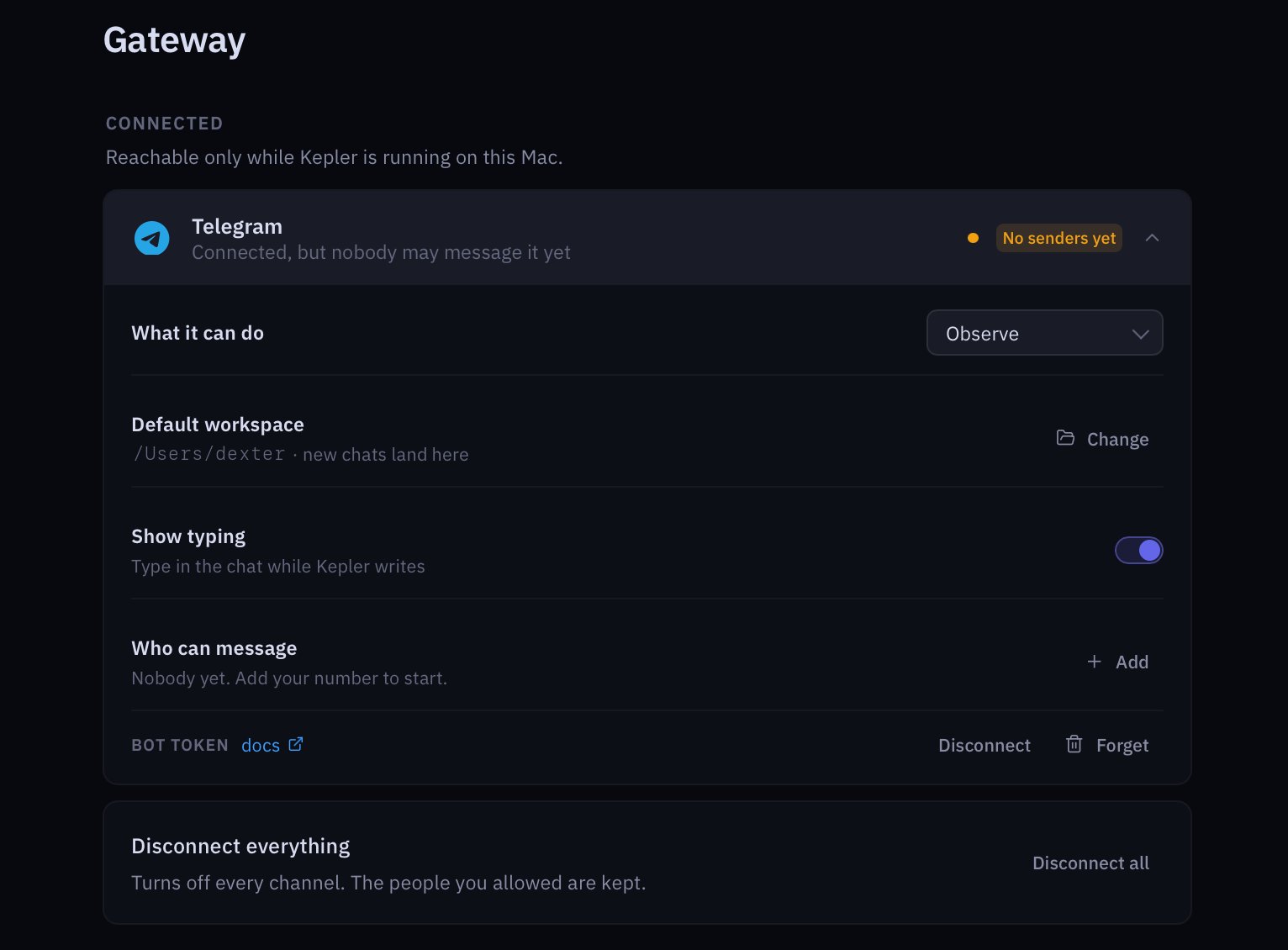 A connected channel and its options. Connecting is only half of it: until you add yourself under **Who can message**, nobody can reach Kepler through the channel.
## Bind a session to your phone
By default a message from your phone starts or continues a chat in the channel's default workspace. To drive a specific session you already have open, run this in that session:
```
/otg whatsapp
```
Kepler binds the session to that channel. Messages from your phone arrive in the session, replies go back to your phone, and the session's watchers can reach you there too. Swap `whatsapp` for `telegram`, `slack` or `discord`. Turn it off with:
```
/otg off
```
## What you can do from the channel
* Ask anything you would ask at your desk. The session keeps its context, so "and the logs?" means what it would mean in the app.
* Answer approvals. When Kepler is waiting on a command in Assist, the approval reaches the channel. Reply `yes` or `no`, or `/approve` or `/deny`, and it counts the same as pressing the button in the app.
* Be woken by a watcher. With **Reach me when I'm away** on under **Settings > General > When you're away**, alerts that need action go to a connected channel once your screen is locked or idle. Routine notifications never do.
## Channel options
Each connected channel has its own settings in **Settings > Gateway**.
| Option | What it does |
| ----------------- | ---------------------------------------------------------------------------------------------------------------------------------------------------------------------------------------------------------------------------------- |
| What it can do | The posture for this channel: **Observe**, **Ask before changes**, or **Act within bounds**. Observe is the default, because you are not watching this surface. A channel can never act more freely than the posture you set here. |
| Default workspace | Where new chats from this channel land. |
| Reply in channels | Answer @mentions in Slack or Discord channels, not only direct messages. |
| Show typing | Show a typing indicator while Kepler works. |
| Read receipts | Mark messages as read when Kepler has seen them. |
| Who can message | The allowlist. Only these people get an answer. Everyone else is ignored. |
**Disconnect everything** turns off every channel at once. The people you allowed are kept, so reconnecting is quick.
## How Kepler signs its replies
Kepler stamps a name and emoji on the replies it sends, so a message from Kepler never reads as one from you. Set them in **Settings > Customize > Signature**. On WhatsApp self-chat every reply is signed. On Telegram, Slack and Discord the bot already has its own name, so **Sign replies everywhere** stays off unless you want it.
## Where to go next
The thing most worth being woken for.
What Observe, Assist and Yolo mean for a channel.
Dropped links and silent bots.
The Gateway section in Settings.
A connected channel and its options. Connecting is only half of it: until you add yourself under **Who can message**, nobody can reach Kepler through the channel.
## Bind a session to your phone
By default a message from your phone starts or continues a chat in the channel's default workspace. To drive a specific session you already have open, run this in that session:
```
/otg whatsapp
```
Kepler binds the session to that channel. Messages from your phone arrive in the session, replies go back to your phone, and the session's watchers can reach you there too. Swap `whatsapp` for `telegram`, `slack` or `discord`. Turn it off with:
```
/otg off
```
## What you can do from the channel
* Ask anything you would ask at your desk. The session keeps its context, so "and the logs?" means what it would mean in the app.
* Answer approvals. When Kepler is waiting on a command in Assist, the approval reaches the channel. Reply `yes` or `no`, or `/approve` or `/deny`, and it counts the same as pressing the button in the app.
* Be woken by a watcher. With **Reach me when I'm away** on under **Settings > General > When you're away**, alerts that need action go to a connected channel once your screen is locked or idle. Routine notifications never do.
## Channel options
Each connected channel has its own settings in **Settings > Gateway**.
| Option | What it does |
| ----------------- | ---------------------------------------------------------------------------------------------------------------------------------------------------------------------------------------------------------------------------------- |
| What it can do | The posture for this channel: **Observe**, **Ask before changes**, or **Act within bounds**. Observe is the default, because you are not watching this surface. A channel can never act more freely than the posture you set here. |
| Default workspace | Where new chats from this channel land. |
| Reply in channels | Answer @mentions in Slack or Discord channels, not only direct messages. |
| Show typing | Show a typing indicator while Kepler works. |
| Read receipts | Mark messages as read when Kepler has seen them. |
| Who can message | The allowlist. Only these people get an answer. Everyone else is ignored. |
**Disconnect everything** turns off every channel at once. The people you allowed are kept, so reconnecting is quick.
## How Kepler signs its replies
Kepler stamps a name and emoji on the replies it sends, so a message from Kepler never reads as one from you. Set them in **Settings > Customize > Signature**. On WhatsApp self-chat every reply is signed. On Telegram, Slack and Discord the bot already has its own name, so **Sign replies everywhere** stays off unless you want it.
## Where to go next
The thing most worth being woken for.
What Observe, Assist and Yolo mean for a channel.
Dropped links and silent bots.
The Gateway section in Settings.