> ## Documentation Index
> Fetch the complete documentation index at: https://docs.rubixkube.ai/llms.txt
> Use this file to discover all available pages before exploring further.
# Automations: checks and briefs that run without you
> Build an automation from a plain description: a trigger (a schedule, a webhook, a check that changes, or a /command in chat) and a list of steps. Kepler runs it without you in the room and only changes things you said it may.
An automation is a job Kepler runs without you in the room: a morning brief of what broke overnight, a triage of every alert that arrives by webhook, a check that tells you when a rollout stalls, or a `/triage` command anyone you allowed can send from a chat. You describe it in plain words, check the steps Kepler drafts, and press **Go live**.
Automations are different from [watchers](/kepler/watchers). A watcher belongs to one conversation and wakes it. An automation belongs to the whole app and starts a conversation only when it needs you.
## Build one
Click **Automations** in the sidebar.
Write what you want in the box, for example "Every weekday at 09:00, list pods that are not running in prod and send me a short summary". Or start from one of 15 templates, such as **Incident first responder**, **Deploy guard** or **Certificate expiry check**. Each template card shows the services it touches, and picking one puts its full brief in the box for you to change.
Kepler drafts the automation as a flow of steps on a canvas. Open any step to change it, and press **Try it** to see what it returns. Reads run for real. Nothing is sent or changed.
Every edit, yours or Kepler's, lands in a draft. What runs changes only when you press **Go live**.
An automation opens on **Flow**. **Runs** is its history, with totals for the last day, week and month. **Settings** says what it is for, when it runs, the services it reaches, and the folder its commands run in. Where a service is not connected yet, Settings offers to connect it.
### The automation builder
Each automation has its own chat beside the canvas, answered by the **automation builder**, an agent of its own. Ask it to add a step, explain a failed run, or change the schedule. It starts in Assist and changes only the draft, never what is live.
The builder tries each step before it adds it. Reads run for real, and anything that would change something is only previewed. It can look up an integration's tools and their inputs, read what each step returned on the last run, and see which of your chats are connected, so it can catch a post that would never arrive. For a chat-triggered automation, it can try a step with a sample message.
It cannot run, delete or take an automation live, approve a step, or grant a permission. Those stay with you. Pick its model in **Settings > Customize**, under **Agents**. By default it uses your chat model.
### Your automations
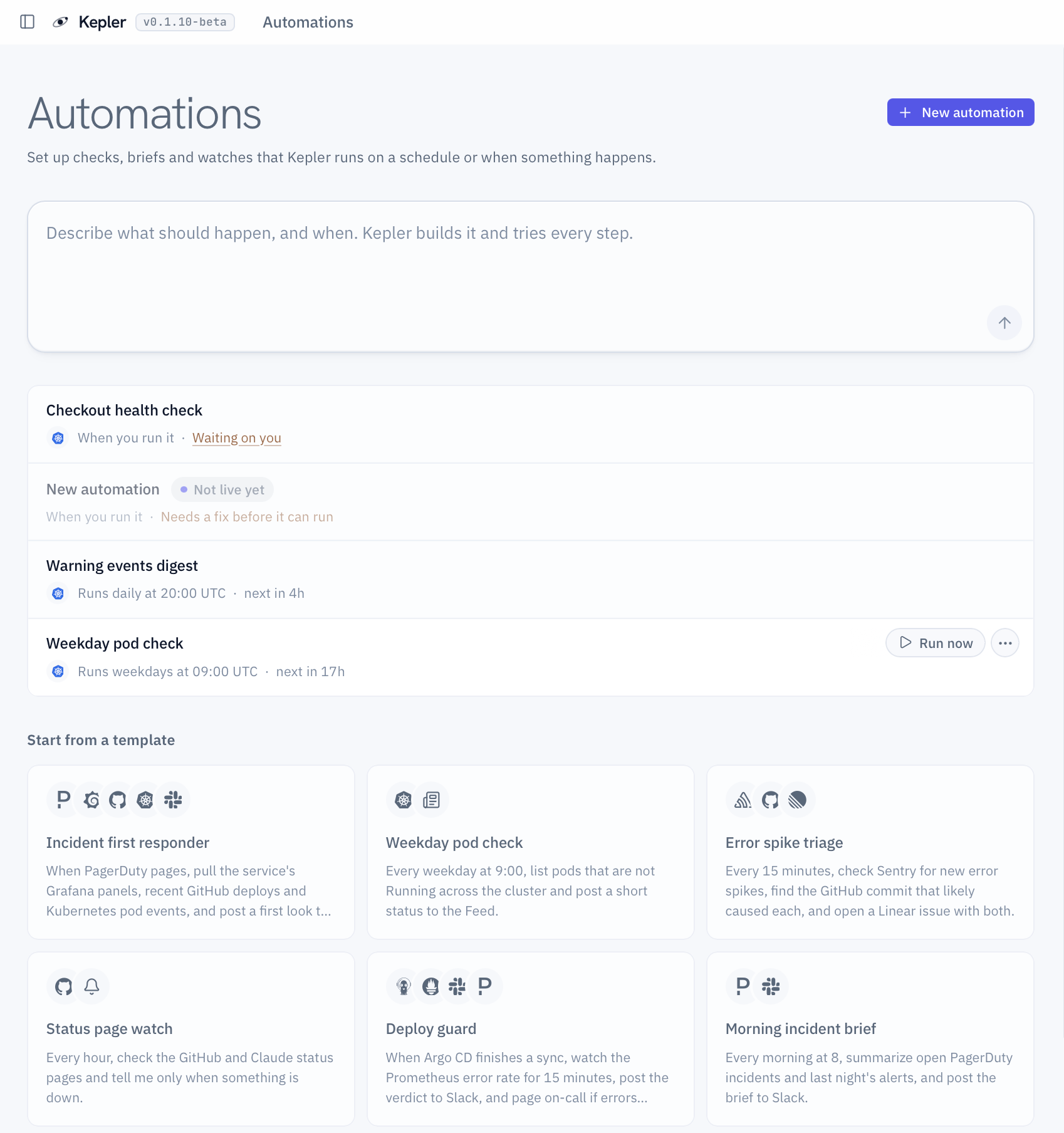 The Automations home. Automations waiting on you come first.
The Automations home lists every automation with the services it reaches, when it runs, and what comes next: the next run, **Waiting on you**, or why the last run failed. The ones waiting on you come first. A draft that has never gone live is marked **Not live yet**, and says so when it needs a fix before it can run.
* **Waiting on you** opens the approval in the Feed.
* Point at a row for its actions. **Latest** opens its latest report in the Feed, and **Run now** runs the live version.
* The menu beside them has **Open latest on canvas**, and **Pause** or **Resume**.
## Triggers
| Trigger | When it runs |
| - | - |
| A schedule | "Runs every weekday at 09:00 UTC". Edit the sentence in place. If Kepler was closed at that time, it runs once when Kepler starts again. |
| When a webhook arrives | Your alert source (Alertmanager, PagerDuty, Grafana) posts to the automation's address. See [Webhooks](#webhooks). |
| When a check changes | A read-only command or integration read runs on its own every few minutes (one minute at least). The automation runs when the output changes, or starts or stops showing some text. It remembers what it last saw, so a restart never starts the same run twice. |
| When a message arrives in a chat | Someone sends the automation's `/command` in Kepler or a connected chat. See [Run one from a chat](#run-one-from-a-chat). |
| Run now | Start it by hand from its page or from chat. |
What a webhook or a chat message carries is treated as data, never as instructions.
### Webhooks
Go live to get the webhook's address and token. The sender posts JSON to the address, with the token in a header. Both have a copy button on the trigger, and **Copy a curl command** gives you a request to try from a terminal.
* **Send a test** sends a test event and starts a real run, marked as a test. It shows under **Runs**.
* **New token** replaces the token. The old one stops working at once, so update your alert source after you press it.
* Only this machine can reach the address, so a sender elsewhere needs a tunnel or a relay.
Fields from the payload can be used in any step as `${trigger.payload.}`, for example `${trigger.payload.status}`. A step can also run only for some events, such as "only if the payload's `status` is `firing`".
## Steps
| Step | What it does |
| - | - |
| Run a command | Runs a shell command in the automation's folder. |
| Use an integration | Reads from a connected service, or posts, creates or updates with your OK. |
| Ask the model to decide | The model judges what earlier steps found, and can answer in named fields. |
| Decide with a decision model | Typed questions (yes or no, pick one, score) answered in about a second. Needs a [decision model](/kepler/decision-model). |
| Ask a specialist to look it up | A specialist with its own read-only tools. |
| Wait | Pause for a while, or until a read-only check shows what you expect. |
| Ask me first | Pause until you approve. It always has a time limit. |
| Notify me | A notification, from quiet to loud. |
| Post in the chat | Answer in the chat that started the run, send to you on a channel, or post to a conversation. See [Post in a chat](#post-in-a-chat). |
| Publish to the Feed | A page that keeps a version for every run. |
| Design a report | Kepler's designer lays out a page from what earlier steps found. |
Any step can run only when a condition holds, such as "only if the verdict is not healthy". A step whose condition is false is shown as skipped, not failed, and a step that depends on a skipped step is skipped too. If a step fails, you choose whether the run stops, keeps going, or jumps ahead. A run that stops unexpectedly, or that a restart left open, is marked failed.
A decision step can judge a list **item by item**: every pod, every log line, up to 200 items in one step. Later steps can then check whether any item was flagged.
## Run one from a chat
Add the trigger **When a message arrives in a chat** and give it a command, such as `/triage`. Then anyone on a channel's allowed list can run it from that chat:
```
/triage checkout is throwing 502s
```
The rest of the message is what the automation gets. The run is tied to that chat, so a **Post in the chat** step answers there, threaded onto the message. The conversation you were having in that chat carries on untouched. Send `/help` in a chat to see the automations it can run.
The same command works on the desktop. Type `/` in the composer and chat-triggered automations are listed under **Automations**. Sending one runs the automation, and its answer lands in the session you sent it from.
A chat trigger hears commands only. Chat apps deliver Kepler direct messages and @mentions from people you allowed, not every message in a room, so alerts posted in a room by a bot never reach it. Feed alerts in through the alert source's webhook instead.
A command cannot use one of the chat's own names, such as `/new`, `/help`, `/sessions` or `/approve`. See [Channels](/kepler/channels#commands-in-a-chat).
## Post in a chat
A **Post in the chat** step sends a message. Leave the text empty to send the result of the step before it. It can go to one of three places:
| Send it to | Where it lands | Needs |
| - | - | - |
| The chat that started the run | Threaded onto the message that started it. | A chat trigger. A run nothing started from a chat fails the step and says so. |
| Me, on a channel | Your own chat on that channel, like a notification. | Nothing extra. |
| A conversation | A named room or chat on that channel, such as `#incidents`. | Your OK at Go live, because other people read it. Rewording the text does not ask again. Changing where it goes does. |
A post that cannot be delivered fails the step, and the message lands in the Feed so nothing is lost. **Try it** on a post step shows the message and sends nothing.
## What an automation may change
Automations run with nobody watching, so the limits are tighter than in a chat:
* An automation runs in Observe or Assist, never Yolo.
* A step that changes something, such as a command that is not a read, an integration call that creates or updates, or a post to a conversation, runs only with the permission you give at **Go live**: **Every run**, or **Ask me each time**. Ask me each time pauses the run and asks you in the Feed and on your phone, for up to an hour. If nobody answers, the step is skipped and the run finishes, or the run stops, as you chose.
* The permission is tied to exactly what that step does. Edit the step and Go live asks again. Kepler cannot give or widen it. To take a permission back, press **Take back this permission** on the step.
* Commands on the [always-blocked list](/kepler/permissions#always-blocked) are refused when you save, and again when the step would run.
* Each run has a budget for model tokens and run time. A run that hits either ends and says so. Kepler never switches to a cheaper model to finish.
A good pattern for a fix is to have the automation press a button your team already built: pause with **Ask me first**, trigger your existing rollback pipeline, then wait until a check confirms the fix.
## Where results land
* **Notify me** sends you a notification. It shows in Kepler, as a system notification, and on your phone only when you are away and the step is urgent or needs an answer. An alert from this step clears itself when a later run finds the problem gone, because the step's condition no longer holds.
* **Publish to the Feed** and **Design a report** post a page to the [Feed](/kepler/workspace#the-feed) that keeps a version for every run. By default the post notifies you with its headline. For a routine report, switch off **Tell me when it's published** and it lands in the Feed without ringing the bell.
* **Ask me first** and every **Ask me each time** permission wait under **Waiting** in the Feed, and reach your phone when you are away.
## Where they are kept
Each automation is a YAML file in `~/.kepler/workflows/`, named after the automation. You can read, diff and edit it, and Kepler shows problems before anything goes live. A small one looks like this:
```yaml theme={null}
title: Service triage
on:
chat: {command: triage}
binding:
posture: observe
budget: {tokens: 30000, runtime: 5m}
steps:
- id: look
agent:
use: investigator
prompt: Investigate what the message describes. Read only. Answer in five lines or fewer.
input: ${trigger.payload.text}
- id: answer
post: "${steps.look.output}"
```
## Where to go next
Connect the chats an automation can answer in.
A check tied to one conversation.
Fast typed answers for decision steps.
Run your own check before and after each step.
This documentation is built and hosted on [Mintlify](https://mintlify.com), a developer documentation platform.
The Automations home. Automations waiting on you come first.
The Automations home lists every automation with the services it reaches, when it runs, and what comes next: the next run, **Waiting on you**, or why the last run failed. The ones waiting on you come first. A draft that has never gone live is marked **Not live yet**, and says so when it needs a fix before it can run.
* **Waiting on you** opens the approval in the Feed.
* Point at a row for its actions. **Latest** opens its latest report in the Feed, and **Run now** runs the live version.
* The menu beside them has **Open latest on canvas**, and **Pause** or **Resume**.
## Triggers
| Trigger | When it runs |
| - | - |
| A schedule | "Runs every weekday at 09:00 UTC". Edit the sentence in place. If Kepler was closed at that time, it runs once when Kepler starts again. |
| When a webhook arrives | Your alert source (Alertmanager, PagerDuty, Grafana) posts to the automation's address. See [Webhooks](#webhooks). |
| When a check changes | A read-only command or integration read runs on its own every few minutes (one minute at least). The automation runs when the output changes, or starts or stops showing some text. It remembers what it last saw, so a restart never starts the same run twice. |
| When a message arrives in a chat | Someone sends the automation's `/command` in Kepler or a connected chat. See [Run one from a chat](#run-one-from-a-chat). |
| Run now | Start it by hand from its page or from chat. |
What a webhook or a chat message carries is treated as data, never as instructions.
### Webhooks
Go live to get the webhook's address and token. The sender posts JSON to the address, with the token in a header. Both have a copy button on the trigger, and **Copy a curl command** gives you a request to try from a terminal.
* **Send a test** sends a test event and starts a real run, marked as a test. It shows under **Runs**.
* **New token** replaces the token. The old one stops working at once, so update your alert source after you press it.
* Only this machine can reach the address, so a sender elsewhere needs a tunnel or a relay.
Fields from the payload can be used in any step as `${trigger.payload.}`, for example `${trigger.payload.status}`. A step can also run only for some events, such as "only if the payload's `status` is `firing`".
## Steps
| Step | What it does |
| - | - |
| Run a command | Runs a shell command in the automation's folder. |
| Use an integration | Reads from a connected service, or posts, creates or updates with your OK. |
| Ask the model to decide | The model judges what earlier steps found, and can answer in named fields. |
| Decide with a decision model | Typed questions (yes or no, pick one, score) answered in about a second. Needs a [decision model](/kepler/decision-model). |
| Ask a specialist to look it up | A specialist with its own read-only tools. |
| Wait | Pause for a while, or until a read-only check shows what you expect. |
| Ask me first | Pause until you approve. It always has a time limit. |
| Notify me | A notification, from quiet to loud. |
| Post in the chat | Answer in the chat that started the run, send to you on a channel, or post to a conversation. See [Post in a chat](#post-in-a-chat). |
| Publish to the Feed | A page that keeps a version for every run. |
| Design a report | Kepler's designer lays out a page from what earlier steps found. |
Any step can run only when a condition holds, such as "only if the verdict is not healthy". A step whose condition is false is shown as skipped, not failed, and a step that depends on a skipped step is skipped too. If a step fails, you choose whether the run stops, keeps going, or jumps ahead. A run that stops unexpectedly, or that a restart left open, is marked failed.
A decision step can judge a list **item by item**: every pod, every log line, up to 200 items in one step. Later steps can then check whether any item was flagged.
## Run one from a chat
Add the trigger **When a message arrives in a chat** and give it a command, such as `/triage`. Then anyone on a channel's allowed list can run it from that chat:
```
/triage checkout is throwing 502s
```
The rest of the message is what the automation gets. The run is tied to that chat, so a **Post in the chat** step answers there, threaded onto the message. The conversation you were having in that chat carries on untouched. Send `/help` in a chat to see the automations it can run.
The same command works on the desktop. Type `/` in the composer and chat-triggered automations are listed under **Automations**. Sending one runs the automation, and its answer lands in the session you sent it from.
A chat trigger hears commands only. Chat apps deliver Kepler direct messages and @mentions from people you allowed, not every message in a room, so alerts posted in a room by a bot never reach it. Feed alerts in through the alert source's webhook instead.
A command cannot use one of the chat's own names, such as `/new`, `/help`, `/sessions` or `/approve`. See [Channels](/kepler/channels#commands-in-a-chat).
## Post in a chat
A **Post in the chat** step sends a message. Leave the text empty to send the result of the step before it. It can go to one of three places:
| Send it to | Where it lands | Needs |
| - | - | - |
| The chat that started the run | Threaded onto the message that started it. | A chat trigger. A run nothing started from a chat fails the step and says so. |
| Me, on a channel | Your own chat on that channel, like a notification. | Nothing extra. |
| A conversation | A named room or chat on that channel, such as `#incidents`. | Your OK at Go live, because other people read it. Rewording the text does not ask again. Changing where it goes does. |
A post that cannot be delivered fails the step, and the message lands in the Feed so nothing is lost. **Try it** on a post step shows the message and sends nothing.
## What an automation may change
Automations run with nobody watching, so the limits are tighter than in a chat:
* An automation runs in Observe or Assist, never Yolo.
* A step that changes something, such as a command that is not a read, an integration call that creates or updates, or a post to a conversation, runs only with the permission you give at **Go live**: **Every run**, or **Ask me each time**. Ask me each time pauses the run and asks you in the Feed and on your phone, for up to an hour. If nobody answers, the step is skipped and the run finishes, or the run stops, as you chose.
* The permission is tied to exactly what that step does. Edit the step and Go live asks again. Kepler cannot give or widen it. To take a permission back, press **Take back this permission** on the step.
* Commands on the [always-blocked list](/kepler/permissions#always-blocked) are refused when you save, and again when the step would run.
* Each run has a budget for model tokens and run time. A run that hits either ends and says so. Kepler never switches to a cheaper model to finish.
A good pattern for a fix is to have the automation press a button your team already built: pause with **Ask me first**, trigger your existing rollback pipeline, then wait until a check confirms the fix.
## Where results land
* **Notify me** sends you a notification. It shows in Kepler, as a system notification, and on your phone only when you are away and the step is urgent or needs an answer. An alert from this step clears itself when a later run finds the problem gone, because the step's condition no longer holds.
* **Publish to the Feed** and **Design a report** post a page to the [Feed](/kepler/workspace#the-feed) that keeps a version for every run. By default the post notifies you with its headline. For a routine report, switch off **Tell me when it's published** and it lands in the Feed without ringing the bell.
* **Ask me first** and every **Ask me each time** permission wait under **Waiting** in the Feed, and reach your phone when you are away.
## Where they are kept
Each automation is a YAML file in `~/.kepler/workflows/`, named after the automation. You can read, diff and edit it, and Kepler shows problems before anything goes live. A small one looks like this:
```yaml theme={null}
title: Service triage
on:
chat: {command: triage}
binding:
posture: observe
budget: {tokens: 30000, runtime: 5m}
steps:
- id: look
agent:
use: investigator
prompt: Investigate what the message describes. Read only. Answer in five lines or fewer.
input: ${trigger.payload.text}
- id: answer
post: "${steps.look.output}"
```
## Where to go next
Connect the chats an automation can answer in.
A check tied to one conversation.
Fast typed answers for decision steps.
Run your own check before and after each step.
This documentation is built and hosted on [Mintlify](https://mintlify.com), a developer documentation platform.