> ## Documentation Index
> Fetch the complete documentation index at: https://docs.rubixkube.ai/llms.txt
> Use this file to discover all available pages before exploring further.
# Connect your environment
> Install the RubixKube Observer on Kubernetes, AWS, GCP, or a Linux VM. The Observer discovers your topology and streams signals to RubixKube Cloud.
To get value from RubixKube, connect at least one environment. The Observer lives near your workload, discovers topology, and streams signals to RubixKube Cloud for correlation.
A single workspace can hold any mix: one EKS cluster, one AWS account, one GCP project, and a handful of VMs, all correlated in the same knowledge graph.
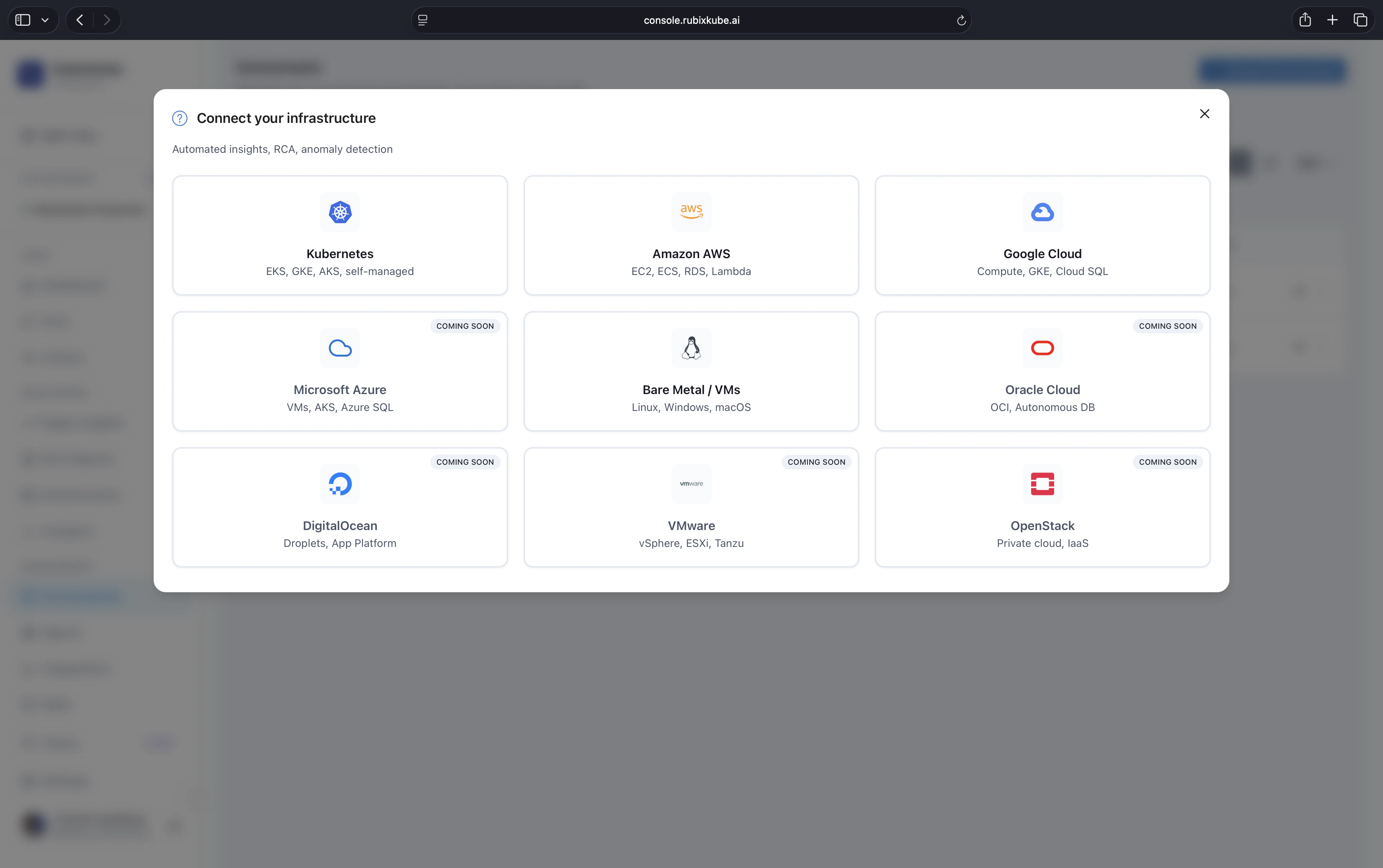 The environment picker in the console. Kubernetes, AWS, GCP, and Bare Metal or VMs are available today. Azure, Oracle Cloud, DigitalOcean, VMware, and OpenStack are on the roadmap.
## Pick your path
EKS, GKE, AKS, KIND, or any conformant cluster on v1.24 or later. Install via `kubectl apply`.
Account-level observation across EC2, RDS, Lambda, S3, ELB, CloudTrail, and CloudWatch.
Project-level observation across GCE, GKE, Cloud SQL, Cloud Run, Cloud Storage, and Cloud Functions.
Any modern Linux host. CPU, memory, disk, network, and per-process signals.
Running on Azure? AKS clusters are supported today via the [Kubernetes path](/environments/kubernetes). Subscription-level Azure observation (App Service, Azure VMs, managed data) is on the roadmap. [Email us](mailto:connect@rubixkube.ai) to join the early-access list.
## The install, in three moves
Every environment follows the same shape. The per-environment pages above cover the specifics.
Open **Environments** in [console.rubixkube.ai](https://console.rubixkube.ai), create a new environment, and copy the install command. Your API key (starting with `rk_`) is already embedded, so you can paste and run.
The shape looks like this:
```bash Kubernetes theme={null}
kubectl apply -f "https://api.rubixkube.ai/install/observer.yaml?apiKey=rk_YOUR_API_KEY"
```
```bash AWS, GCP, or Linux VM theme={null}
curl -fsSL https://api.rubixkube.ai/install/observer.sh | bash -s -- --api-key=rk_YOUR_API_KEY
```
Always copy the command from the console. The embedded API key scopes the Observer to your workspace.
The Kubernetes manifest applies in one shot. The shell installer is interactive and asks where to deploy:
```
What would you like to do?
1) Install Observer
2) Uninstall Observer
> 1
Where do you want to deploy the observer?
1) On this machine
2) Create a new AWS EC2 instance
3) Create a new GCP Compute Engine instance
> 1
```
Pick option 1 to install on the current host, option 2 to spin up a fresh EC2 instance, or option 3 for a fresh GCE instance. Follow the region and project prompts from there.
```bash theme={null}
kubectl get pods -n rubixkube-system
```
Wait for **STATUS** to show `Running`.
```bash theme={null}
aws ec2 describe-instances \
--filters "Name=tag:rubixkube,Values=observer" \
--query 'Reservations[].Instances[].{ID:InstanceId,Status:State.Name}'
```
```bash theme={null}
gcloud compute instances list --filter="labels.rubixkube=observer"
```
```bash theme={null}
sudo systemctl status rubixkube-observer
```
In the console, the environment card switches from **Connecting** to **Healthy** within a minute or two and the Infrastructure view populates with a live topology.
## What the Observer does
The Observer is deliberately light: it collects signals, maintains a local cache, and streams to RubixKube Cloud. It never sends raw payloads outside of what you configure.
* **Discover.** Walks your environment through read-only APIs and builds a live topology.
* **Stream.** Sends structured events, metrics, and state snapshots to RubixKube Cloud over HTTPS and NATS.
* **Stay out of the way.** Read-only by default. No mutations without explicit approval, enforced by the Guardian agent.
## Requirements at a glance
| Environment | Install surface | Outbound network | Typical footprint |
| ----------- | ----------------------------------- | ----------------------------------------------- | -------------------------- |
| Kubernetes | `kubectl apply` manifest | `api.rubixkube.ai:443`, `nats.rubixkube.ai:443` | \~255Mi RAM, under 10 mCPU |
| AWS | Shell installer on a VM, or new EC2 | Above, plus AWS APIs | \~200Mi RAM |
| GCP | Shell installer on a VM, or new GCE | Above, plus GCP APIs | \~200Mi RAM |
| Linux VM | Shell installer on the host | `api.rubixkube.ai:443`, `nats.rubixkube.ai:443` | \~150Mi RAM |
## After you connect
Set up the dashboard, insights, and notifications for your team.
Manage multiple environments, review health, and reorganise workspaces.
Connect Slack, Linear, PagerDuty, and more.
Understand what RubixKube will and will not do on its own.
## Common questions
Yes. Each connection is independent, so you can run them in parallel. Free tier allows one environment, Business allows up to three, Enterprise is unlimited.
Read-only by default, scoped to the platform you are monitoring. Anything that could change state needs explicit approval and is bounded by Guardian policies. See [Safety and Guardrails](/concepts/guardrails).
Structured events, metrics, and state snapshots stream to RubixKube Cloud for correlation. Raw payloads stay in your environment unless you explicitly enable them.
The Observer only needs outbound HTTPS to `api.rubixkube.ai:443` and `nats.rubixkube.ai:443`. If that is not possible, [reach out](mailto:connect@rubixkube.ai) and we can talk through a deployment mode that fits your controls.
Delete it from **Environments** in the console, then run the appropriate uninstall. For Kubernetes: `kubectl delete -f "https://api.rubixkube.ai/install/observer.yaml?apiKey=rk_YOUR_API_KEY"`. For shell installs: rerun the installer and pick **Uninstall Observer**.
The environment picker in the console. Kubernetes, AWS, GCP, and Bare Metal or VMs are available today. Azure, Oracle Cloud, DigitalOcean, VMware, and OpenStack are on the roadmap.
## Pick your path
EKS, GKE, AKS, KIND, or any conformant cluster on v1.24 or later. Install via `kubectl apply`.
Account-level observation across EC2, RDS, Lambda, S3, ELB, CloudTrail, and CloudWatch.
Project-level observation across GCE, GKE, Cloud SQL, Cloud Run, Cloud Storage, and Cloud Functions.
Any modern Linux host. CPU, memory, disk, network, and per-process signals.
Running on Azure? AKS clusters are supported today via the [Kubernetes path](/environments/kubernetes). Subscription-level Azure observation (App Service, Azure VMs, managed data) is on the roadmap. [Email us](mailto:connect@rubixkube.ai) to join the early-access list.
## The install, in three moves
Every environment follows the same shape. The per-environment pages above cover the specifics.
Open **Environments** in [console.rubixkube.ai](https://console.rubixkube.ai), create a new environment, and copy the install command. Your API key (starting with `rk_`) is already embedded, so you can paste and run.
The shape looks like this:
```bash Kubernetes theme={null}
kubectl apply -f "https://api.rubixkube.ai/install/observer.yaml?apiKey=rk_YOUR_API_KEY"
```
```bash AWS, GCP, or Linux VM theme={null}
curl -fsSL https://api.rubixkube.ai/install/observer.sh | bash -s -- --api-key=rk_YOUR_API_KEY
```
Always copy the command from the console. The embedded API key scopes the Observer to your workspace.
The Kubernetes manifest applies in one shot. The shell installer is interactive and asks where to deploy:
```
What would you like to do?
1) Install Observer
2) Uninstall Observer
> 1
Where do you want to deploy the observer?
1) On this machine
2) Create a new AWS EC2 instance
3) Create a new GCP Compute Engine instance
> 1
```
Pick option 1 to install on the current host, option 2 to spin up a fresh EC2 instance, or option 3 for a fresh GCE instance. Follow the region and project prompts from there.
```bash theme={null}
kubectl get pods -n rubixkube-system
```
Wait for **STATUS** to show `Running`.
```bash theme={null}
aws ec2 describe-instances \
--filters "Name=tag:rubixkube,Values=observer" \
--query 'Reservations[].Instances[].{ID:InstanceId,Status:State.Name}'
```
```bash theme={null}
gcloud compute instances list --filter="labels.rubixkube=observer"
```
```bash theme={null}
sudo systemctl status rubixkube-observer
```
In the console, the environment card switches from **Connecting** to **Healthy** within a minute or two and the Infrastructure view populates with a live topology.
## What the Observer does
The Observer is deliberately light: it collects signals, maintains a local cache, and streams to RubixKube Cloud. It never sends raw payloads outside of what you configure.
* **Discover.** Walks your environment through read-only APIs and builds a live topology.
* **Stream.** Sends structured events, metrics, and state snapshots to RubixKube Cloud over HTTPS and NATS.
* **Stay out of the way.** Read-only by default. No mutations without explicit approval, enforced by the Guardian agent.
## Requirements at a glance
| Environment | Install surface | Outbound network | Typical footprint |
| ----------- | ----------------------------------- | ----------------------------------------------- | -------------------------- |
| Kubernetes | `kubectl apply` manifest | `api.rubixkube.ai:443`, `nats.rubixkube.ai:443` | \~255Mi RAM, under 10 mCPU |
| AWS | Shell installer on a VM, or new EC2 | Above, plus AWS APIs | \~200Mi RAM |
| GCP | Shell installer on a VM, or new GCE | Above, plus GCP APIs | \~200Mi RAM |
| Linux VM | Shell installer on the host | `api.rubixkube.ai:443`, `nats.rubixkube.ai:443` | \~150Mi RAM |
## After you connect
Set up the dashboard, insights, and notifications for your team.
Manage multiple environments, review health, and reorganise workspaces.
Connect Slack, Linear, PagerDuty, and more.
Understand what RubixKube will and will not do on its own.
## Common questions
Yes. Each connection is independent, so you can run them in parallel. Free tier allows one environment, Business allows up to three, Enterprise is unlimited.
Read-only by default, scoped to the platform you are monitoring. Anything that could change state needs explicit approval and is bounded by Guardian policies. See [Safety and Guardrails](/concepts/guardrails).
Structured events, metrics, and state snapshots stream to RubixKube Cloud for correlation. Raw payloads stay in your environment unless you explicitly enable them.
The Observer only needs outbound HTTPS to `api.rubixkube.ai:443` and `nats.rubixkube.ai:443`. If that is not possible, [reach out](mailto:connect@rubixkube.ai) and we can talk through a deployment mode that fits your controls.
Delete it from **Environments** in the console, then run the appropriate uninstall. For Kubernetes: `kubectl delete -f "https://api.rubixkube.ai/install/observer.yaml?apiKey=rk_YOUR_API_KEY"`. For shell installs: rerun the installer and pick **Uninstall Observer**.