> ## Documentation Index
> Fetch the complete documentation index at: https://docs.rubixkube.ai/llms.txt
> Use this file to discover all available pages before exploring further.
# GCP with RubixKube
> Project-level observation across GCE, GKE, Cloud SQL, Cloud Run, Cloud Storage, and Cloud Functions. Installer creates the service account and attaches viewer roles.
Connect a GCP project and the Observer maps every major service in it: GCE, GKE, Cloud SQL, Cloud Run, Cloud Storage, and Cloud Functions. The installer provisions a service account and attaches the right viewer roles automatically.
You can run the Observer on an existing Linux VM inside your project, or let the installer create a fresh GCE instance.
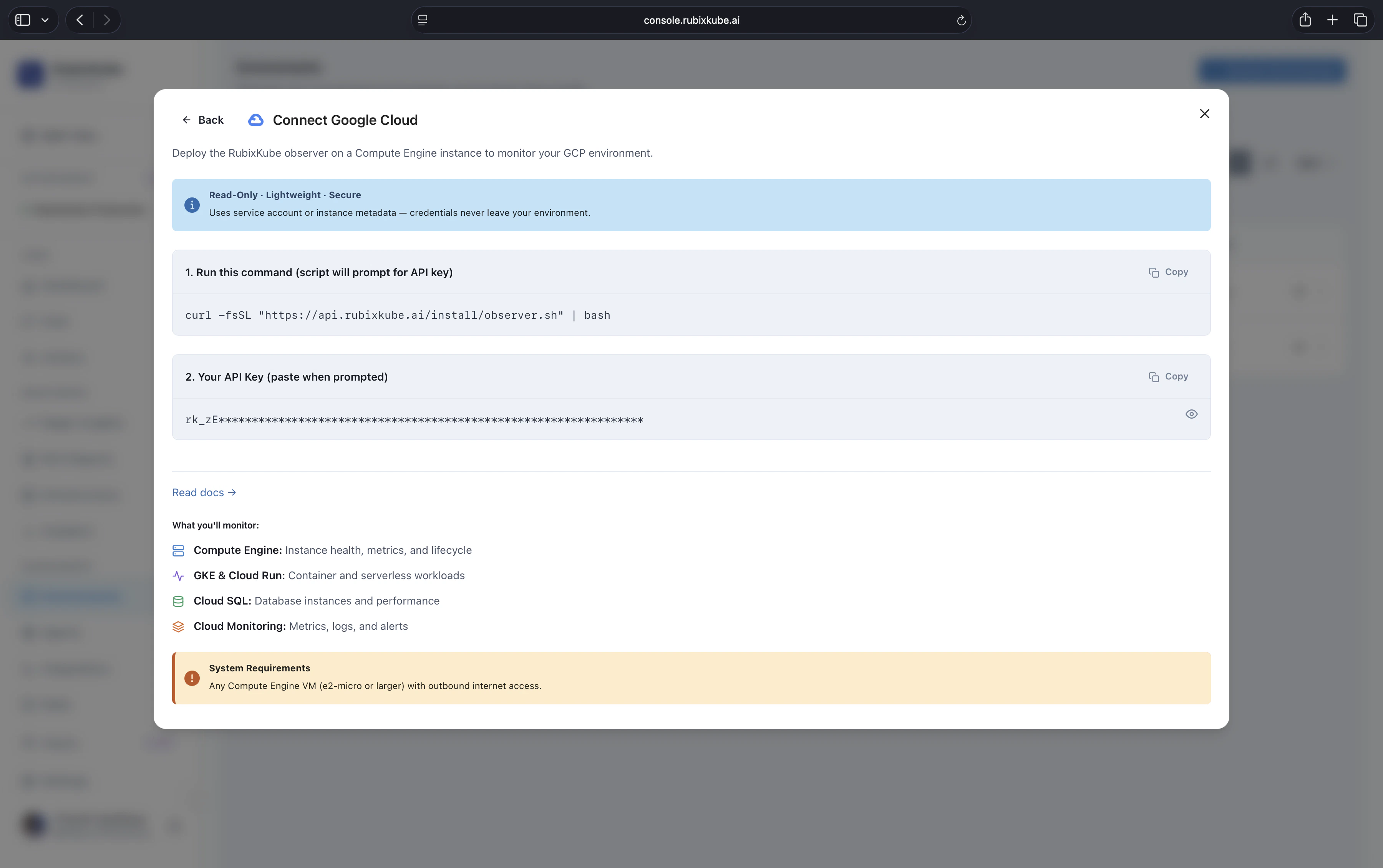 The GCP connect flow in the console. The one-line installer deploys the Observer on a Compute Engine VM and authenticates through the service account or instance metadata.
## Prerequisites
`gcloud config get-value project` returns the target project. You can switch projects mid-install.
The installer needs permission to create a service account and attach viewer roles. Project-level `Owner` or `Editor` works.
Either an existing GCE instance or any Linux VM with outbound HTTPS. The installer can also spin up a fresh GCE instance.
Create a new GCP environment in the console to get your personal install command.
## Install
On the machine you want to run the Observer on:
```bash theme={null}
curl -fsSL https://api.rubixkube.ai/install/observer.sh | bash -s -- --api-key=rk_YOUR_API_KEY
```
Always copy the command from the console. The embedded API key scopes the Observer to your workspace.
## Interactive flow
For GCP:
```
What would you like to do?
1) Install Observer
2) Uninstall Observer
> 1
Where do you want to deploy the observer?
1) On this machine
2) Create a new AWS EC2 instance
3) Create a new GCP Compute Engine instance
> 3 (or 1 to install on an existing VM)
Which platform are you monitoring?
1) VM (generic Linux)
2) AWS
3) GCP
> 3
GCP Project ID [current-project]:
GCP Region [us-central1]:
```
The installer enables the required APIs (compute, monitoring, logging), creates a service account, attaches viewer roles, and starts the Observer as a systemd service on the host (or boots a fresh GCE instance labelled `rubixkube=observer`).
## Verify
```bash theme={null}
sudo systemctl status rubixkube-observer
```
Tail the logs:
```bash theme={null}
sudo journalctl -u rubixkube-observer -f
```
```bash theme={null}
gcloud compute instances list --filter="labels.rubixkube=observer"
```
Expected:
```
NAME ZONE MACHINE_TYPE STATUS
rk-observer-20251015120000 us-central1-a e2-micro RUNNING
```
For boot-time errors:
```bash theme={null}
gcloud compute instances get-serial-port-output rk-observer-20251015120000
```
Within a minute or two, the GCP environment card in the console switches from **Connecting** to **Healthy** and Infrastructure Topology populates with GCE instances, GKE clusters, and related resources.
## What is being monitored
| Service | Signals |
| ---------------- | ----------------------------------------------------------------------------------------------------------------------------------------------- |
| GCE | Instance state, CPU, memory, disk, network, scaling events |
| GKE | Cluster and node pool state (clusters can also be connected directly via the [Kubernetes path](/environments/kubernetes) for deeper visibility) |
| Cloud SQL | Instance health, connections, storage, replication lag |
| Cloud Run | Service health, request rate, latency, cold starts |
| Cloud Storage | Bucket inventory, access patterns, size trends |
| Cloud Functions | Invocations, duration, errors |
| Cloud Monitoring | Native metrics for every service above, plus any custom metrics you publish |
| Cloud Logging | Reliability-relevant audit logs, filtered and correlated |
## IAM scope
The installer attaches the following roles to the service account:
* `roles/compute.viewer`
* `roles/container.viewer`
* `roles/storage.viewer`
* `roles/monitoring.viewer`
* `roles/logging.viewer`
* `roles/cloudsql.viewer`
* `roles/run.viewer`
No mutating roles. If you prefer to pre-create the service account with narrower scopes, [reach out](mailto:connect@rubixkube.ai) for a manual install path.
## Multi-project setup
Connect each project as its own environment. All of them feed the same workspace.
For organisations with many projects under a common folder or organisation node, Enterprise customers can bulk-enroll. [Email us](mailto:connect@rubixkube.ai) to set this up.
## Troubleshooting
```bash theme={null}
sudo journalctl -u rubixkube-observer -n 50
```
Most common causes: invalid API key, required APIs not enabled on the project, missing IAM permissions on the host's service account, outbound HTTPS blocked.
Enable them manually if the installer was run without enable permissions:
```bash theme={null}
gcloud services enable compute.googleapis.com container.googleapis.com \
sqladmin.googleapis.com monitoring.googleapis.com logging.googleapis.com \
run.googleapis.com cloudfunctions.googleapis.com
```
Verify the service account attached to the host:
```bash theme={null}
gcloud compute instances describe INSTANCE_NAME --format='value(serviceAccounts[0].email)'
gcloud projects get-iam-policy PROJECT_ID --flatten='bindings[].members' --filter='bindings.members:SA_EMAIL'
```
Attach missing roles from the list above.
Either Cloud Monitoring does not have metrics for that service in the region yet, or the project does not have the service enabled. Enable the service and wait a few minutes for metrics to populate.
## Uninstall
Rerun the installer and pick option 2. It stops the systemd service, removes the binary, and deletes the service account and role bindings (unless you ask it to keep them). If the Observer runs on an installer-created GCE instance, the uninstall also deletes the instance and any firewall rules it created.
## Related guides
The full install flow covering every supported environment.
For deeper pod-level visibility on GKE, install the Kubernetes Observer alongside the GCP project observer.
Monitor infrastructure health once the Observer is live.
The GCP connect flow in the console. The one-line installer deploys the Observer on a Compute Engine VM and authenticates through the service account or instance metadata.
## Prerequisites
`gcloud config get-value project` returns the target project. You can switch projects mid-install.
The installer needs permission to create a service account and attach viewer roles. Project-level `Owner` or `Editor` works.
Either an existing GCE instance or any Linux VM with outbound HTTPS. The installer can also spin up a fresh GCE instance.
Create a new GCP environment in the console to get your personal install command.
## Install
On the machine you want to run the Observer on:
```bash theme={null}
curl -fsSL https://api.rubixkube.ai/install/observer.sh | bash -s -- --api-key=rk_YOUR_API_KEY
```
Always copy the command from the console. The embedded API key scopes the Observer to your workspace.
## Interactive flow
For GCP:
```
What would you like to do?
1) Install Observer
2) Uninstall Observer
> 1
Where do you want to deploy the observer?
1) On this machine
2) Create a new AWS EC2 instance
3) Create a new GCP Compute Engine instance
> 3 (or 1 to install on an existing VM)
Which platform are you monitoring?
1) VM (generic Linux)
2) AWS
3) GCP
> 3
GCP Project ID [current-project]:
GCP Region [us-central1]:
```
The installer enables the required APIs (compute, monitoring, logging), creates a service account, attaches viewer roles, and starts the Observer as a systemd service on the host (or boots a fresh GCE instance labelled `rubixkube=observer`).
## Verify
```bash theme={null}
sudo systemctl status rubixkube-observer
```
Tail the logs:
```bash theme={null}
sudo journalctl -u rubixkube-observer -f
```
```bash theme={null}
gcloud compute instances list --filter="labels.rubixkube=observer"
```
Expected:
```
NAME ZONE MACHINE_TYPE STATUS
rk-observer-20251015120000 us-central1-a e2-micro RUNNING
```
For boot-time errors:
```bash theme={null}
gcloud compute instances get-serial-port-output rk-observer-20251015120000
```
Within a minute or two, the GCP environment card in the console switches from **Connecting** to **Healthy** and Infrastructure Topology populates with GCE instances, GKE clusters, and related resources.
## What is being monitored
| Service | Signals |
| ---------------- | ----------------------------------------------------------------------------------------------------------------------------------------------- |
| GCE | Instance state, CPU, memory, disk, network, scaling events |
| GKE | Cluster and node pool state (clusters can also be connected directly via the [Kubernetes path](/environments/kubernetes) for deeper visibility) |
| Cloud SQL | Instance health, connections, storage, replication lag |
| Cloud Run | Service health, request rate, latency, cold starts |
| Cloud Storage | Bucket inventory, access patterns, size trends |
| Cloud Functions | Invocations, duration, errors |
| Cloud Monitoring | Native metrics for every service above, plus any custom metrics you publish |
| Cloud Logging | Reliability-relevant audit logs, filtered and correlated |
## IAM scope
The installer attaches the following roles to the service account:
* `roles/compute.viewer`
* `roles/container.viewer`
* `roles/storage.viewer`
* `roles/monitoring.viewer`
* `roles/logging.viewer`
* `roles/cloudsql.viewer`
* `roles/run.viewer`
No mutating roles. If you prefer to pre-create the service account with narrower scopes, [reach out](mailto:connect@rubixkube.ai) for a manual install path.
## Multi-project setup
Connect each project as its own environment. All of them feed the same workspace.
For organisations with many projects under a common folder or organisation node, Enterprise customers can bulk-enroll. [Email us](mailto:connect@rubixkube.ai) to set this up.
## Troubleshooting
```bash theme={null}
sudo journalctl -u rubixkube-observer -n 50
```
Most common causes: invalid API key, required APIs not enabled on the project, missing IAM permissions on the host's service account, outbound HTTPS blocked.
Enable them manually if the installer was run without enable permissions:
```bash theme={null}
gcloud services enable compute.googleapis.com container.googleapis.com \
sqladmin.googleapis.com monitoring.googleapis.com logging.googleapis.com \
run.googleapis.com cloudfunctions.googleapis.com
```
Verify the service account attached to the host:
```bash theme={null}
gcloud compute instances describe INSTANCE_NAME --format='value(serviceAccounts[0].email)'
gcloud projects get-iam-policy PROJECT_ID --flatten='bindings[].members' --filter='bindings.members:SA_EMAIL'
```
Attach missing roles from the list above.
Either Cloud Monitoring does not have metrics for that service in the region yet, or the project does not have the service enabled. Enable the service and wait a few minutes for metrics to populate.
## Uninstall
Rerun the installer and pick option 2. It stops the systemd service, removes the binary, and deletes the service account and role bindings (unless you ask it to keep them). If the Observer runs on an installer-created GCE instance, the uninstall also deletes the instance and any firewall rules it created.
## Related guides
The full install flow covering every supported environment.
For deeper pod-level visibility on GKE, install the Kubernetes Observer alongside the GCP project observer.
Monitor infrastructure health once the Observer is live.