> ## Documentation Index
> Fetch the complete documentation index at: https://docs.rubixkube.ai/llms.txt
> Use this file to discover all available pages before exploring further.
# Using the Rubix CLI
> Launch, log in, start a chat, resume sessions, and drive Rubix from your terminal. Keyboard-first workflows for SREs and platform engineers.
## First run
After installation, launch with no arguments:
```bash theme={null}
rubix
```
The first run prompts you to sign in via device-code flow. A short code and URL appear; open the URL in any browser, paste the code, approve. Takes about 30 seconds.
Credentials persist at `~/.rubix/auth.json`. You do not re-login every time.
## Starting a chat
The default command launches the interactive chat UI:
```bash theme={null}
rubix
```
You land in a terminal chat with your default environment selected. Type a question and hit enter.
```
> What is the health of the payments service?
```
The SRI Agent responds with cited evidence, the same way the web console does. Follow-up questions preserve session context.
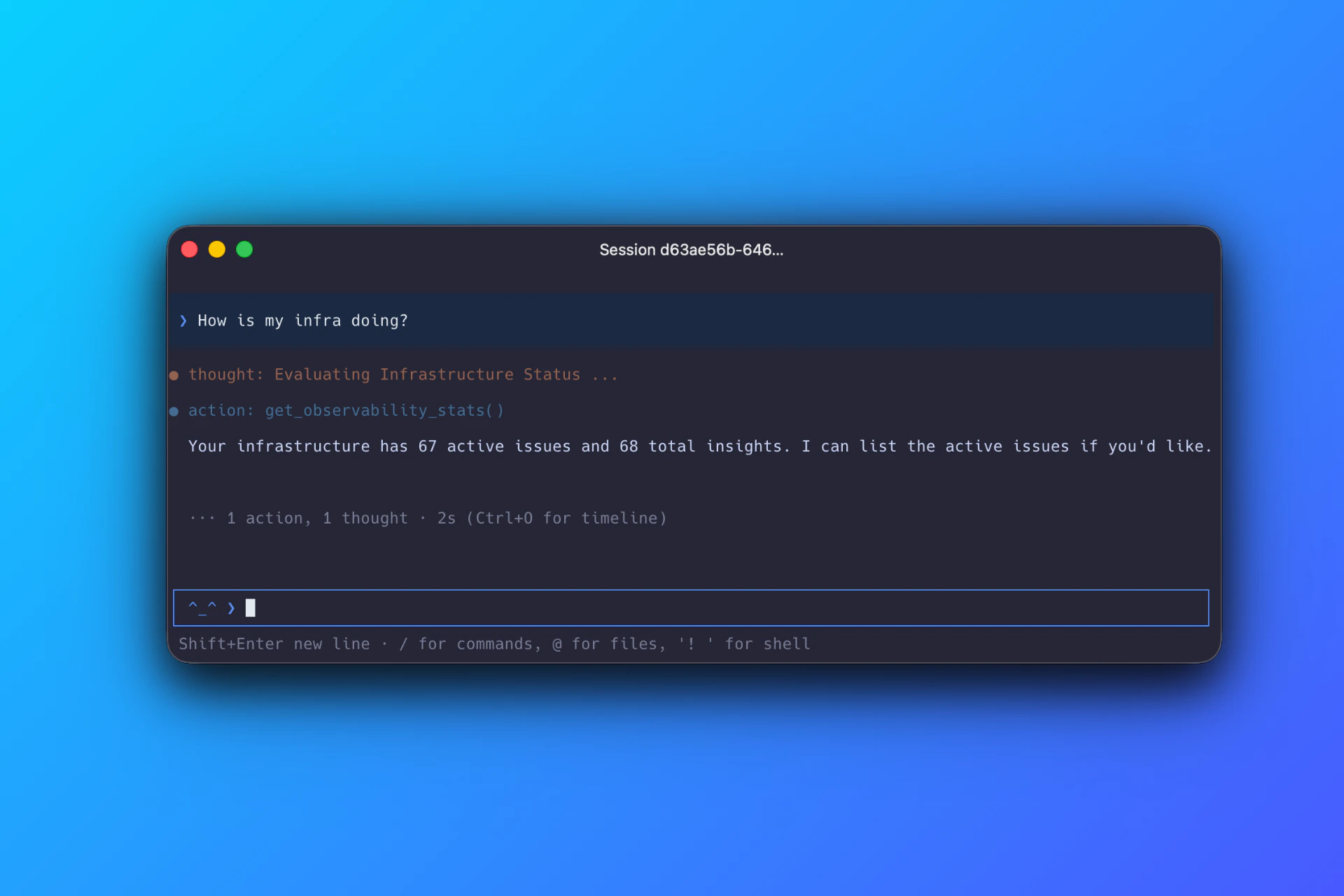 A live Rubix CLI session. You see the agent's thinking, the tool calls it runs, and a concise answer, all inline.
## Scripting a single prompt
To send a prompt and exit (useful in CI or for saving shell aliases):
```bash theme={null}
rubix chat --prompt "What is the health of every production environment?"
```
The agent answers, prints the result, and exits. Combine with `--session-id` to append into an existing conversation.
## Resuming a session
List previous sessions:
```bash theme={null}
rubix sessions
```
Resume the one you want:
```bash theme={null}
rubix chat --session-id
```
Or from inside chat, run `/resume` and pick from the list.
## Switching environments
The active environment determines the scope of the next question. Switch on the fly:
```
/environments
```
Pick from the menu. Any follow-up question runs against the new scope.
## Switching the AI model
Some accounts have access to multiple model options for chat. Switch inside a session:
```
/models
```
Or from the shell:
```bash theme={null}
rubix model set
```
## Feeding shell output into chat
When you want the agent to read command output directly, run the command in your shell, then drop into chat and run:
```
/send
```
The last command's output gets added as context for your next question. Avoids fragile copy-paste.
## Keystroke shortcuts
Enter submits. Shift+Enter adds a newline.
Type `/` anywhere to open the slash menu. Arrow keys navigate, enter confirms.
`/paste` inserts clipboard content cleanly, bypassing terminal paste truncation that can mangle long inputs.
`/exit` or `/quit`, or `Ctrl+C`.
## Logging out
```bash theme={null}
rubix logout
```
Clears local credentials. Next `rubix` run will prompt for the device-code flow again.
## Where to go next
Where credentials and settings live, how trust is scoped per directory.
Complete reference for top-level commands and slash commands.
Concrete daily flows: on-call triage, post-deploy verification, cost reviews.
Login issues, stale auth, proxy problems.
A live Rubix CLI session. You see the agent's thinking, the tool calls it runs, and a concise answer, all inline.
## Scripting a single prompt
To send a prompt and exit (useful in CI or for saving shell aliases):
```bash theme={null}
rubix chat --prompt "What is the health of every production environment?"
```
The agent answers, prints the result, and exits. Combine with `--session-id` to append into an existing conversation.
## Resuming a session
List previous sessions:
```bash theme={null}
rubix sessions
```
Resume the one you want:
```bash theme={null}
rubix chat --session-id
```
Or from inside chat, run `/resume` and pick from the list.
## Switching environments
The active environment determines the scope of the next question. Switch on the fly:
```
/environments
```
Pick from the menu. Any follow-up question runs against the new scope.
## Switching the AI model
Some accounts have access to multiple model options for chat. Switch inside a session:
```
/models
```
Or from the shell:
```bash theme={null}
rubix model set
```
## Feeding shell output into chat
When you want the agent to read command output directly, run the command in your shell, then drop into chat and run:
```
/send
```
The last command's output gets added as context for your next question. Avoids fragile copy-paste.
## Keystroke shortcuts
Enter submits. Shift+Enter adds a newline.
Type `/` anywhere to open the slash menu. Arrow keys navigate, enter confirms.
`/paste` inserts clipboard content cleanly, bypassing terminal paste truncation that can mangle long inputs.
`/exit` or `/quit`, or `Ctrl+C`.
## Logging out
```bash theme={null}
rubix logout
```
Clears local credentials. Next `rubix` run will prompt for the device-code flow again.
## Where to go next
Where credentials and settings live, how trust is scoped per directory.
Complete reference for top-level commands and slash commands.
Concrete daily flows: on-call triage, post-deploy verification, cost reviews.
Login issues, stale auth, proxy problems.